Access Point Configuration On D Link Router: A Comprehensive Guide
Are you struggling to extend your wireless network coverage in your home or office? Do you need a reliable solution to boost your internet connectivity? In this article, we will explain how to configure your D-Link router as an access point to improve your wireless network coverage. An access point is a device used to extend your wireless network signal, allowing more devices to connect to it.
In this tutorial, we will provide a step-by-step guide on how to convert your D-Link router into an access point. With this configuration, you can turn your spare router into a powerful Wi-Fi extender for your home or office. Whether you're a tech-savvy individual or a beginner, this guide will walk you through the process in a simple and easy-to-follow manner.
Understanding the Concept of Access Point Configuration
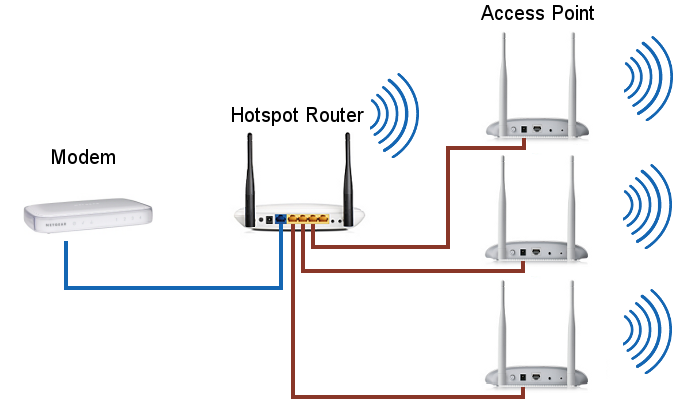
An access point is a device that connects to your main router and rebroadcasts the signal to extend the coverage area. By configuring your D-Link router as an access point, you can create a wireless network extension point that allows multiple devices to connect to it. This configuration is ideal for homes or offices with multiple rooms or areas where a strong Wi-Fi signal is required.
Method 1: Configuring D-Link Router as Wireless Access Point Using the Web-Based Configuration Utility
- Connect a computer to the D-Link router and launch a web browser.
- Visit the following router configuration page: http://192.168.0.1
- You will be prompted to enter the admin username and password. The default credentials are usually printed on the underside of the router.
- Log in to the router and navigate to the "Wireless Settings" section.
- Select the wireless network mode as "Access Point" and configure the wireless settings as required.
- Save the changes and restart the router to apply the new settings.
Method 2: Configuring D-Link Router as Wireless Access Point Using the D-Link Router App
- Download and install the D-Link router app on your smartphone or tablet.
- Launch the app and connect to the D-Link router.
- Navigate to the "Settings" section and select "Wireless Settings".
- Select the wireless network mode as "Access Point" and configure the wireless settings as required.
- Save the changes and restart the router to apply the new settings.

Advantages of Configuring D-Link Router as Access Point
Configuring your D-Link router as an access point offers several advantages:
- Improved wireless network coverage: By extending the Wi-Fi signal, you can cover more areas of your home or office.
- Increased device connectivity: Multiple devices can connect to the access point, making it ideal for homes or offices with multiple users.
- Easy to use: The web-based configuration utility and mobile app make it simple to configure the access point settings.
- Cost-effective: You can repurpose an old router as an access point, saving you the cost of purchasing a separate device.
Common Issues and Solutions
Here are some common issues you may encounter while configuring your D-Link router as an access point:
- Router configuration error: Ensure that the router is properly connected to the internet and the access point settings are configured correctly.
- No internet connection: Check the cables and connections to ensure that the access point is properly connected to the main router.
- Router not detected: Reboot the router and access point to resolve this issue.
Conclusion
In conclusion, configuring your D-Link router as an access point is a simple and cost-effective solution to extend your wireless network coverage. By following the step-by-step guide above, you can create a wireless network extension point that allows multiple devices to connect to it. Remember to troubleshoot common issues and contact the manufacturer's support team if you encounter any problems during the configuration process. With this guide, you can unlock seamless connectivity and enjoy a strong and reliable Wi-Fi network in your home or office.