How to Optimize G Network Settings for Domestic PC
A fast and reliable network connection is essential for various activities, including browsing, streaming, gaming, and file sharing. However, even with a high-speed internet plan, Windows may not deliver optimal performance by default. In this article, we will walk you through various steps to optimize your G network settings for domestic PC.Understanding Essential Network Settings
Your network settings in Windows help your computer find and use connections to the internet or other devices. They affect how well your internet works and how safe it is. To optimize your network settings, you need to understand the different types of network settings and how they impact your connection.Step 1: Update Your Network Drivers
Outdated drivers can significantly slow down your network performance. Go to Device Manager in Windows and update your network drivers to the latest version. This ensures that your computer's hardware communicates effectively with the network.Step 2: Leverage Built-in Troubleshooters
Windows provides several built-in troubleshooters to identify and fix common network issues. Go to Settings > Update & Security > Troubleshoot > Additional troubleshooters > Run the troubleshooter. This will scan your system and provide solutions to any issues.Step 3: Optimize Device Manager Settings
Windows Device Manager helps you manage hardware settings, including network devices. Right-click on the Start menu and select Device Manager. From there, expand Network Adapters, right-click on the adapter, and select Properties. Configure the settings according to your needs.Step 4: Tune DNS Settings
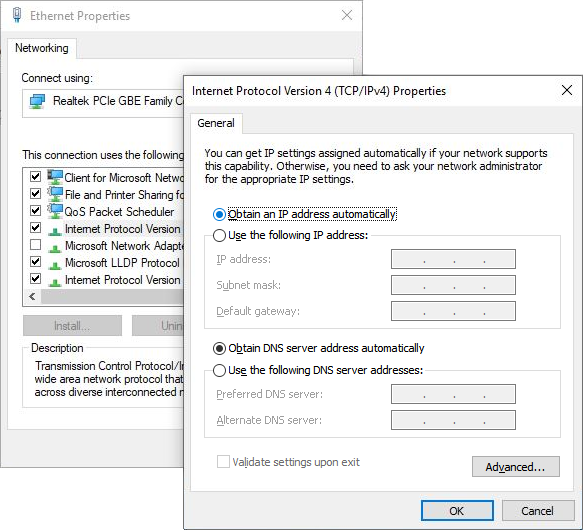
Your DNS settings play a crucial role in internet speed. A faster DNS server can significantly improve browsing speeds. Go to Control Panel > Network and Sharing Center > Change adapter settings. Right-click on your network, select 'Properties', then choose 'Internet Protocol Version 4 (TCP/IPv4)' and set the preferred DNS server to Google's 8.8.8.8 or change the order of the DNS suffix.Step 5: Configure Power Options