Connecting PC to Router Through LAN Cable: A Step-by-Step Guide
Have you ever struggled to connect your computer to your router using an Ethernet cable? In this article, we'll walk you through the process of connecting your PC to your router through a LAN cable, ensuring a fast, stable, and secure internet connection.
Why Use an Ethernet Cable?
Using an Ethernet cable to connect your PC to your router offers several benefits, including faster speeds, greater security, and reduced interference from other devices. With an Ethernet cable, you can enjoy a more reliable internet connection, perfect for work-related tasks, online gaming, and streaming.
Equipment Needed
To connect your PC to your router using an Ethernet cable, you'll need the following equipment:
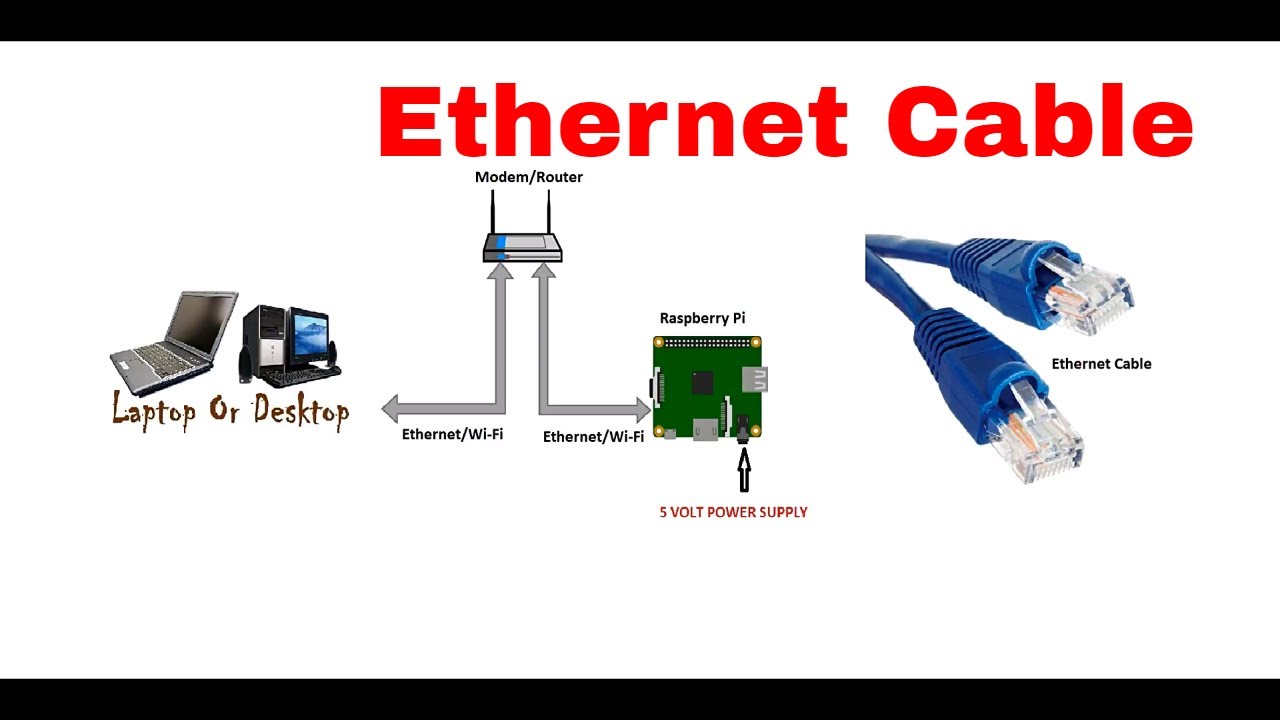
- An Ethernet cable (also known as a LAN or CAT5/6 cable)
- A computer or laptop with an Ethernet port
- A wireless router
- An internet service provider (ISP)
Step 1: Connect the Ethernet Cable to Your Router
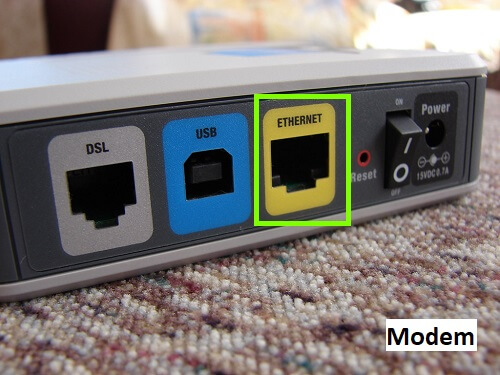
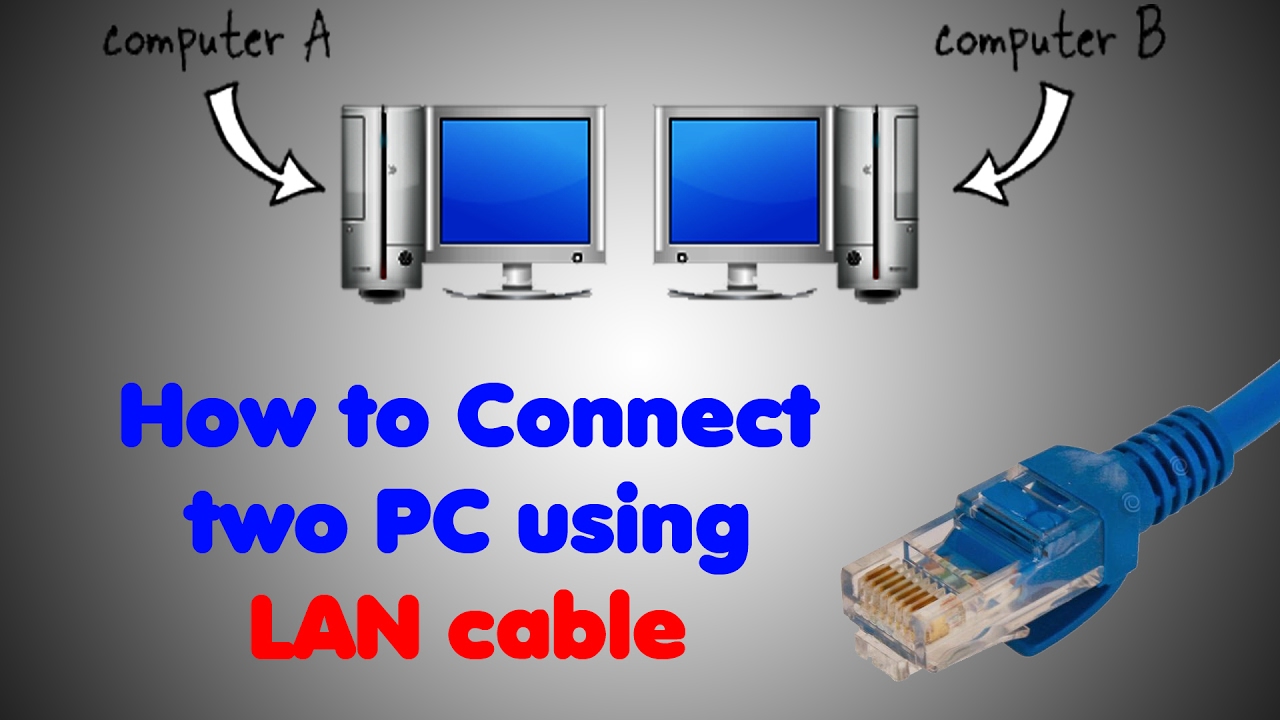
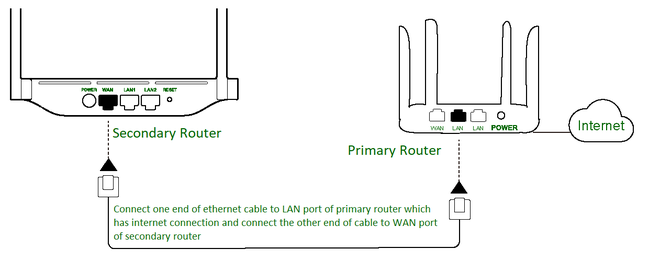
Start by connecting one end of the Ethernet cable to one of the LAN ports on your router. Make sure to use a straight-through cable, as crossover cables are typically used for connecting two devices of the same type (e.g., switch to switch or router to router).
Step 2: Connect the Other End of the Ethernet Cable to Your PC
Next, connect the other end of the Ethernet cable to the Ethernet port on your computer or laptop. Ensure that the cable is securely connected to both the router and the PC.
Step 3: Configure Your Router Settings
Once you've connected the Ethernet cable, configure your router settings to ensure that your device can connect to the internet. This may involve setting up a static IP address, subnet mask, and default gateway. Consult your router's manual or online documentation for specific instructions.
Step 4: Test the Connection

After configuring your router settings, test the connection by opening a web browser or checking your internet speed. If you're unable to connect, troubleshoot the issue by checking the Ethernet cable, router settings, and PC configuration.
Benefits of Using an Ethernet Cable
Using an Ethernet cable to connect your PC to your router offers several benefits, including:
- Fast speeds: Ethernet cables can transfer data at speeds of up to 1 Gbps, making them ideal for applications that require high-speed internet connectivity.
- Greater security: Ethernet cables are more secure than Wi-Fi connections, reducing the risk of hacking and other online threats.
- Reduced interference: Ethernet cables eliminate interference from other devices, ensuring a stable and reliable internet connection.
Conclusion
Connecting your PC to your router through a LAN cable is a straightforward process that offers several benefits, including faster speeds, greater security, and reduced interference. By following the steps outlined in this guide, you can enjoy a more reliable internet connection, perfect for work-related tasks, online gaming, and streaming.
Frequently Asked Questions
Q: What type of Ethernet cable should I use to connect my PC to my router?
A: Use a straight-through Ethernet cable, as crossover cables are typically used for connecting two devices of the same type.
Q: Why do I need to configure my router settings to connect to the internet?
A: Your router settings may require configuration to ensure that your device can connect to the internet. Consult your router's manual or online documentation for specific instructions.
Q: What are the benefits of using an Ethernet cable to connect my PC to my router?
A: Using an Ethernet cable offers faster speeds, greater security, and reduced interference, making it an ideal choice for applications that require high-speed internet connectivity.