Disable IPv6 on Your Router: A Step-by-Step Guide
If you're experiencing connectivity issues or compatibility problems with certain devices or applications, disabling IPv6 on your router might be the solution. In this article, we'll walk you through the process of disabling IPv6 on your router, including the necessary steps for various devices and routers.
What is IPv6 and Why Disable It?
IPv6 is the latest version of the Internet Protocol, designed to replace the older IPv4 protocol. It provides a much larger address space, but it also introduces new security risks and complexities. Disabling IPv6 on your router can be useful in certain situations, such as:
- Improving network performance and stability
- Resolving compatibility issues with certain devices or applications
- Enhancing device security and reducing the risk of IPv6-related attacks
Step 1: Access Your Router's Configuration Page
To disable IPv6 on your router, you'll need to access its configuration page. The steps to do this vary depending on your router model, but here are the general steps:
1. Open a web browser and enter the IP address of your router in the address bar. The most common IP addresses for routers are:
- 192.168.0.1
- 192.168.1.1
- 10.0.0.1
2. Enter your login credentials to access the router's control panel. The default login credentials are usually printed on the underside of the router or in the user manual.
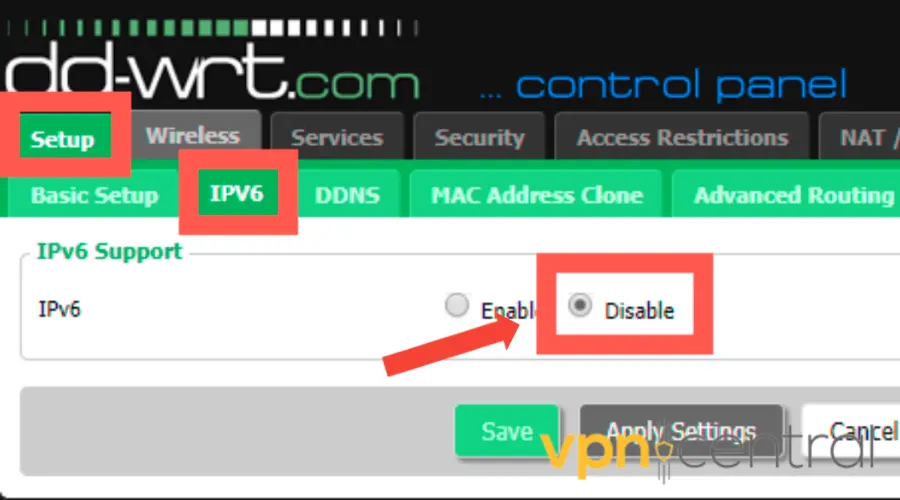
Step 2: Locate the IPv6 Settings
Once you're logged in to the router's control panel, look for the network settings or advanced options section. The exact location of the IPv6 settings will vary depending on your router model, but it's usually located under the "Advanced" or "Network" tab.
Step 3: Disable IPv6
To disable IPv6 on your router, you'll need to locate the IPv6 settings and disable them. The exact steps will vary depending on your router model, but here are the general steps:
1. Look for the IPv6 settings and select the "Disable" or "Turn Off" option.
2. Save the changes to the router's configuration.
Step 4: Verify the Changes
To verify that IPv6 has been disabled on your router, you can perform a few tests:
- Try accessing the internet using a device connected to your router.
- Check the IPv6 settings on your device to ensure that it's not using IPv6.
- Run a DNS leak test to ensure that your device is not leaking IPv6 traffic.
Disable IPv6 on Various Devices

In addition to disabling IPv6 on your router, you may also need to disable it on individual devices. Here are the steps for disabling IPv6 on various devices:
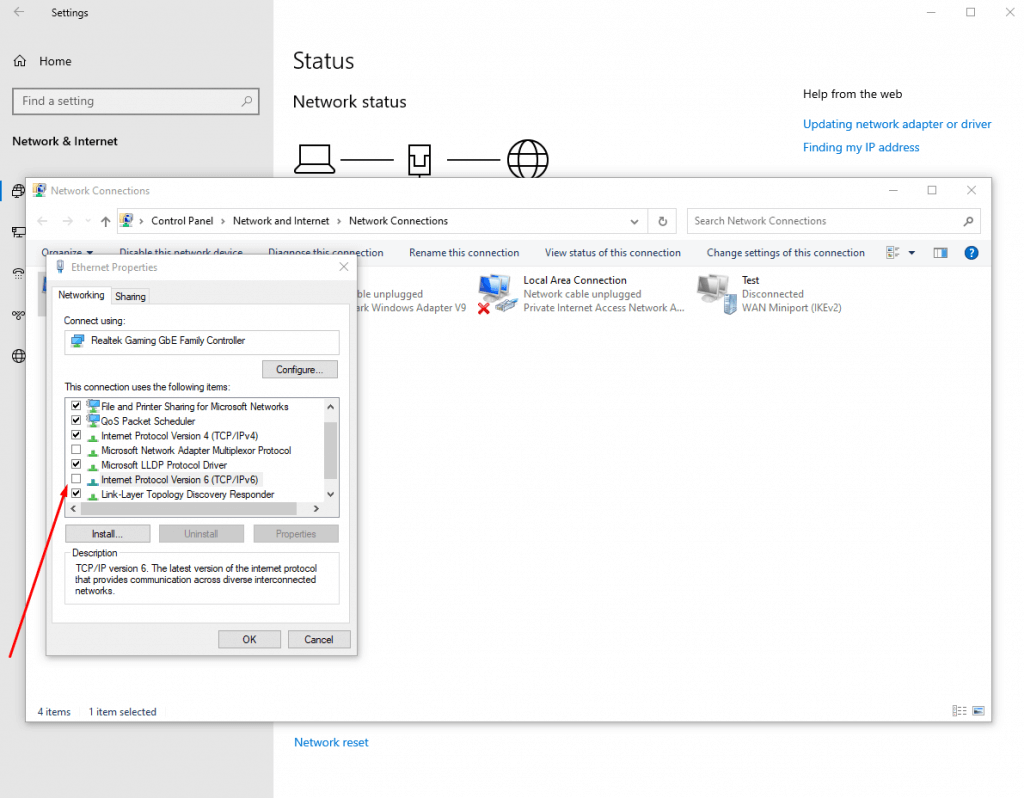
Windows
To disable IPv6 on Windows, follow these steps:
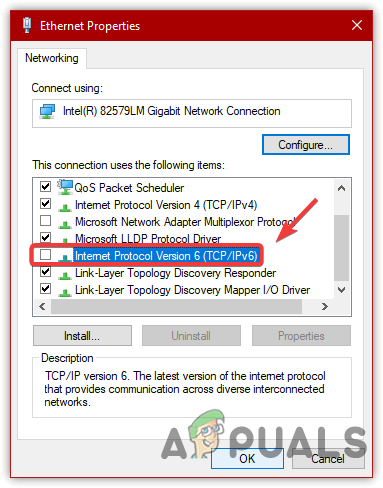
1. Press the Windows key + R to open the Run dialog box.
2. Type "ncpa.cpl" and press Enter to open the Network Connections window.
3. Select the network adapter you want to disable IPv6 on and click on the "Properties" button.
4. Uncheck the box next to "Internet Protocol Version 6 (IPv6)" and click "OK" to save the changes.
macOS
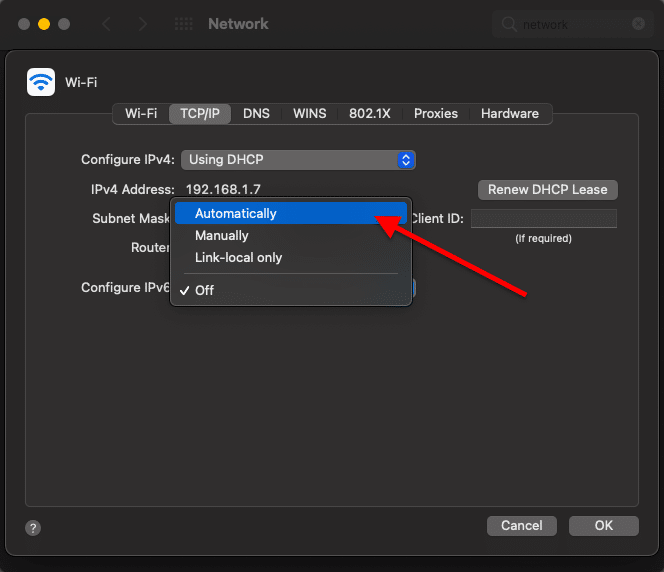
To disable IPv6 on macOS, follow these steps:
1. Click the Apple menu and select "System Preferences."
2. Click on "Network" and select the network adapter you want to disable IPv6 on.
3. Click on the "Advanced" button and select the "TCP/IP" tab.
4. Select "Link-local IPv6 addresses only" or "No" to disable IPv6.
Linux
To disable IPv6 on Linux, follow these steps:
1. Open the terminal and type "sudo sysctl -w net.ipv6.conf.all.disable_ipv6=1" to disable IPv6.
2. Type "sudo sysctl -p" to save the changes.
Conclusion
Disabling IPv6 on your router can be a useful solution for improving network performance, resolving compatibility issues, and enhancing device security. By following the steps outlined in this article, you can disable IPv6 on your router and individual devices. Remember to verify the changes to ensure that IPv6 has been properly disabled.



![[Wireless Router] How to set up IPv6 Firewall? - ASUS](https://cdn.mos.cms.futurecdn.net/G6nGy78n2ixzbhpggZqMqS-1200-80.jpg "[Wireless Router] How to set up IPv6 Firewall? - ASUS")