D-Link Router Setup Wizard: A Comprehensive Guide
Setting up a D-Link router can seem like a daunting task, but with the right guidance, you can have a secure and efficient home network in no time. The D-Link Router Setup Wizard is designed to walk you through a step-by-step process to configure your new router and connect to the Internet. In this article, we'll take a closer look at the setup process and provide you with a comprehensive guide to getting started.
What is the D-Link Router Setup Wizard?
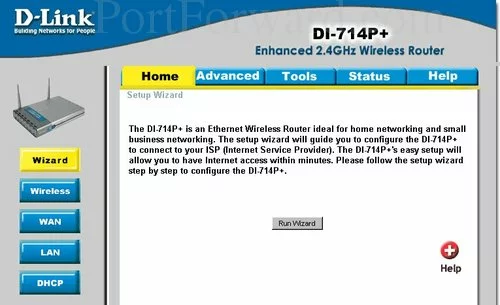
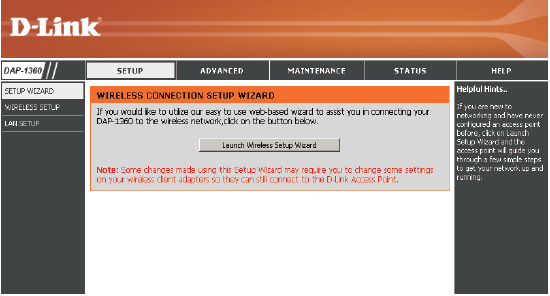
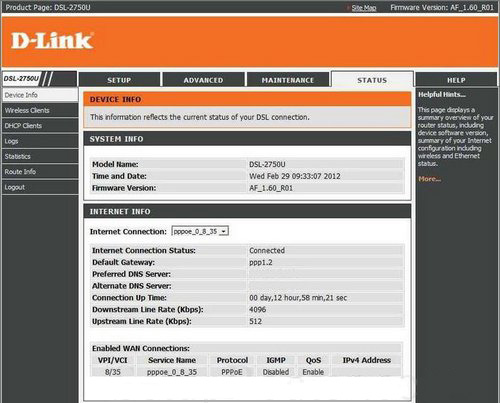
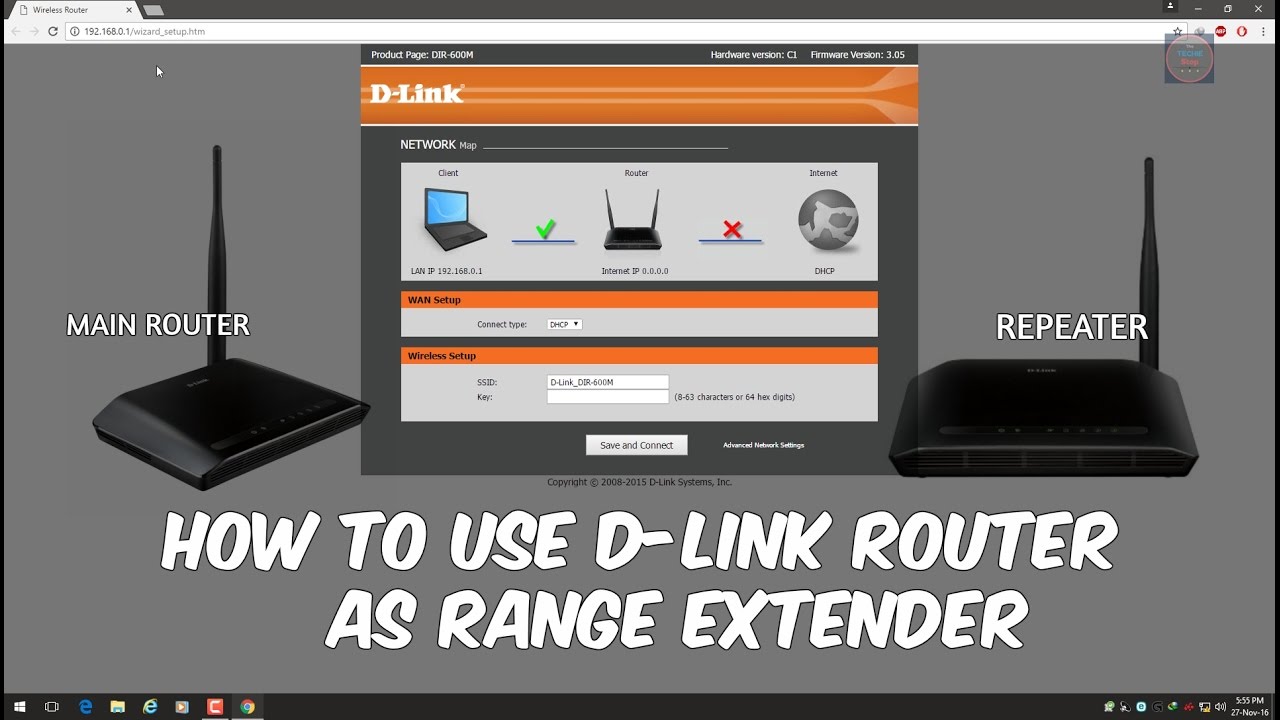
The D-Link Router Setup Wizard is a built-in tool that guides you through the setup process of your D-Link router. It's a user-friendly interface that detects your Internet connection type and walks you through the configuration process. The wizard is designed to make setup easy and hassle-free, even for those who are new to networking.
Step-by-Step Setup Process
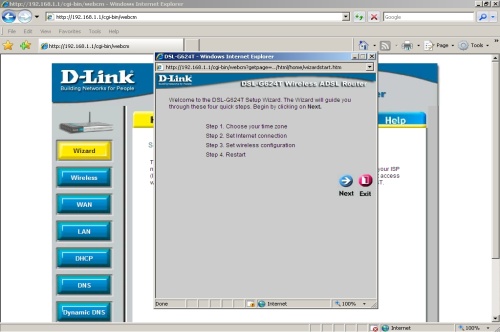
Here's a step-by-step guide to setting up your D-Link router using the Setup Wizard:
- Step 1: Connect your modem to the router using an Ethernet cable.
- Step 2: Connect a computer to the router using an Ethernet cable.
- Step 3: Power on the router and wait for it to boot up.
- Step 4: Open a web browser and type in the default IP address of your router (usually 192.168.0.1 or 192.168.1.1).
- Step 5: You will be prompted with the D-Link Quick Router Setup Wizard. Click Next to begin.
- Step 6: Select your language and click Start to continue.
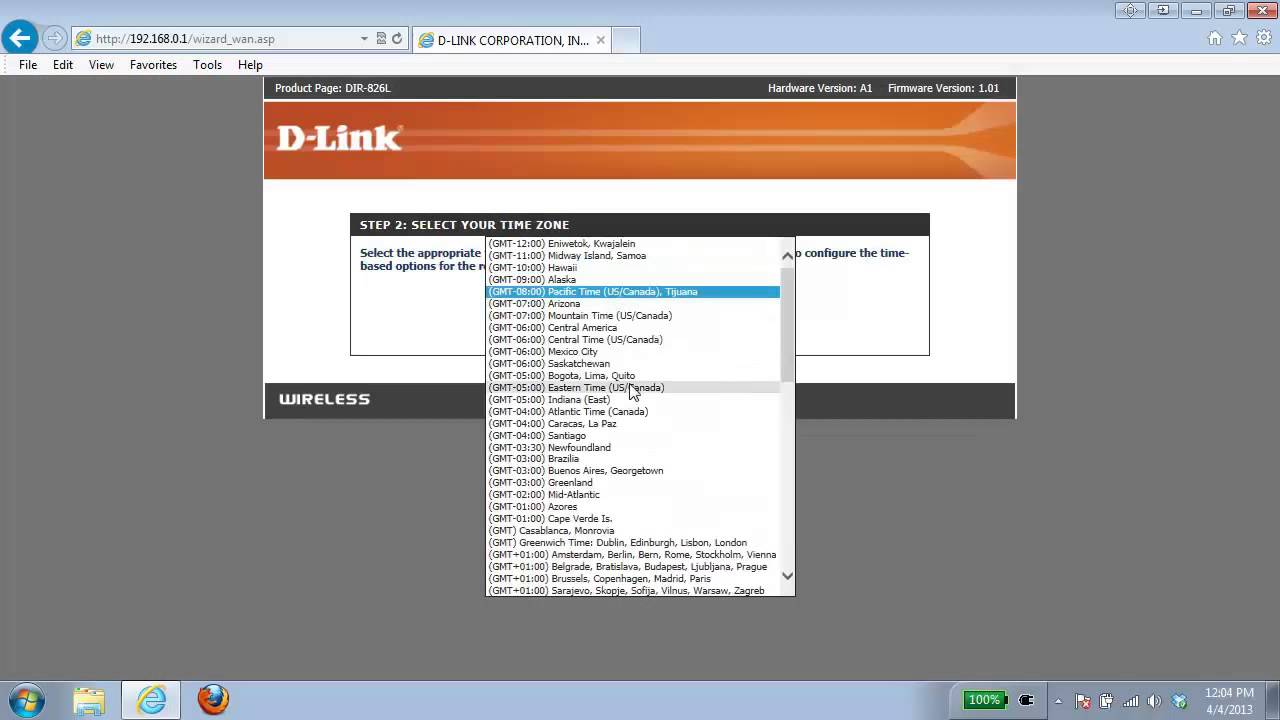
- Step 7: The wizard will detect your Internet connection type and guide you through the configuration process.
- Step 8: Follow the on-screen instructions to complete the setup process.
Configuring Your Router
Once you've completed the setup process, you can configure your router to suit your needs. This includes setting up your Wi-Fi network, changing the admin password, and configuring advanced settings such as Quality of Service (QoS) and firewall settings.
Advanced Configuration
For more advanced users, the D-Link Router Setup Wizard also provides access to advanced configuration settings. This includes features such as:
- Quality of Service (QoS) settings to prioritize traffic and improve network performance.
- Firewall settings to block unauthorized access and protect your network.
- Parental controls to restrict access to certain websites and applications.
Conclusion
Setting up a D-Link router using the Setup Wizard is a straightforward process that can be completed in just a few minutes. By following the step-by-step guide outlined in this article, you can have a secure and efficient home network that meets your needs. Remember to take the time to configure your router to suit your needs and enjoy the benefits of a reliable and fast internet connection.
Additional Resources
If you need additional help or support, there are several resources available to you. The D-Link website offers a wealth of information and support resources, including:
- Online documentation and user manuals.
- Forums and communities where you can connect with other users and get help from experts.
- Customer support and warranty information.
Contact Support
If you need help with your D-Link router setup, support is just a click away. Contact D-Link's 24/7 support team for quick and efficient help. You can also connect with our experts on social media or via email for assistance.
Product Support
Need help with a specific product? Check out our product support page for the latest drivers, firmware, and manuals. You can also find contact information for our technical support team.