G Router Configuration Guide for Home Network
To set up your wireless network, you need to understand the different components involved and learn how to configure your G router. In this article, we will guide you through the process of configuring your G router for a seamless home network experience.
Optimizing Signal Strength
One of the most critical aspects of configuring your G router is optimizing the signal strength. This involves placing the router in a central location, away from physical obstacles, and ensuring that it is not covered by other electronic devices. You can use tools like Wi-Fi analyzers to measure signal strength and optimize your network configuration accordingly.
Enhancing Security
Another essential aspect of configuring your G router is enhancing security. You can do this by changing the default administrator password, disabling WPS, and setting up a guest network. You should also enable WPA3 encryption, use a strong Wi-Fi password, and set up a firewall to prevent unauthorized access to your network.
Wireless Router Placement
- Place your router as close as possible to the center of your wireless network devices.
- Ensure that your router is not covered by physical obstacles or other electronic devices.
- Use tools like Wi-Fi analyzers to measure signal strength and optimize your network configuration accordingly.
Configuring Router Settings
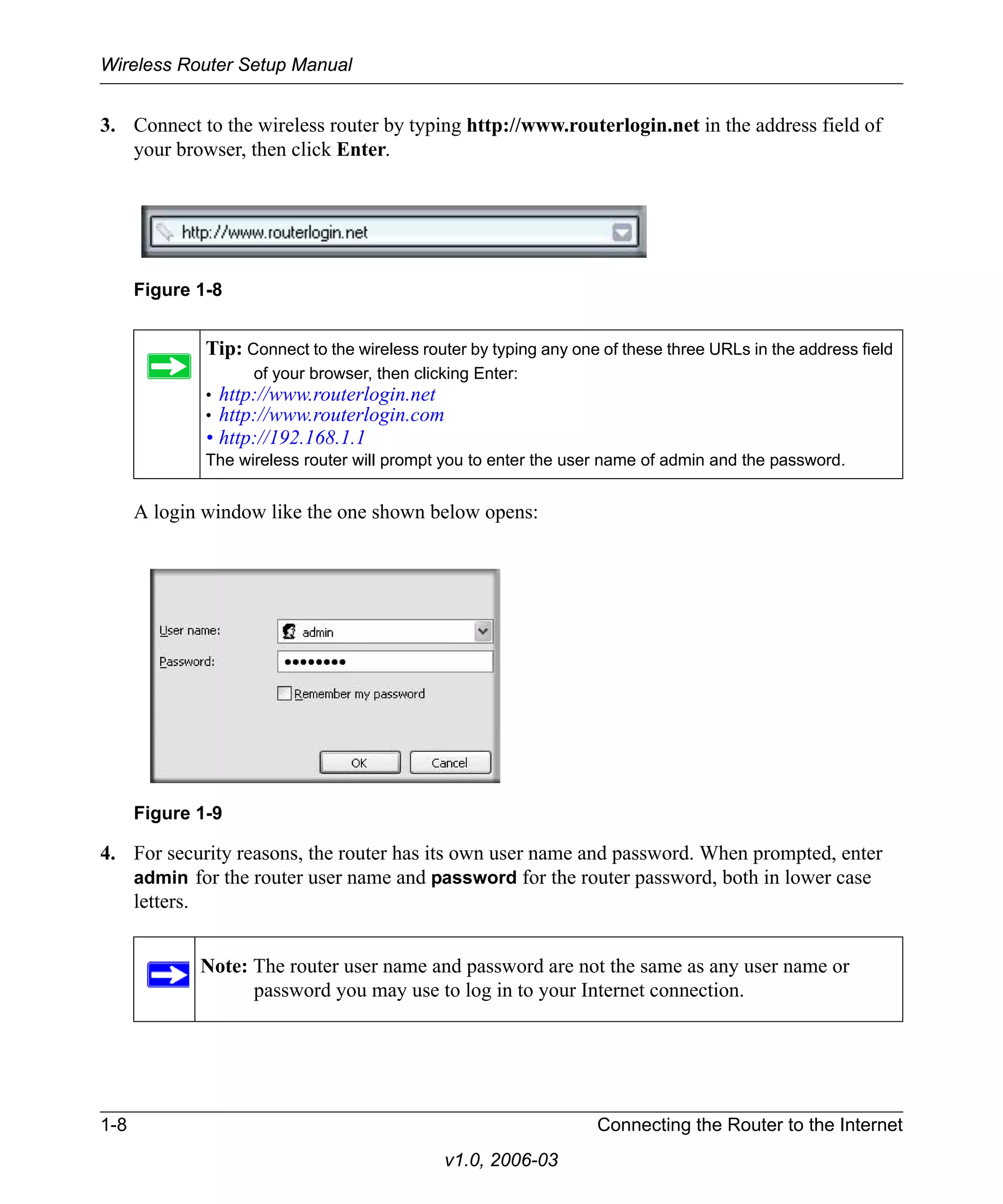
- Sign in to your GFiBer account and navigate to your router's device configuration.
- Change the default administrator password and disable WPS.
- Set up a guest network and enable WPA3 encryption.
- Use a strong Wi-Fi password and set up a firewall to prevent unauthorized access to your network.
Updating Firmware
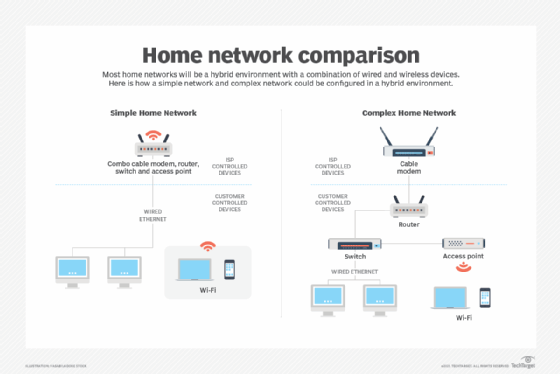
Firmware updates are essential for ensuring that your G router operates smoothly and securely. You can update your firmware by accessing your router's web interface, navigating to the 'Firmware Update' section, and following the prompts to download and install the latest firmware file.
Troubleshooting Connectivity Issues
Even with optimal configuration, connectivity issues can still arise. To troubleshoot these issues, you can restart your router, check your internet connection, and verify that your devices are connected to the correct network. You can also use tools like Wi-Fi analyzers to identify and resolve connectivity issues.
Tools and Resources
- Wi-Fi analyzers for measuring signal strength and optimizing network configuration.
- Firmware update tools for ensuring that your router operates smoothly and securely.
- Troubleshooting guides and online forums for resolving connectivity issues.
Conclusion
Configuring your G router is a crucial step in creating a seamless home network experience. By following the steps outlined in this article, you can optimize signal strength, enhance security, update firmware, and troubleshoot connectivity issues. Remember to use tools and resources available to ensure that your network operates smoothly and securely.
Additional Tips and Resources
For more information on configuring your G router, you can refer to the following resources:
- Google Fiber's router configuration guide.
- TP-Link's router configuration guide.
- Netgear's router configuration guide.
- Linksys' router configuration guide.
.png "Configure your Wifi Network")



:max_bytes(150000):strip_icc()/3-5abcf226fa6bcc0036668782.png "PDFFios Router 3.1 User Manual - Verizon")