Google Wi-Fi Setup for Beginners: A Step-by-Step Guide
Getting a reliable and fast internet connection is essential for both personal and professional activities in today's digital age. Google Wifi is a popular mesh network system that provides a reliable and fast internet connection to all devices in your home or office. In this article, we will guide you through the Google Wi-Fi setup process for beginners, including placement tips and troubleshooting.
What is Google Wifi?
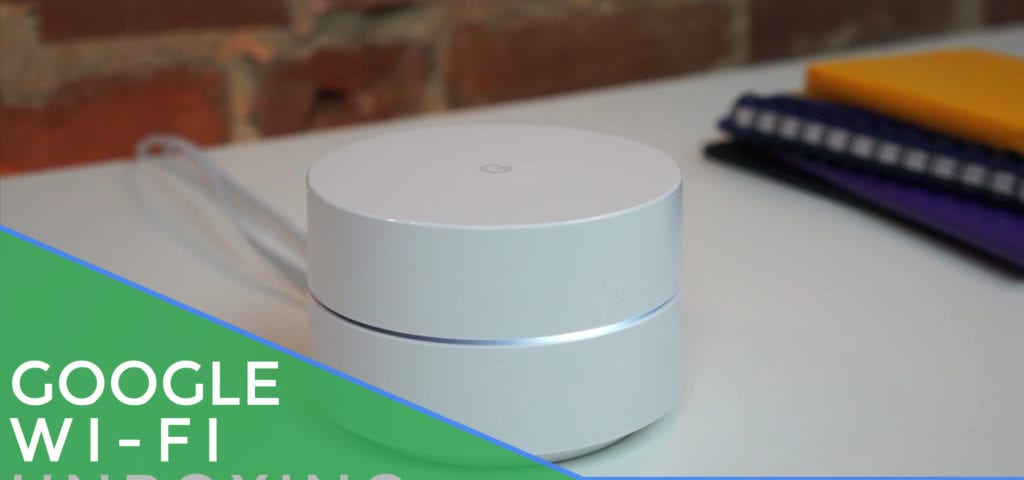
Google Wifi is a mesh network system that uses multiple access points to provide a reliable and fast internet connection to all devices in your home or office. It's easy to set up and manage, making it a great option for beginners. Google Wifi is a whole-home mesh Wi-Fi system from Google that can consist of a router and point(s). Each point expands coverage, so consider the placement of your Wi-Fi devices to increase reliability of your Wi-Fi network throughout your home.
Google Wi-Fi Setup for Beginners: Step-by-Step Guide
- Open the Google Wifi app and begin the setup process. Your phone will look for nearby devices, and when prompted, you'll need to scan the QR code on the bottom of the Wi-Fi point.
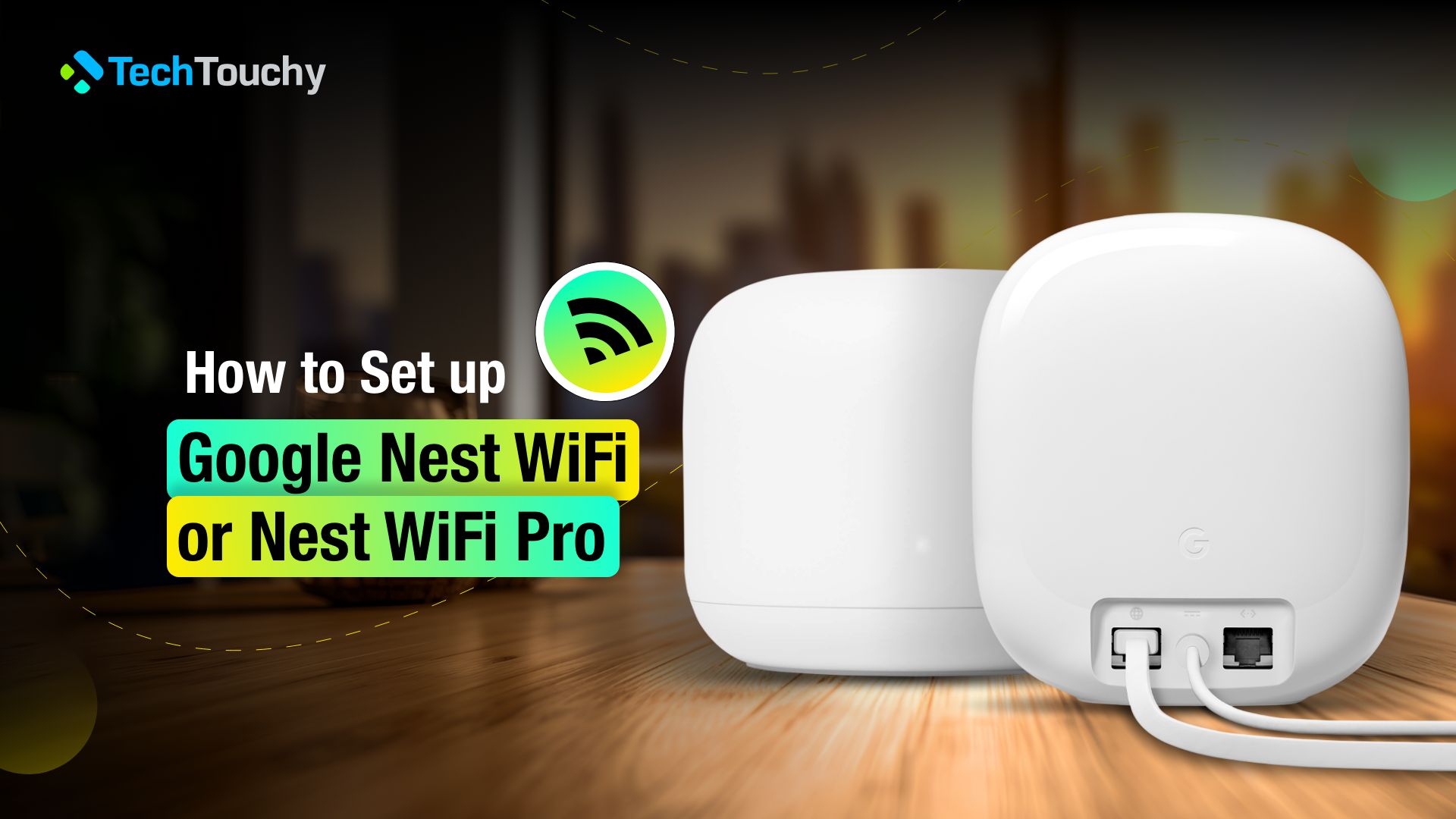
- Make sure you have a Nest Wifi router or a Nest Wifi Pro router. For the Nest Wifi router, you'll need any additional Wi-Fi devices you'd like to add, such as Nest Wifi point, Google Wifi points, or Nest Wifi routers. This is optional to expand coverage. For the Nest Wifi Pro router, you'll need any additional Nest Wifi Pro routers you'd like to add as points to expand coverage.
- Follow the instructions on the screen to connect your device to the Google Wifi network. This may involve entering a code or scanning a QR code.
- Once connected, the Google Wifi app will walk you through the setup process, including naming your network and setting up your Wi-Fi points.
- Make sure your Wi-Fi points are placed in the right locations to get the best coverage. You can use the Google Wifi app to see the coverage of your network and adjust the placement of your Wi-Fi points as needed.
- Finally, test your network to make sure it's working properly. You can use the Google Wifi app to run a speed test and check for any issues.
Placement Tips and Troubleshooting

Placing your Wi-Fi points in the right locations can make a big difference in the quality of your Wi-Fi network. Here are some tips to keep in mind:
- Place your Wi-Fi points in areas where you need the most coverage.
- Avoid placing your Wi-Fi points in areas with a lot of interference, such as near microwaves or cordless phones.
- Use the Google Wifi app to see the coverage of your network and adjust the placement of your Wi-Fi points as needed.
Common issues with Google Wifi setup include:
- Network connection issues: Make sure your device is connected to the Google Wifi network and that the Wi-Fi points are properly placed.
- Slow speeds: Check the placement of your Wi-Fi points and make sure they are not obstructed by physical barriers.
- Interference from other devices: Move your Wi-Fi points away from other devices that could be causing interference.
Conclusion
Setting up Google Wifi is a straightforward process that can be completed in just a few steps. By following the steps outlined in this article, you can ensure a reliable and fast internet connection for all devices in your home or office. Remember to place your Wi-Fi points in the right locations and troubleshoot any issues that may arise. With Google Wifi, you can enjoy a seamless Wi-Fi experience and take your smart home to the next level.