Set Up Access Point On Netgear Router: A Step-by-Step Guide
Are you looking to expand your wireless network coverage and improve connectivity in your home or office? Setting up an access point on your Netgear router is a great way to achieve this. In this article, we will guide you through the process of setting up an access point on your Netgear router, so you can enjoy seamless internet connectivity throughout your space.
Why Set Up an Access Point on Your Netgear Router?
A Netgear access point can help extend your wireless network and improve coverage in areas where your primary router's signal is weak. When the Netgear router acts as an access point, it allows multiple devices to connect to the network, improving overall connectivity and performance.
Step 1: Connect Your Computer to the Netgear Router
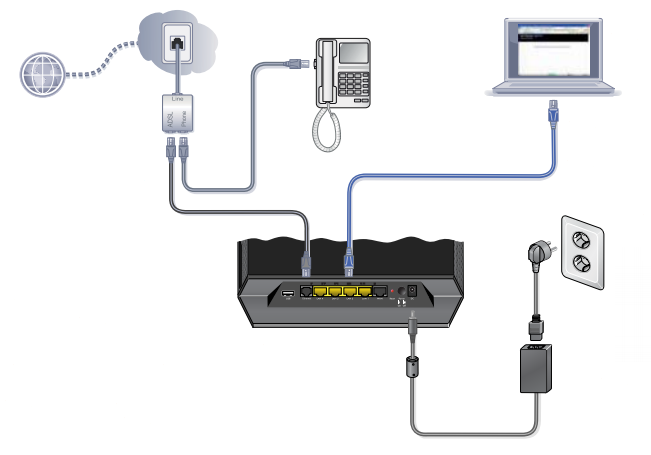
First, connect a computer to one of the LAN (not WAN) Ethernet ports at the back of the Netgear router. This will give you access to the router's configuration page.
Step 2: Access the Router Menu
Open a web browser and type in the address bar www.routerlogin.com. This will take you to the router's login page. Enter the username and password, which are usually "admin" and "password," respectively.
Step 3: Set Up the Access Point Mode
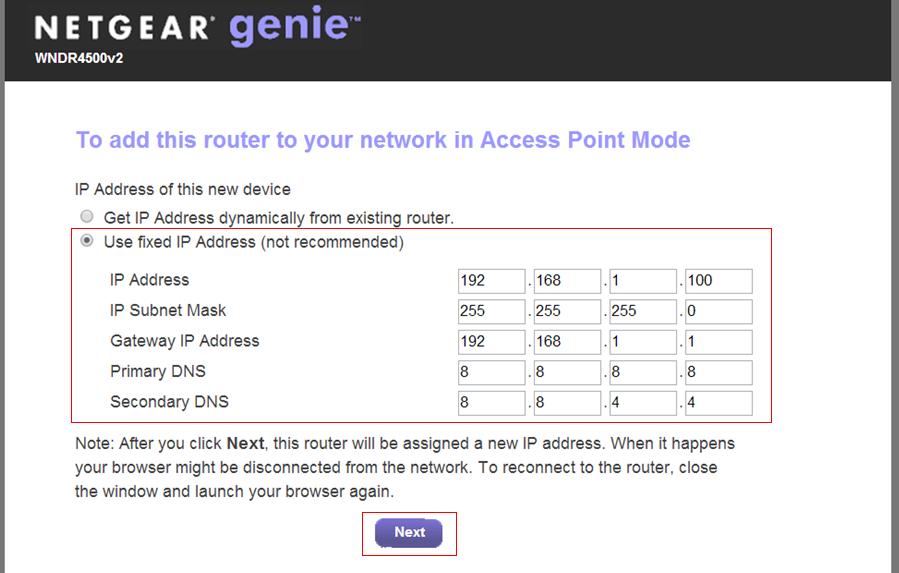
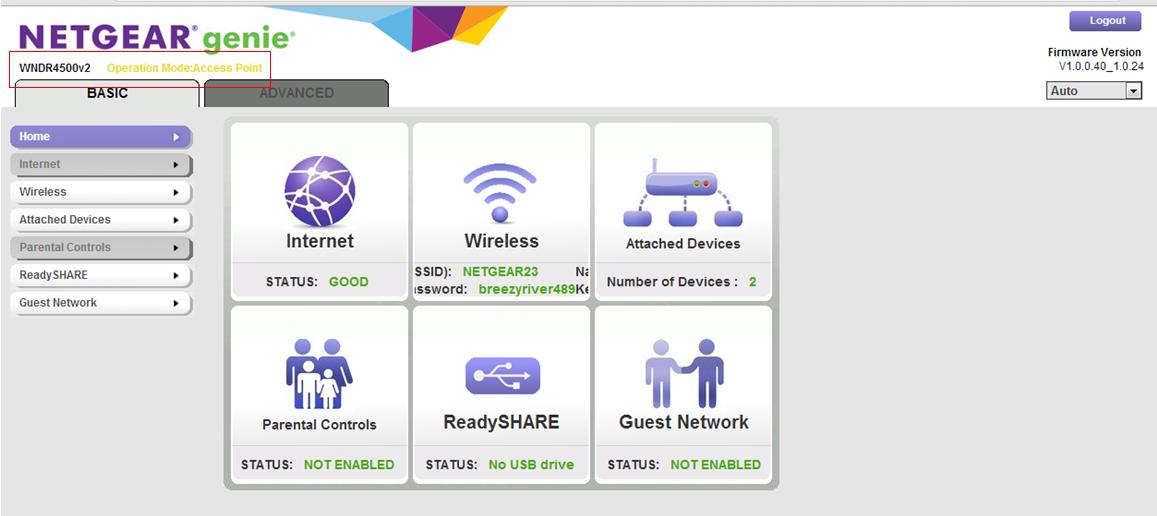
Once you're logged in, look for the "Operation Mode" or "Network Mode" section. Select "Access Point Mode" from the dropdown menu. This will configure the Netgear router to act as an access point on the same network as your existing router or gateway.
Step 4: Configure the Wireless Network
Next, set up the wireless network with a name and a secure password. Make sure to use a strong password to ensure your network remains secure.
Step 5: Connect the Netgear Router to Your Main Network
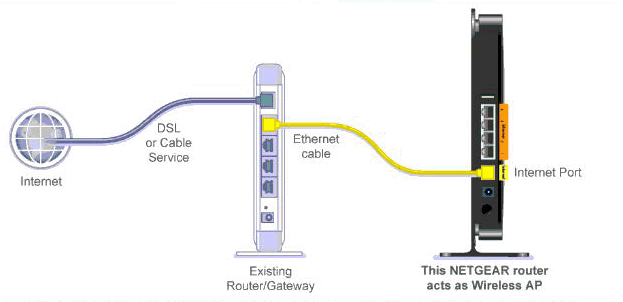
Connect the Netgear router to your main network using another Ethernet cable, connecting it to one of the LAN ports of the main router. This will create a seamless connection between the two devices.
Step 6: Test the Connection
Finally, test the connection to ensure that all devices are connected to the network and are able to access the internet.
Conclusion
Setting up an access point on your Netgear router is a straightforward process that can help improve your wireless network coverage and connectivity. By following these steps, you can enjoy seamless internet connectivity throughout your home or office, making it ideal for large households or small businesses.
Additional Tips and Considerations
When setting up an access point on your Netgear router, keep the following tips in mind:
- Use an Ethernet connection to set up your router, as using Wi-Fi can ban your access to the settings page if you modify settings like ports or Wi-Fi settings.
- Avoid plugging your Netgear router into the internet before finishing all the setup.
- Make sure to use a strong password to ensure your network remains secure.
Netgear Router Models Compatible with Access Point Mode
The following Netgear router models are compatible with access point mode:
- Netgear AX3000-Nighthawk
- Netgear R6700v3
- Netgear RBE772 and RBE773 Orbi Wi-Fi 7 Systems
These are just a few examples of Netgear router models that support access point mode. Be sure to check your router's documentation or manufacturer's website to confirm compatibility.
Netgear Router Benefits and Features
Netgear routers come with a range of benefits and features that make them ideal for use as access points. Some of the key benefits include:
- Easy setup and management
- Powerful security measures, including automatic firmware updates
- Unparalleled AC1900 wireless speed (up to 1900 Mbps)
- Impressive coverage area of up to 1800 square feet
These features make Netgear routers a great choice for use as access points, providing seamless internet connectivity and improved network performance.
Conclusion
In conclusion, setting up an access point on your Netgear router is a straightforward process that can help improve your wireless network coverage and connectivity. By following these steps and considering the tips and considerations outlined above, you can enjoy seamless internet connectivity throughout your home or office.