Setup TP-Link Router as Access Point for Retail Businesses
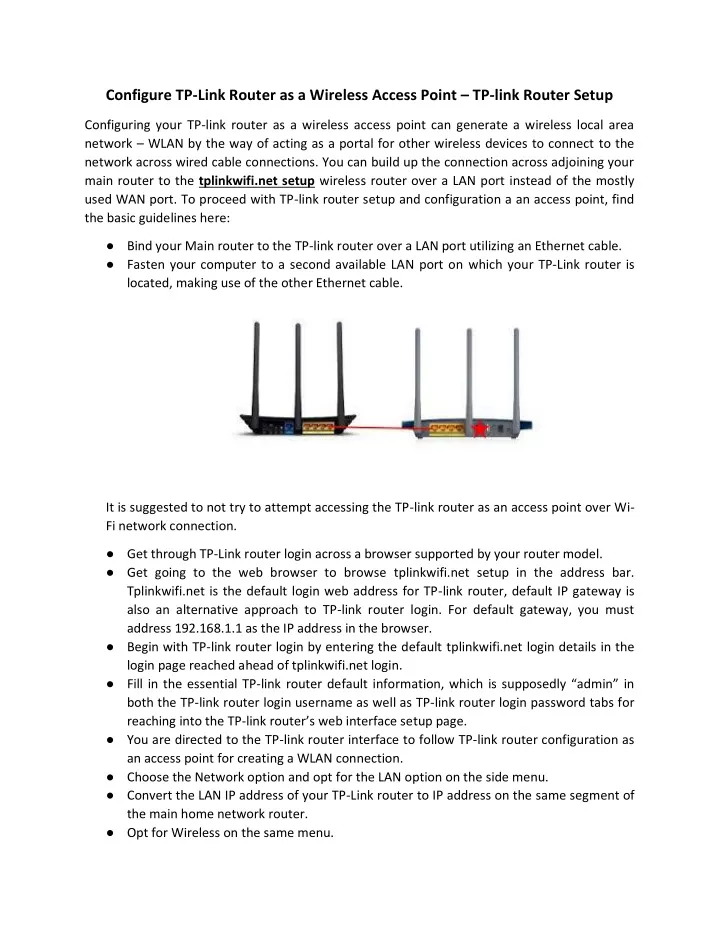
Are you looking to set up a secure and reliable wireless network for your retail business? Using a TP-Link router as an access point is a great way to expand your existing wired network and provide seamless Wi-Fi connectivity to your customers and employees. In this article, we will guide you through the process of setting up a TP-Link router as an access point for retail businesses.
Why Use a TP-Link Router as an Access Point?
TP-Link routers are known for their high performance, security, and ease of use. By setting up your TP-Link router as an access point, you can:
- Extend your existing wired network to provide Wi-Fi coverage to more areas of your business
- Improve the overall security of your network by using a reliable and secure router
- Reduce WiFi dead zones and ensure consistent connectivity for your employees and customers
- Provide high-speed internet access to more devices, such as laptops, smartphones, and tablets
Equipment Needed
To set up a TP-Link router as an access point, you will need the following equipment:
- TP-Link router
- Power source for the router
- Network cable (RJ-45)
Step 1: Identify the Operation Mode
First, you need to check if your TP-Link router has the Operation Mode option on the left side menu. This option allows you to configure the router in Access Point mode. If you're using a newer model, you can check the user manual or online documentation to see if this feature is available.
Step 2: Log into the Router
Next, you need to log into the router using the default IP address (usually 192.168.0.1) or tplinkwifi.net. The default login username and password are both admin (all lower case). Once logged in, you need to navigate to the Wireless Settings page and select the Operation Mode button.
Step 3: Switch to Access Point Mode
On the Operation Mode page, select Access Point from the dropdown menu and save your changes. This will configure the router to operate as an access point.
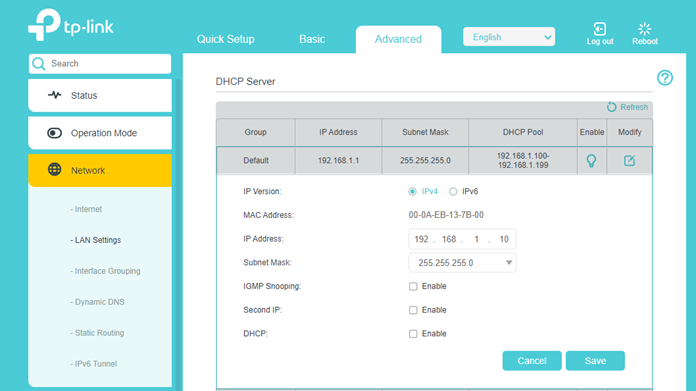
Step 4: Configure the Network

Now that you've set the router to Access Point mode, you need to configure the network settings. Go to the Wireless Settings page and set the SSID, channel, and transmission power. You can also configure the security settings, including WPA2 encryption and a strong password.
Step 5: Connect to the Network
Finally, you need to connect to the network using a device such as a laptop or smartphone. Open a web browser and navigate to the router's IP address (usually 192.168.0.1) to access the router's web interface. From there, you can manage the settings and configure the router as needed.
TP-Link Router Models for Retail Businesses
TP-Link offers a range of routers that are suitable for retail businesses, including the TP-Link EAP610 and TP-Link Omada DR3650v-4G. Here are some of the key features of these routers:
TP-Link EAP610
- Delivers high-speed performance and low latency
- Supports up to 250 devices
- Has a secure guest network option
- Can be managed using the Omada app
TP-Link Omada DR3650v-4G
- Supports up to 128 devices
- Has a built-in firewall and antivirus software
- Can be managed using the Omada app
- Supports IPv6 and IPv4
Conclusion
Setting up a TP-Link router as an access point is a straightforward process that requires minimal technical expertise. By following the steps outlined in this article and selecting the right router for your business, you can provide a reliable and secure wireless network for your retail business.



![Setup TP-Link Router as a Wireless Access Point [2 Methods]](https://static.tp-link.com/resources/UploadFiles/Images/FAQ_78_image002.png "Setup TP-Link Router as a Wireless Access Point [2 Methods]")