TP-Link Archer C9 Firmware Update Process: A Step-by-Step Guide
Are you looking to upgrade your TP-Link Archer C9 router to the latest firmware? In this article, we will guide you through the TP-Link Archer C9 firmware update process, ensuring that you can take full advantage of the latest enhancements and features.
Prerequisites for Firmware Update
- Make sure your router is connected to a stable power source.
- Download the latest firmware version from the official TP-Link website.
- Choose the correct hardware version from the firmware download page.
- Ensure that you have a computer with a Web browser and a LAN cable to connect to the router.
How to Find the Hardware Version on Your TP-Link Device
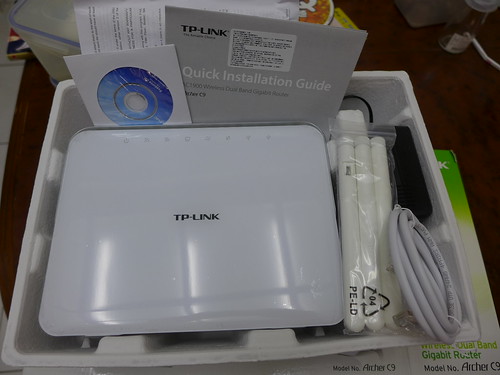
To complete the TP-Link Archer C9 firmware update process, you need to determine the hardware version of your router. This can be done by checking the packaging or the manufacturer's logo on the device. You can also refer to the TP-Link website for guidance on finding the hardware version of your device.
Step-by-Step Instructions for Firmware Update
Method 1: Automatic Firmware Update via TP-Link Cloud Service
- Go to the TP-Link Cloud website and log in to your account.
- Click on the "Upgrade" icon, and the router will automatically upgrade to the latest firmware version.
Method 2: Manual Firmware Update via Web Interface
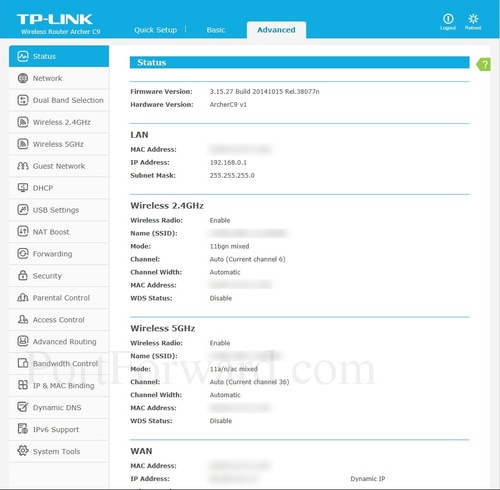
- Open a Web browser and type the router's IP address (default: 192.168.0.1 or the default LAN IP address assigned by your router).
- Log in to the router using the admin username and password.
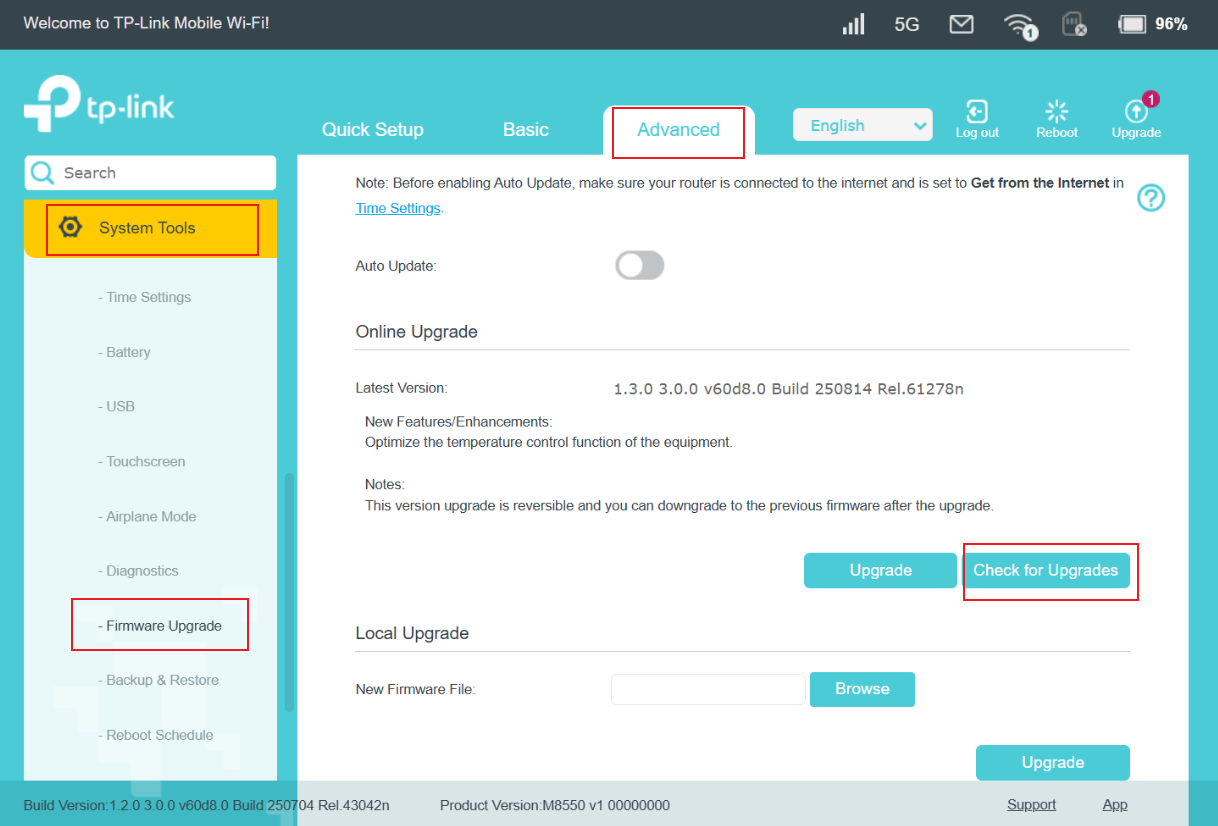
- Navigate to the "Firmware Upgrade" or "System Update" section.
- Download the latest firmware file from the TP-Link website and follow the on-screen instructions to upload and install it.

How to Avoid Wireless Disconnects During Firmware Update
During the firmware update process, it is recommended to use a wired connection to avoid wireless disconnect issues. You can also stop all Internet applications on your computer or disconnect the Internet line from the device before upgrading.
DD-WRT on TP-Link Archer C9
DD-WRT is a third-party firmware that can enhance the functionality of your TP-Link router. However, please note that flashing your router with any third-party firmware will void your router's warranty and support.
Unbricking Your TP-Link Archer C9 Router
In case you encounter issues during the firmware update process and your router becomes unresponsive, you can try to unbrick it using the steps outlined in the TP-Link Archer C9 unbricking guide.
Conclusion
In this article, we have walked you through the TP-Link Archer C9 firmware update process, ensuring that you can take full advantage of the latest enhancements and features. By following these step-by-step instructions, you can update your router's firmware and enjoy improved performance, security, and functionality.
Disclaimer
Flashing your router with any third-party firmware or updates will void your router's warranty and support. Always follow the instructions carefully and ensure that you have a backup of your configuration before making any changes.