Avoid Interference on Home Network: Tips and Tricks
Are you tired of dealing with a slow or unstable home network? Do you find yourself struggling to get a strong Wi-Fi signal in every corner of your home? You're not alone. Many homeowners experience interference on their home network, which can lead to slow speeds, dropped connections, and frustration. In this article, we'll explore the common causes of Wi-Fi interference and provide you with practical tips and tricks to avoid interference on your home network.
What Causes Wi-Fi Interference?
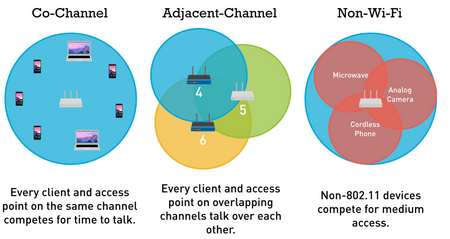
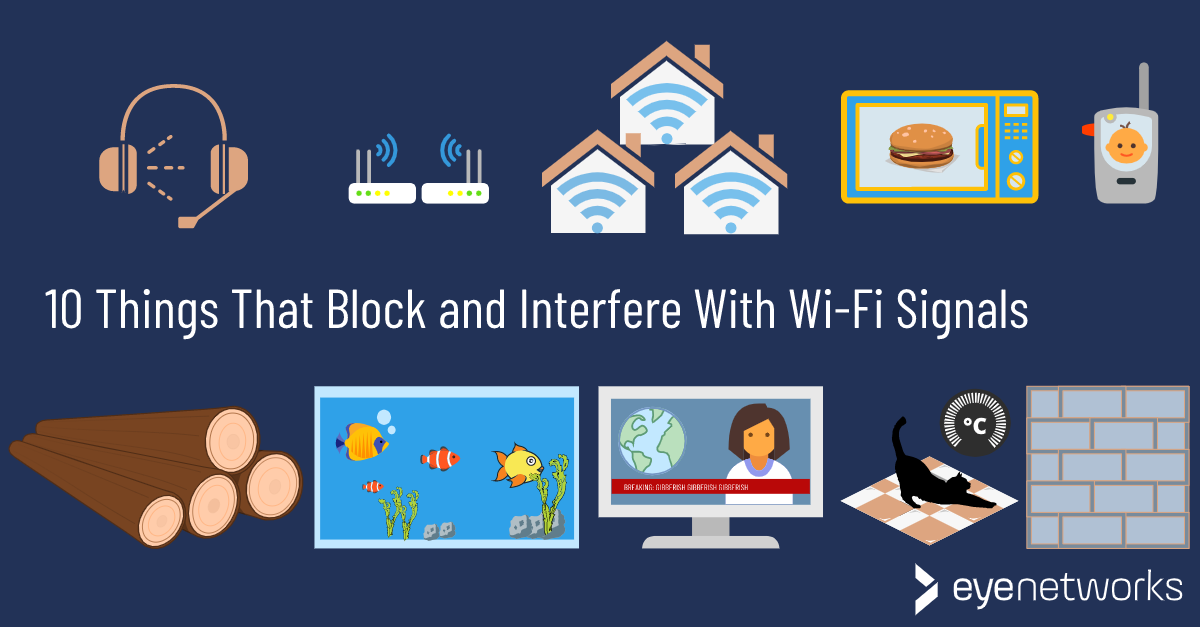
Wi-Fi interference can be caused by a variety of factors, including physical obstructions, other devices on your network, and external sources of interference. Some common causes of Wi-Fi interference include:
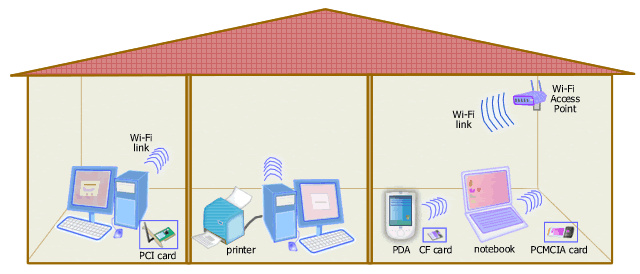
- Physical obstructions: Walls, floors, and ceilings can all interfere with your Wi-Fi signal.
- Other devices on your network: If you have multiple devices connected to your network, they can cause interference with each other.
- External sources of interference: Neighboring Wi-Fi networks, cordless phones, and microwaves can all cause interference with your Wi-Fi signal.
How to Avoid Interference on Your Home Network
To avoid interference on your home network, there are several steps you can take:
1. Choose a Central Location for Your Wi-Fi Router
One of the most effective ways to avoid interference on your home network is to choose a central location for your Wi-Fi router. This will help to minimize the number of physical obstructions that can interfere with your signal. Ideally, your router should be placed in a location that is at least 5 feet away from any physical obstructions.
2. Change Your Wi-Fi Channel
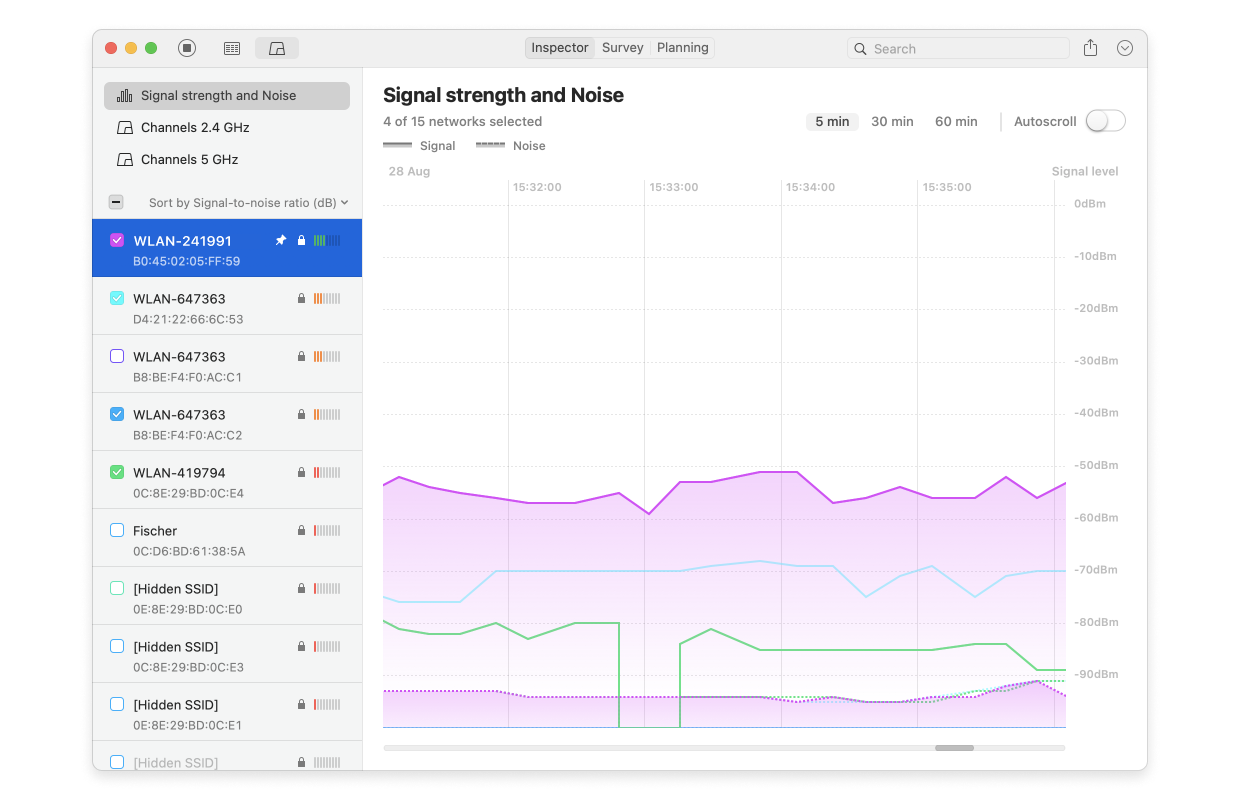
Another way to avoid interference on your home network is to change your Wi-Fi channel. You can use a tool like Wi-Fi Analyzer to scan for nearby networks and choose a channel that is less crowded.
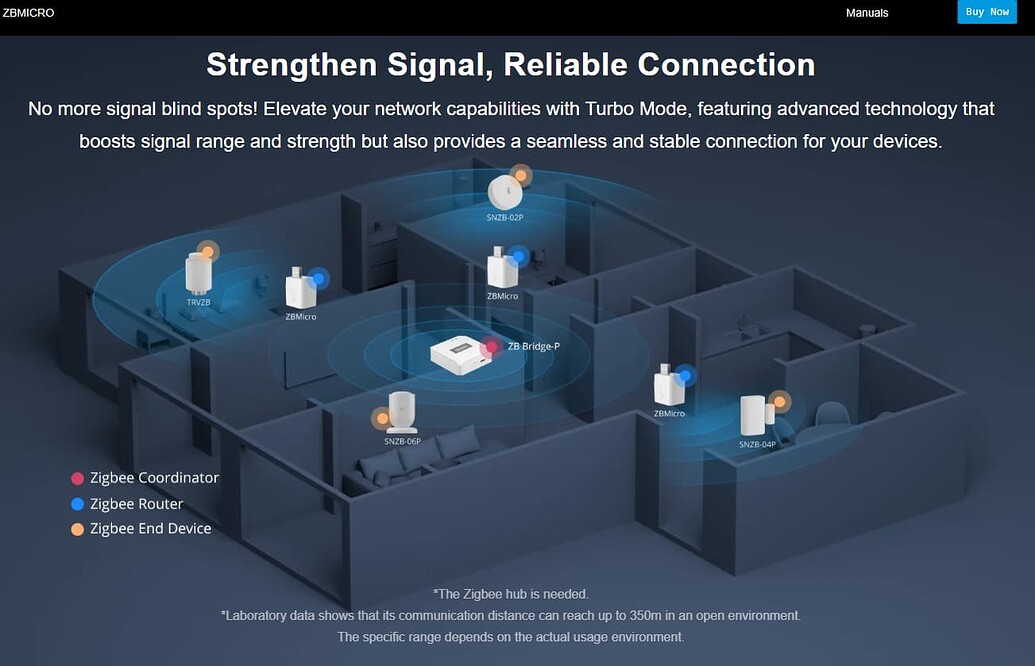
3. Use a Wi-Fi Range Extender
A Wi-Fi range extender can help to boost your signal and extend the range of your network. This can be especially useful if you have a large home or if you have physical obstructions that are interfering with your signal.
4. Update Your Router Firmware
Making sure your router firmware is up to date can help to prevent interference on your home network. Outdated firmware can cause a range of issues, including slow speeds and dropped connections.
5. Use Quality of Service (QoS) Settings
Quality of Service (QoS) settings can help to prioritize traffic on your network and prevent interference. By setting QoS rules, you can ensure that critical traffic is given priority over non-essential traffic.
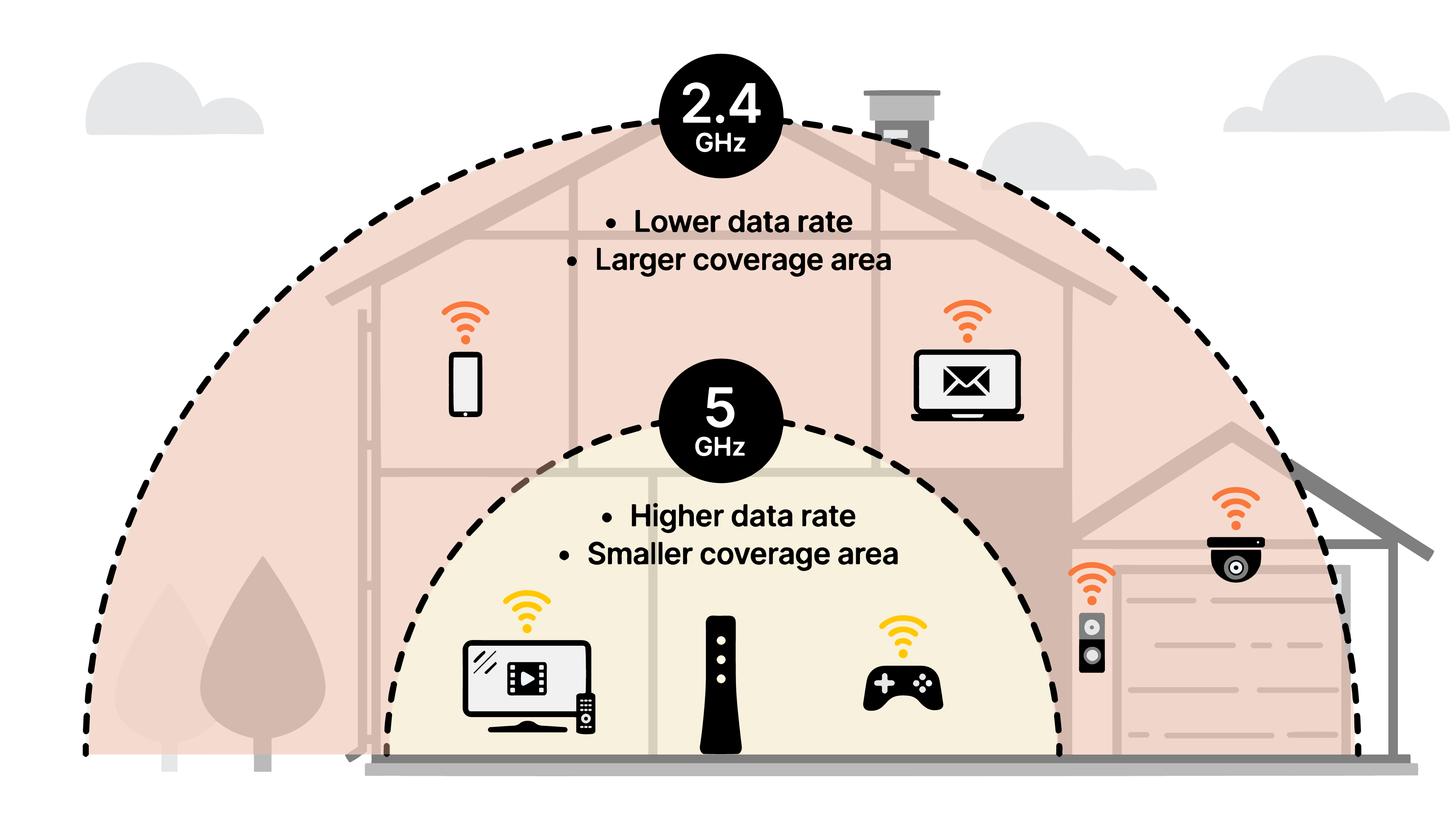
6. Avoid Using the 2.4 GHz Band
The 2.4 GHz band is one of the most crowded frequency bands, which can lead to interference on your home network. If possible, consider switching to the 5 GHz band, which is less crowded and less prone to interference.
Conclusion
Avoiding interference on your home network can be a challenge, but by following the tips and tricks outlined in this article, you can help to minimize interference and ensure a strong and stable Wi-Fi signal throughout your home. Remember to choose a central location for your Wi-Fi router, change your Wi-Fi channel, use a Wi-Fi range extender, update your router firmware, use Quality of Service (QoS) settings, and avoid using the 2.4 GHz band.
Frequently Asked Questions
Q: What causes Wi-Fi interference?
A: Wi-Fi interference can be caused by a variety of factors, including physical obstructions, other devices on your network, and external sources of interference.
Q: How can I avoid interference on my home network?
A: You can avoid interference on your home network by choosing a central location for your Wi-Fi router, changing your Wi-Fi channel, using a Wi-Fi range extender, updating your router firmware, using Quality of Service (QoS) settings, and avoiding using the 2.4 GHz band.