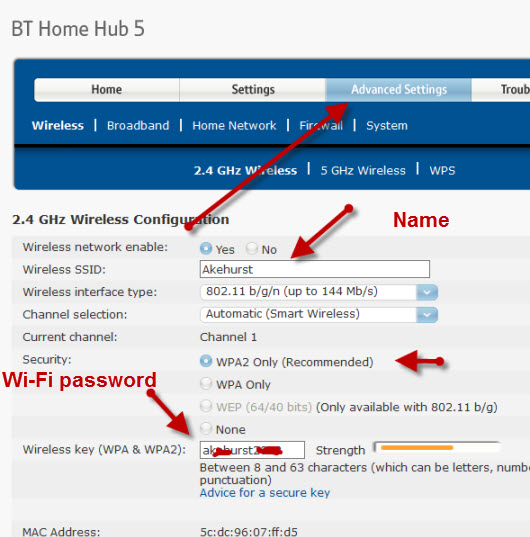
Configure a Wireless Router for Gaming: Tips and Tricks
Setting up a wireless router for gaming can be a daunting task, especially for those who are new to the world of online gaming. However, with the right configuration, you can optimize your gaming experience and reduce lag, packet loss, and other connectivity issues.
Why Configure Your Wireless Router for Gaming?
Gaming routers are designed to provide a faster and more reliable network connection, essential for online gaming. By configuring your wireless router for gaming, you can ensure that your network is optimized for lag-free gaming, minimizing interruptions and ensuring a smooth gaming experience.
Gaming Routers vs. Standard Routers
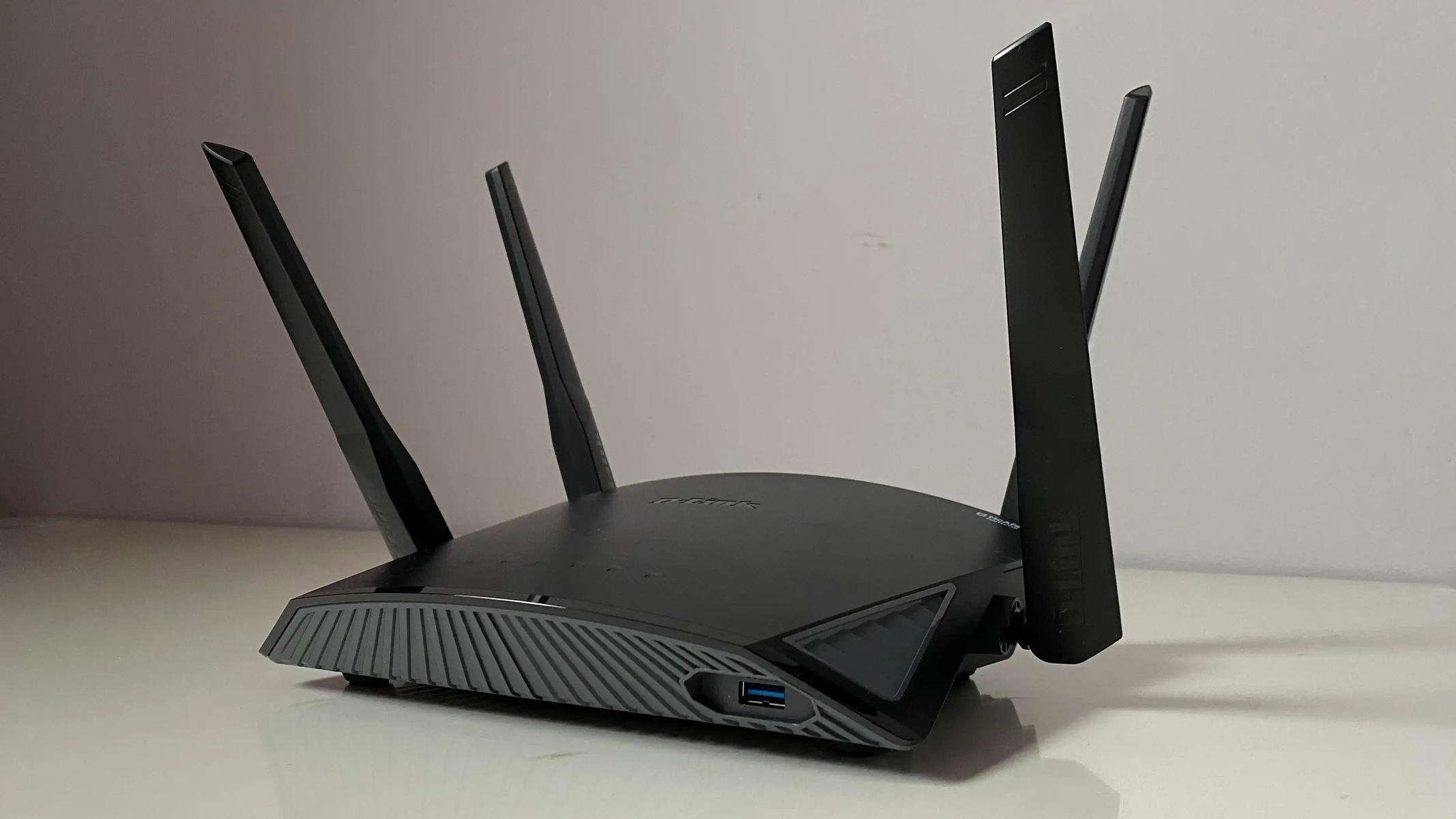
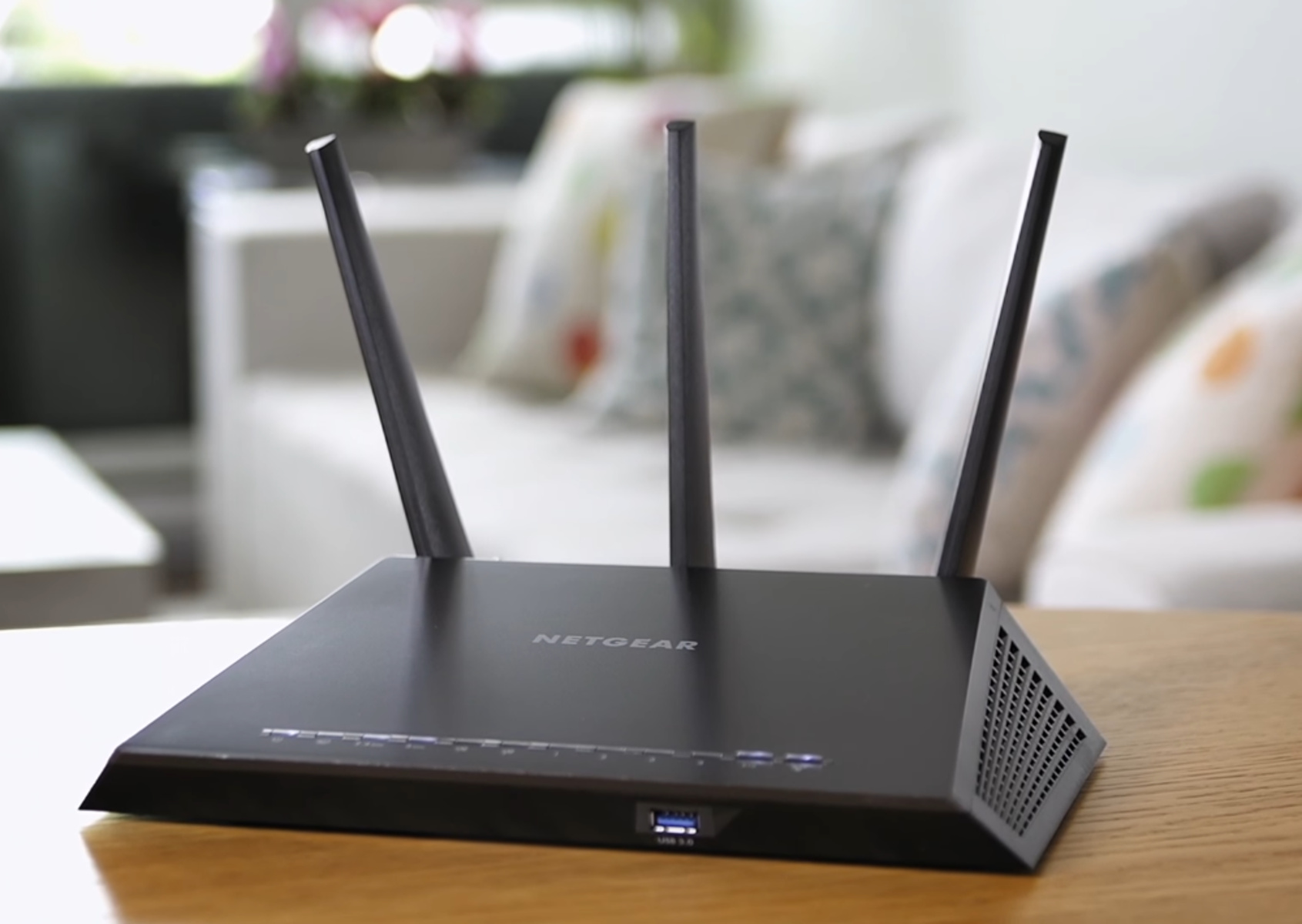
Despite the marketing buzz around gaming routers, the main difference between a standard router and a gaming router is a few key features that can enhance gaming performance.
- Quality of Service (QoS): Gaming routers usually have QoS settings that allow you to prioritize traffic and ensure that gaming traffic gets a dedicated channel.
- Wireless band steering: Gaming routers have multiple wireless bands that allow you to separate gaming traffic from other devices, reducing congestion and lag.
- Full-duplex technology: Gaming routers use full-duplex technology to send and receive data simultaneously, reducing lag and latency.
How to Configure Your Wireless Router for Gaming
Configuring your wireless router for gaming requires a few simple steps:
Step 1: Set Up Your Router
Start by setting up your network with your modem. Use an Ethernet cable to connect your computer to your router, ensuring a stable connection.
Step 2: Update Your Firmware
Update your router's firmware to the latest version to ensure you have all the latest features and security patches.
Step 3: Configure QoS Settings

Enable Quality of Service (QoS) on your router to prioritize gaming traffic and ensure a dedicated channel for gaming.
Step 4: Enable Wireless Band Steaming
Enable wireless band steering on your router to separate gaming traffic from other devices.
Step 5: Adjust Your Router's Settings for Gaming
Adjust your router's settings for optimal gaming performance by enabling features such as:
- Parental controls: Set up parental controls to limit non-gaming traffic during gaming sessions.
- MAC addressing: Set up MAC addressing to prioritize gaming traffic and block other devices.
- Beamforming: Enable beamforming to improve wireless signal strength and reduce lag.
Step 6: Test Your Connection
Test your connection to ensure that your gaming performance has improved. Use tools such as PingPlotter or PortCheckers to check your connection speed and packet loss.
Best Gaming Routers for a Superior Gaming Experience
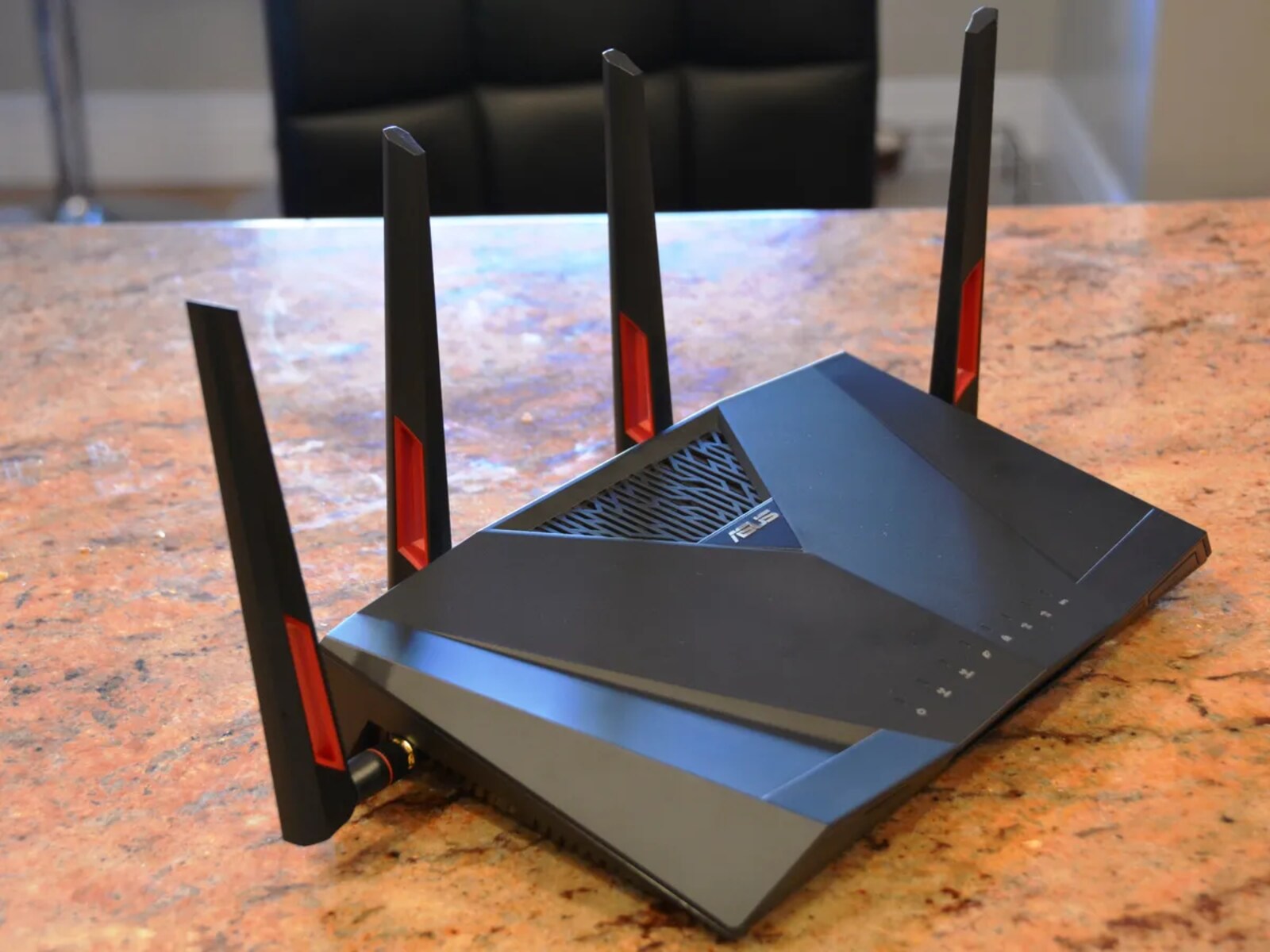
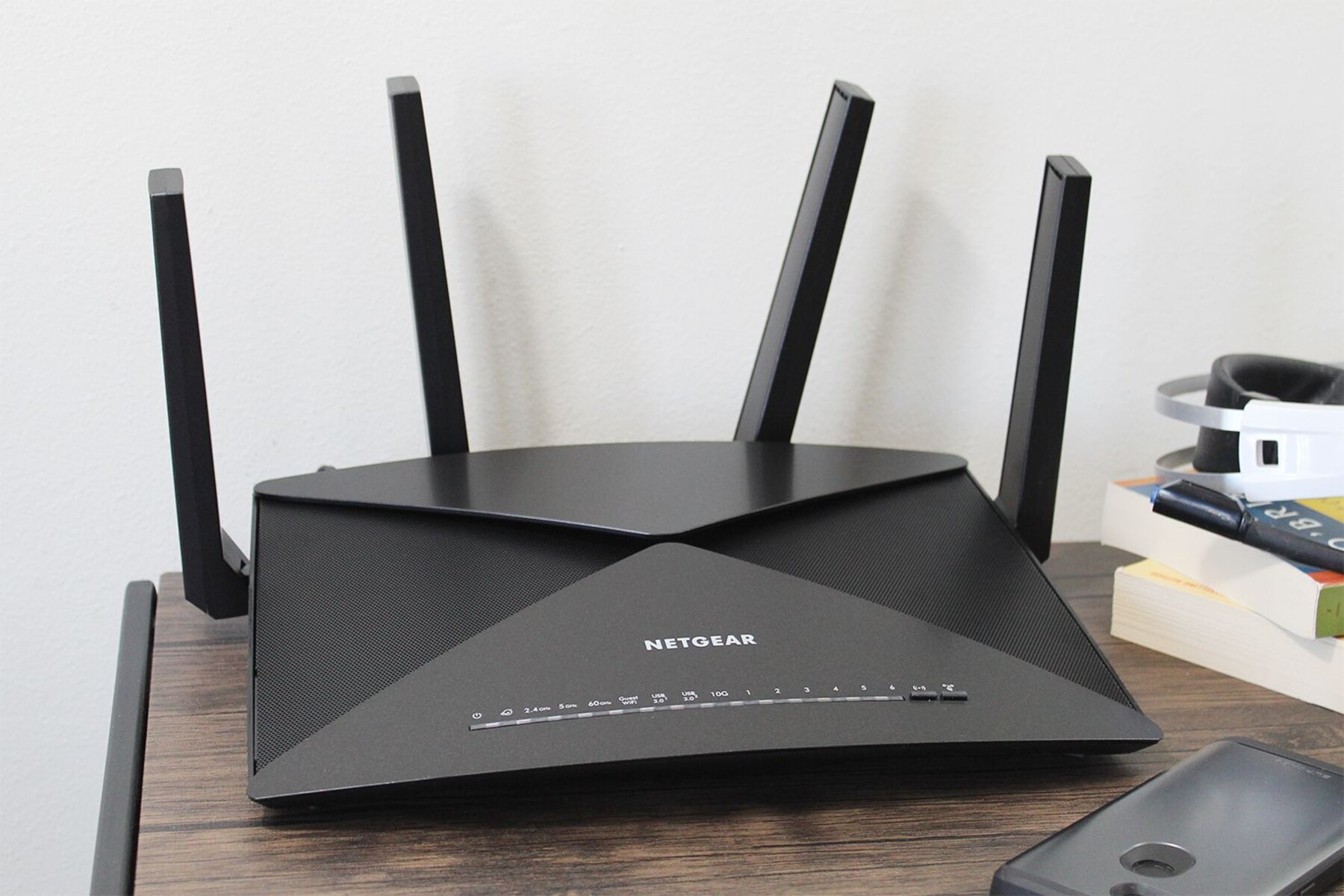
Not all routers are created equal, and some perform better than others in gaming. Here are some top-rated gaming routers to consider:
- TP-Link Archer BE900: A Wi-Fi 7 router with top-of-the-line specs and a dedicated gaming mode.
- Asus GT-AX11000: A premium gaming router with a high-performance Wi-Fi 6 chipset and advanced features.
- eero Max 7: A mesh Wi-Fi system with a 6GHz band and robust network management.
Conclusion
By configuring your wireless router for gaming, you can optimize your gaming experience, reduce lag and packet loss, and enjoy a smoother online gaming experience. With the right settings and features, you can take your gaming performance to the next level and dominate online games with ease.



![[Wireless Router] How do I enter my ASUS router's setting page using ...](https://media.geeksforgeeks.org/wp-content/uploads/20231016041015/Best-gaming-routers-2023.webp "[Wireless Router] How do I enter my ASUS router's setting page using ...")