Complete Guide to Setting Up a G Wireless Network
Step-by-Step G Wireless Network Setup
Establishing a G wireless network in your home or office is a straightforward process that can be completed with the right equipment and a brief understanding of the setup process. A G wireless network is a type of wireless local area network (WLAN) that operates at a speed of 54 Mbps, making it a reliable choice for internet connectivity in small to medium-sized areas.
What You Need for a G Wireless Network
- A G wireless router
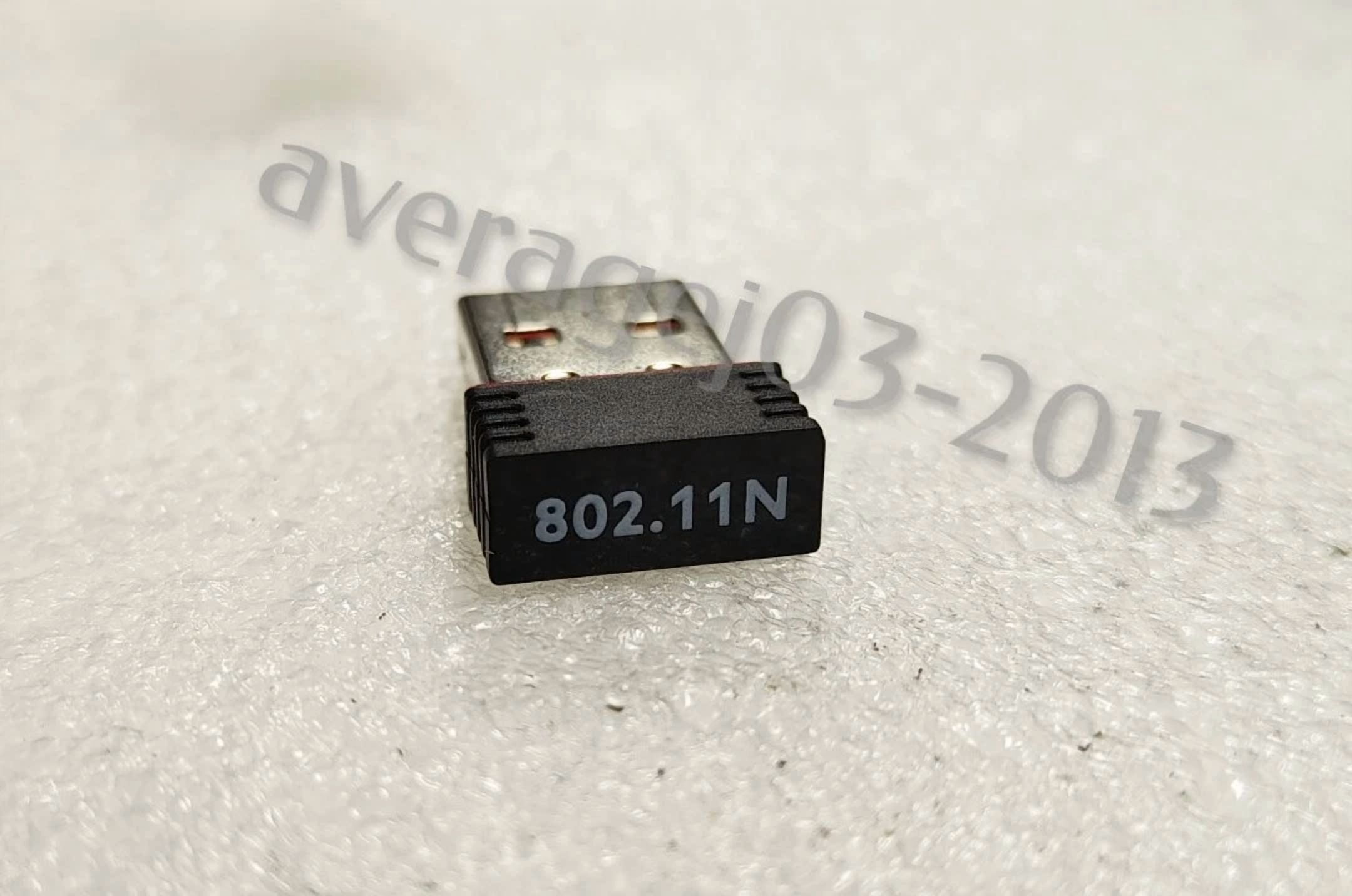
- Wireless network adapters for each device that will connect to the network
- An Ethernet cable (for connecting to a broadband modem or other network devices)
Step 1: Connect the Router to the Modem
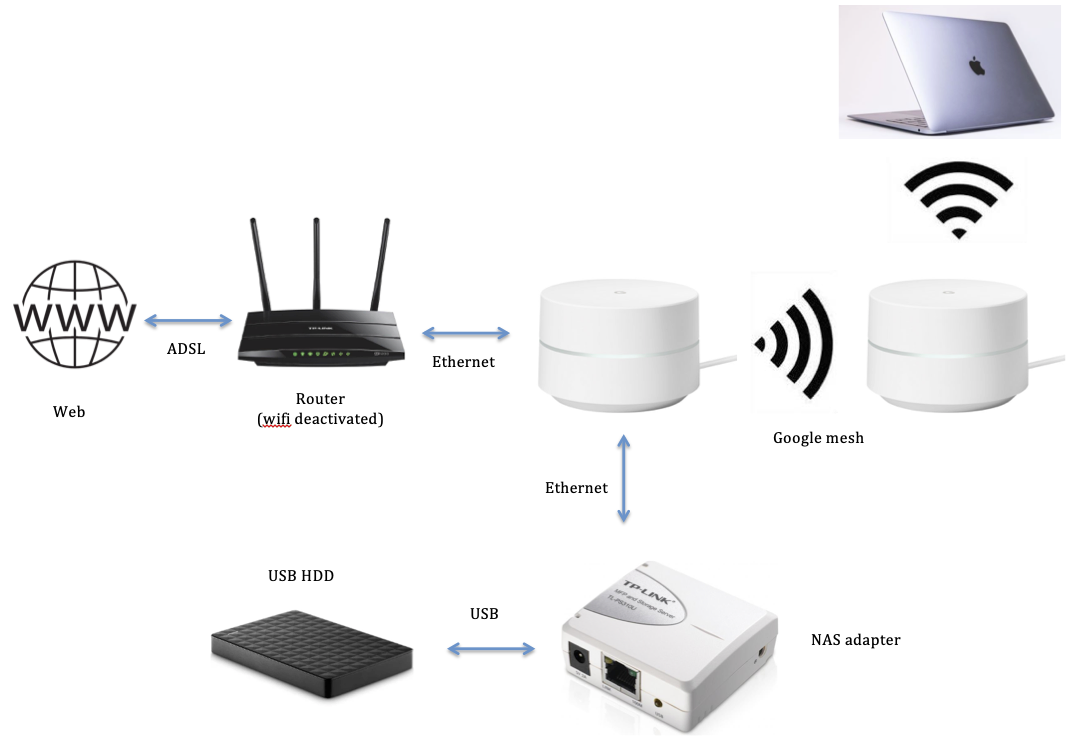
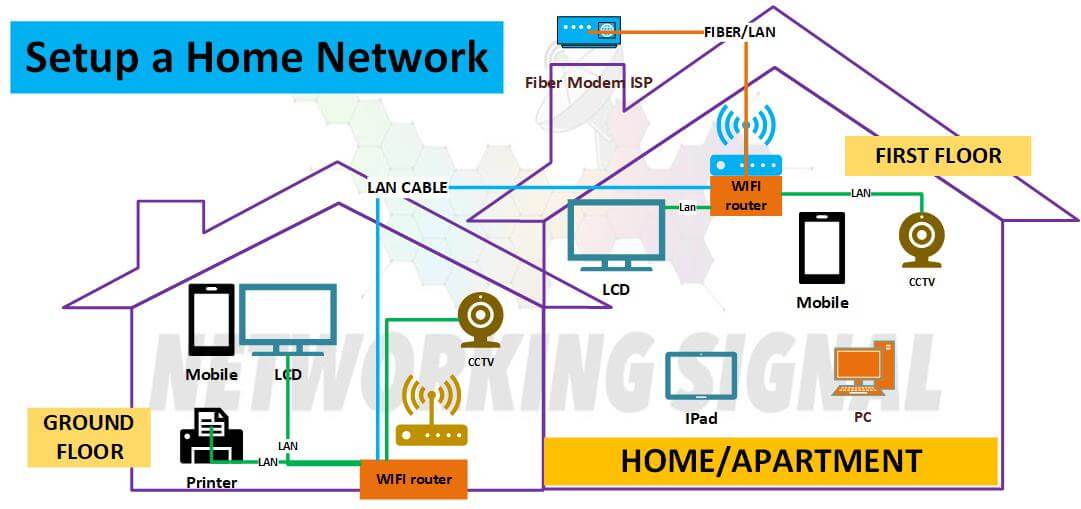
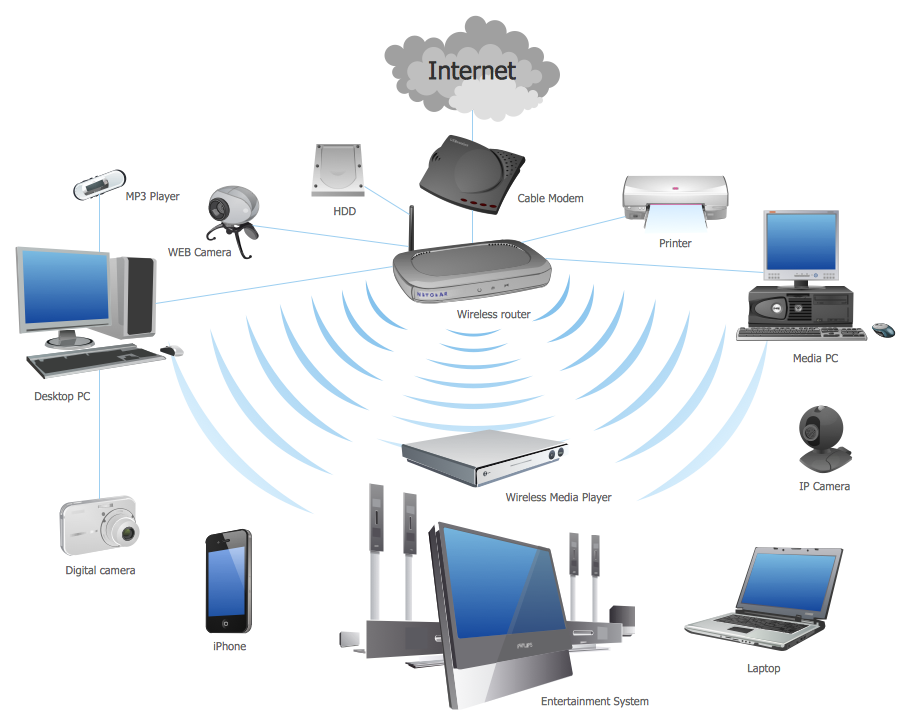
Begin by connecting the G wireless router to your broadband modem using an Ethernet cable. This provides a stable connection for your router to access the internet.
Step 2: Configure the Router's Wireless Settings
Log in to your router using its default IP address (usually 192.168.0.1 or 192.168.1.1). Set up the wireless network by giving it a name (SSID), setting a password, and choosing a channel to minimize interference from neighboring networks.
Step 3: Set Up Wireless Network Adapters
Install the necessary drivers for your wireless network adapters on each device that will connect to the G wireless network. Make sure the adapters are configured properly by following the manufacturer's instructions.
Step 4: Connect Devices to the Network
Using your wireless network adapters, connect each device to the G wireless network. Most devices, including laptops, smartphones, and tablet computers, can automatically detect and connect to the network once you provide the necessary information (such as the SSID and password).

Step 5: Secure Your Network
Finally, take measures to secure your G wireless network to prevent unauthorized access. This includes changing the default administrator password, disabling WPS (Wi-Fi Protected Setup), and turning off the guest network feature, if applicable.
Advanced G Wireless Network Setup
While the above steps provide a basic guide to setting up a G wireless network, advanced users may want to explore more features, such as:
- Setting up a wireless guest network for visitors
- Configuring Quality of Service (QoS) settings for specific applications
- Using WPA2 encryption for enhanced security
Common Issues and Troubleshooting G Wireless Network Setup
While setting up a G wireless network is generally a straightforward process, common issues may arise. Some common issues include:
- Difficulty connecting to the network
- Interference from neighboring networks or physical obstructions
- Weak or intermittent signal strength
For these issues and others, consult the manufacturer's documentation or seek assistance from a networking professional.
Conclusion
Setting Up a G Wireless Network: Final Tips
Setting up a G wireless network is a great way to establish a reliable and fast internet connection in your home or office. Remember to take necessary security precautions and troubleshoot common issues promptly to ensure optimal performance. Additionally, stay up-to-date with the latest advancements in wireless networking technology to explore new features and improvements.