Optimizing Your Home Wireless Network: A Step-by-Step Guide
Setting up a robust and secure home wireless network is crucial for seamless connectivity across all your devices. Whether you're streaming your favorite shows, working from home, or simply enjoying a seamless internet experience, a well-configured network is essential. In this article, we'll walk you through the process of setting up and optimizing your home wireless network, covering the essential components, security considerations, and performance tips.
Understanding the Essential Components of a Home Wireless Network
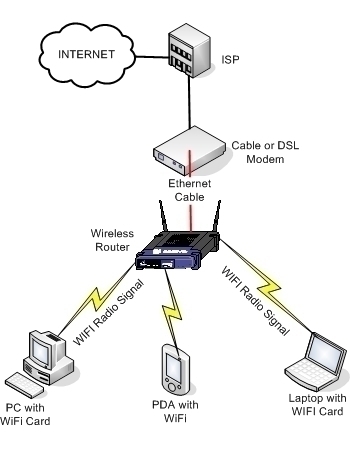
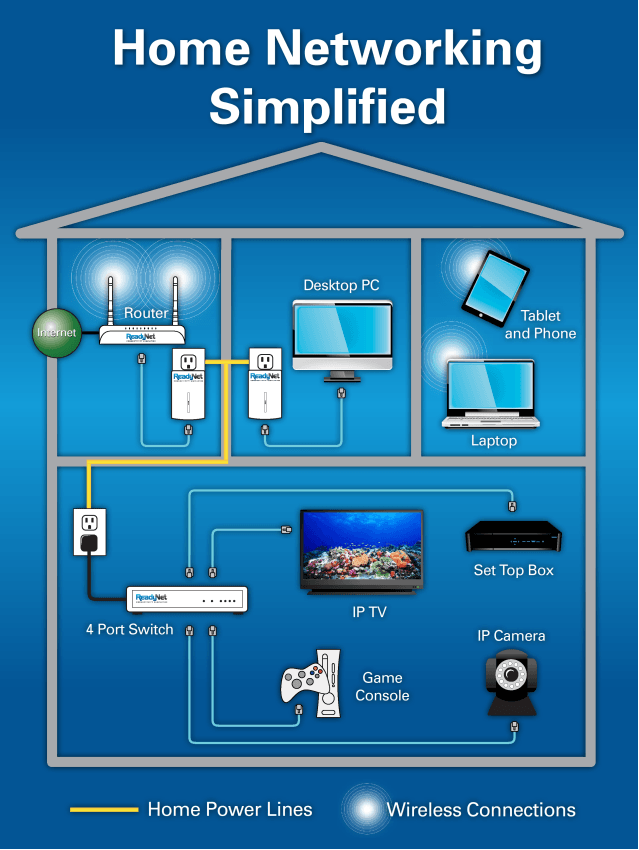
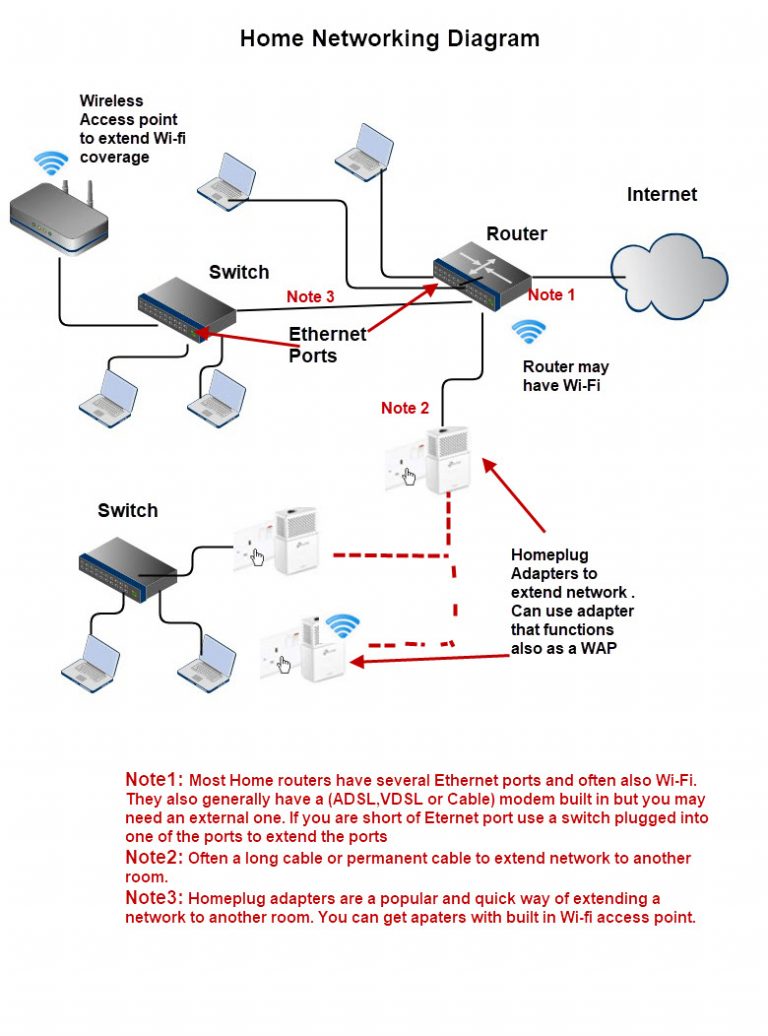
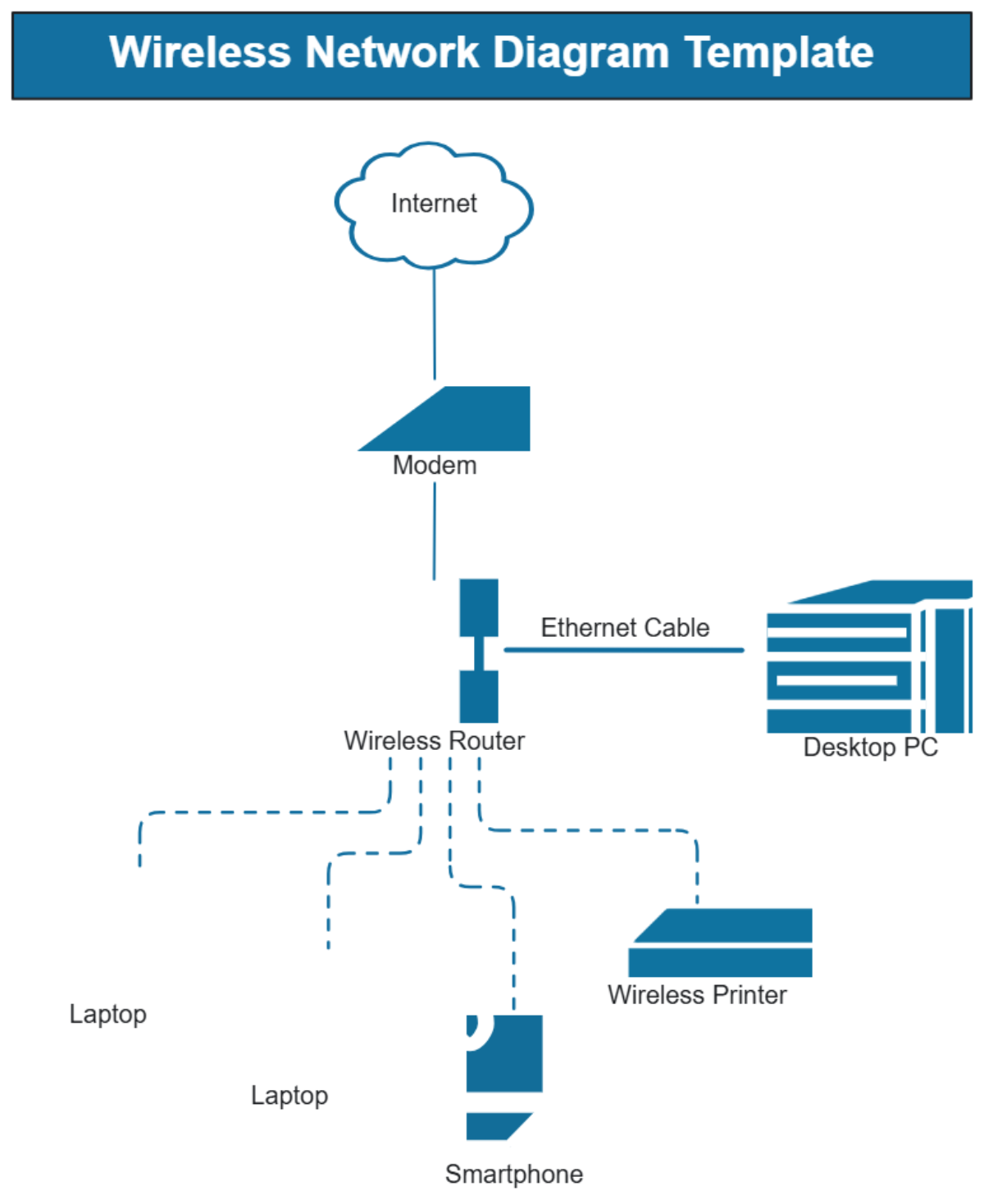
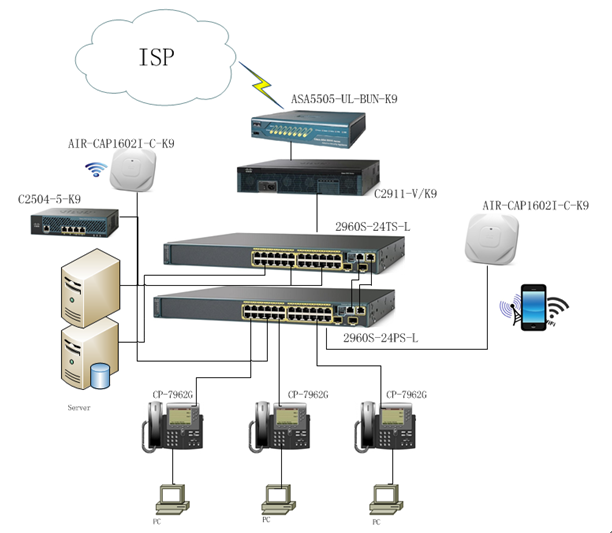
A home wireless network consists of several key components, including:
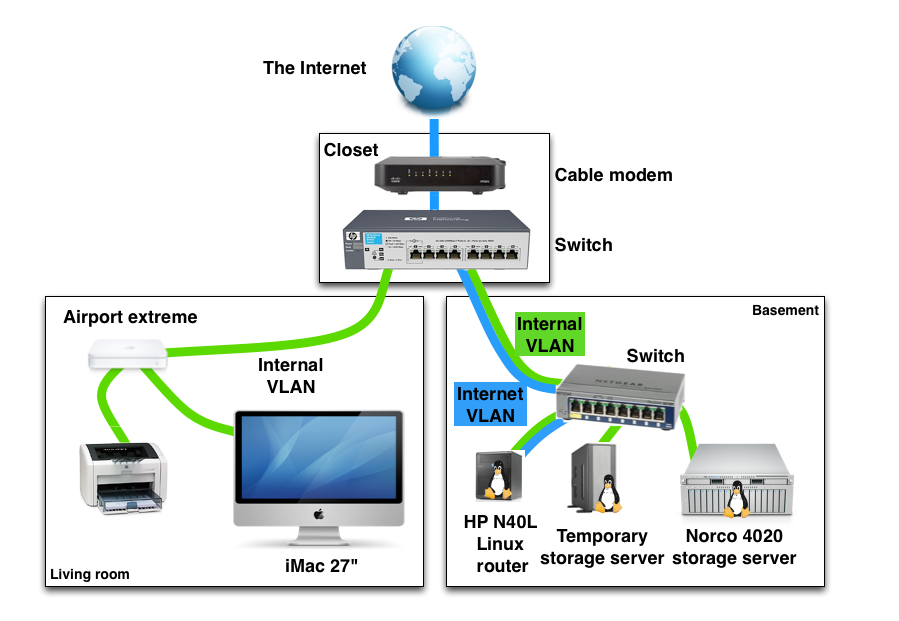
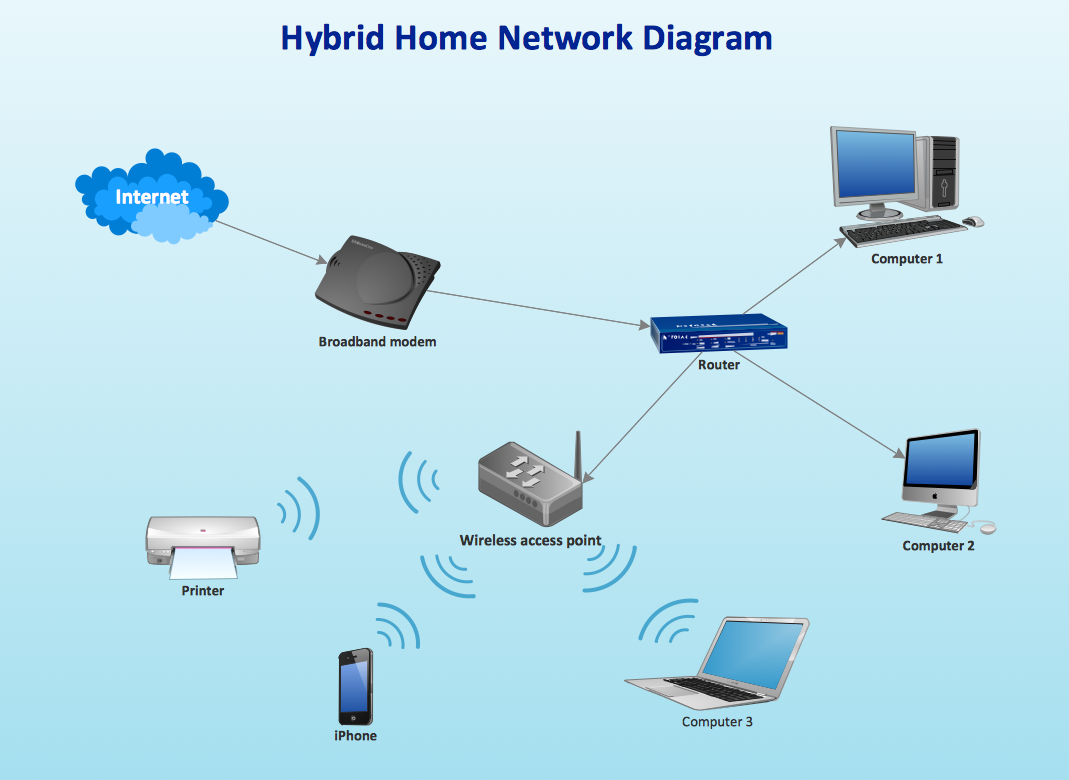
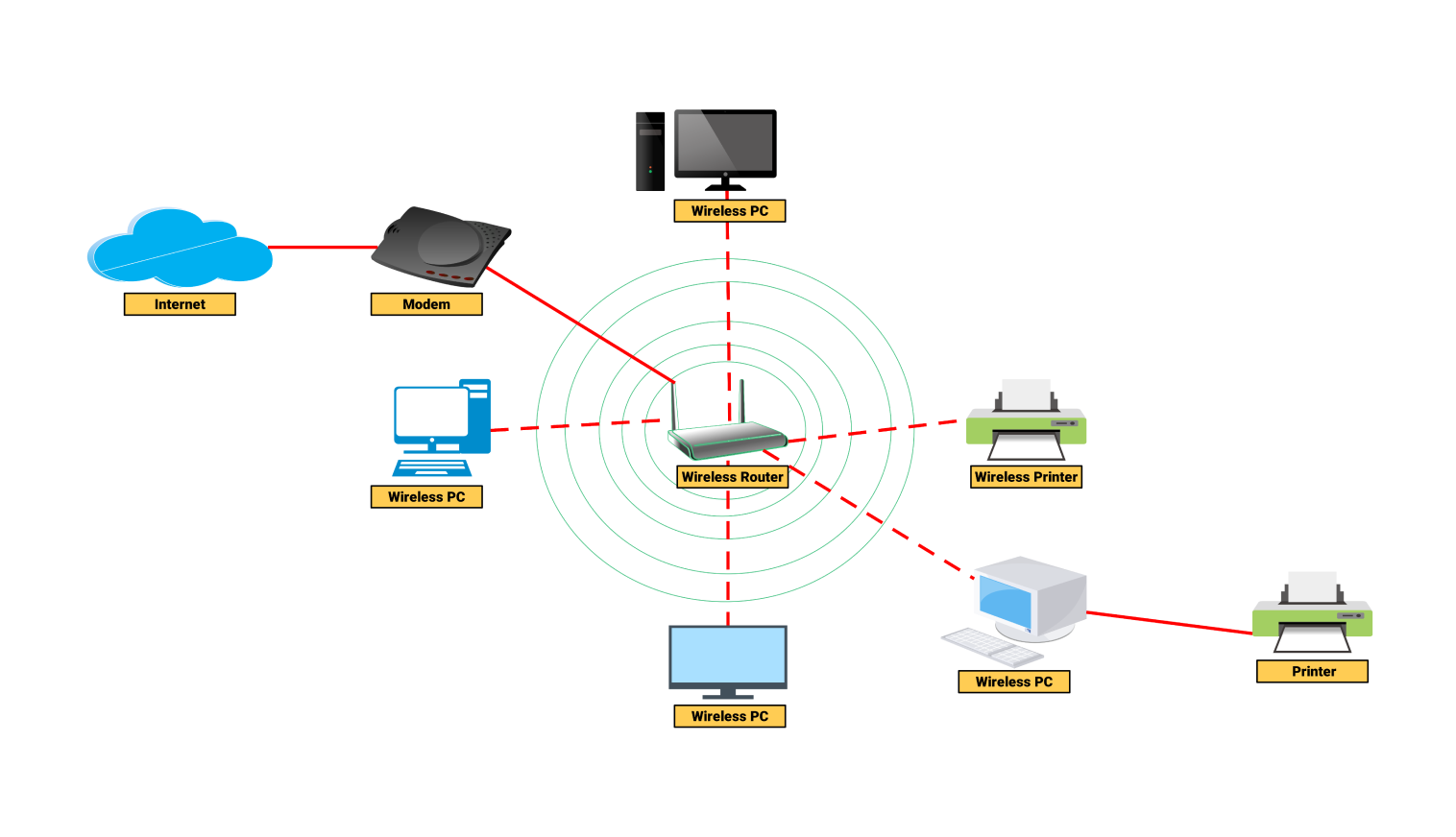
- Modem: The modem is the first point of contact between your home network and the world wide web. This device is connected directly to the cable or DSL provider and supplies internet connectivity to your router.
- Router: The router is the central device that controls and connects all devices on your home network. It distributes your internet connection to your devices, manages traffic, and provides network security.
- Devices: Your devices, including your laptop, smartphone, tablet, and smart home devices, connect to your router to access the internet and communicate with each other.
Choosing the Right Router for Your Home Wireless Network
When selecting a router for your home wireless network, consider the following factors:
- Speed: Ensure the router has a high-speed processor to handle multiple devices and heavy internet usage.
- Range: Choose a router with a wide range to cover all areas of your home or office.
- Security: Look for a router with advanced security features, such as WPA2, WPA3, or Wi-Fi 6, to protect your network from unauthorized access.
Basic Network Configuration for Your Home Wireless Network
To set up your home wireless network, follow these basic steps:

- Connect your modem to the router: Plug the modem into the router using an Ethernet cable.
- Configure your router settings: Access the router's web interface using the default IP address (usually 192.168.1.1) and follow the on-screen instructions to set up your WiFi network, including the network name (SSID), password, and security settings.
- Connect your devices to the network: Connect your devices to the router using WiFi or Ethernet cables.
- Test your internet connection: Verify that you can access the internet on all your devices.
Securing Your Home Wireless Network
To ensure your home wireless network remains secure, consider the following measures:
- Change the default password: Update the default password for your router and all connected devices.
- Enable WPA2 or WPA3 encryption: Use WPA2 or WPA3 encryption to secure your WiFi network from unauthorized access.
- Set up a guest network: Create a separate network for guests to prevent them from accessing your primary network.
- Regularly update your router's firmware: Keep your router's firmware up to date to ensure you have the latest security patches and bug fixes.
Optimizing Network Performance for Your Home Wireless Network
To ensure optimal network performance, follow these tips:
- Position your router correctly: Place your router in a centralized location to ensure even coverage across your home or office.
- Update your router's firmware regularly: Keep your router's firmware up to date to ensure you have the latest performance optimizations.
- Use Quality of Service (QoS) settings: Configure QoS settings to prioritize critical applications, such as video streaming and online gaming.
- Monitor your network traffic: Use network monitoring tools to identify and address potential bottlenecks.
Conclusion
Setting up and optimizing your home wireless network requires careful consideration of several key components, including the modem, router, and devices. By following the steps outlined in this article, you can create a robust and secure home wireless network that meets the needs of all your devices. Remember to regularly update your router's firmware, position your router correctly, and use Quality of Service (QoS) settings to ensure optimal network performance.