Setting Up a Reliable Wi-Fi Network for Multiple Devices
When it comes to setting up a Wi-Fi network that can support multiple devices, there are several key considerations to keep in mind. A reliable Wi-Fi network can ensure that all devices connected to it can browse, stream, and work seamlessly without any interruptions. In this article, we will cover the essential steps to set up a Wi-Fi network that can support multiple devices and provide some valuable tips to optimize its performance.
Understanding Your Wi-Fi Network Setup
Before we dive into the setup process, it's essential to understand your home or office environment and the devices that will be connected to the Wi-Fi network. Consider the following factors:
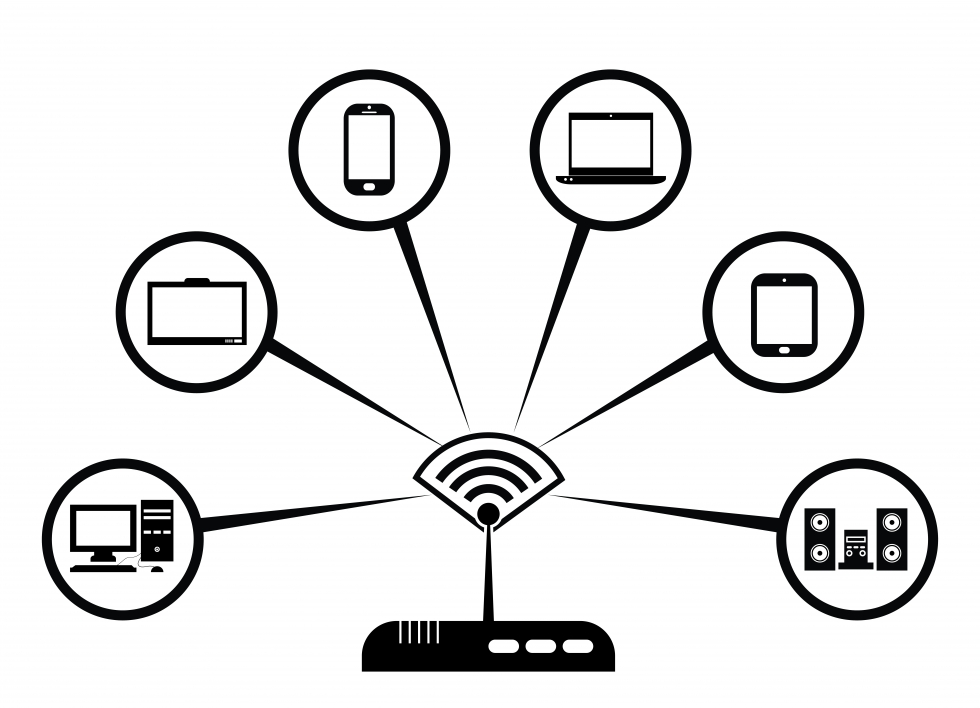
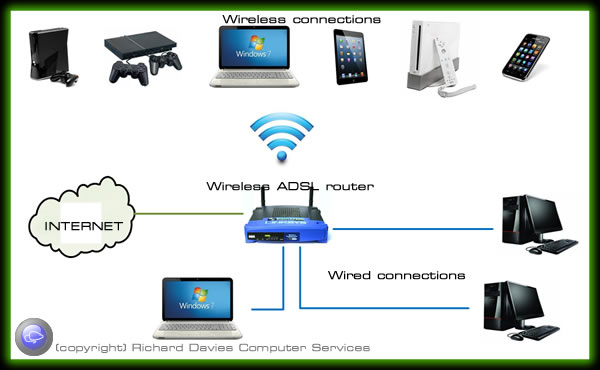
- Number of devices: Calculate the number of devices that will be connected to the network, including smartphones, laptops, tablets, smart home appliances, and gaming consoles.
- Device types: Note the types of devices that will be connected to the network, as different devices have different Wi-Fi requirements.
- Range and coverage: Assess the physical layout of your space to determine the range and coverage needed for the Wi-Fi network.
- Interference: Be aware of potential sources of interference that might affect the Wi-Fi signal, such as neighboring networks, physical barriers, and other devices.
Setting Up Your Wi-Fi Network
Once you have assessed your environment and determined the requirements for your Wi-Fi network, you're ready to set it up. Here's a step-by-step guide:

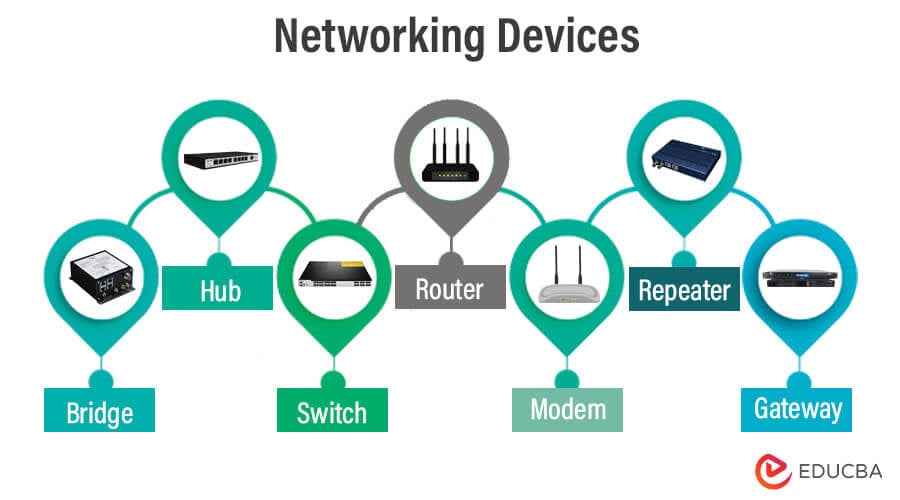
- Choose a router:** Select a router that can support multiple devices and provides the necessary speed and range for your environment.
- Configure your router:** Set up your router according to the manufacturer's instructions, typically by accessing the web interface or the router's mobile app.
- Set up your network:** Configure your network settings, including the network name, password, and security settings, to ensure a secure and reliable connection.
- Optimize your network:** Use the Wi-Fi network analyzer tool to scan for nearby networks and adjust the channel to minimize interference.
- Test your network:** Ensure that your Wi-Fi network is stable and fast by testing it with multiple devices.
Optimizing Your Wi-Fi Network for Multiple Devices
To ensure your Wi-Fi network performs optimally with multiple devices, follow these tips:
- Use Quality of Service (QoS): Implement QoS settings to prioritize specific devices or applications to guarantee reliable and lag-free performance.
- Implement Mesh Wi-Fi: Use a mesh Wi-Fi network to expand coverage and eliminate dead zones in large spaces or homes with multiple floors.
- Use a range extender:** Consider using a range extender to amplify the Wi-Fi signal in areas with limited coverage.
- Update your router's firmware: Regularly update your router's firmware to ensure you have the latest features, bug fixes, and security patches.
Conclusion
Setting up a reliable Wi-Fi network for multiple devices requires careful planning and optimization. By following the steps outlined in this article and implementing the tips for optimizing your Wi-Fi network, you can ensure that all your devices can connect and communicate seamlessly. Stay ahead of the game by regularly monitoring your network's performance and making adjustments as needed to ensure a smooth and efficient Wi-Fi experience.
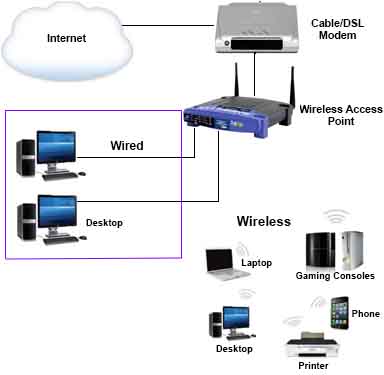

-Connection-Step-2-Version-3.jpg/aid1756116-v4-728px-Set-up-a-Wireless-Network-(WiFi)-Connection-Step-2-Version-3.jpg "WiFi Network with Multiple Access Points for Seamless Coverage")




.png "How to connect smart Roku TV to wireless headphones")