Setup Your G Wireless Router for a Smooth and Secure Home Network
Setting up a G wireless router is a straightforward process that can provide you with a reliable and secure home network. In this article, we will guide you through the steps to setup your G wireless router and ensure that you get the best performance from your network.
Before You Start
- Make sure you have your G wireless router, modem, and any other necessary equipment.
- Ensure that you have a computer or device connected to the router via Ethernet cable or Wi-Fi.
- Check the user manual for specific instructions for your router model.
Step 1: Physically Set Up Your Router
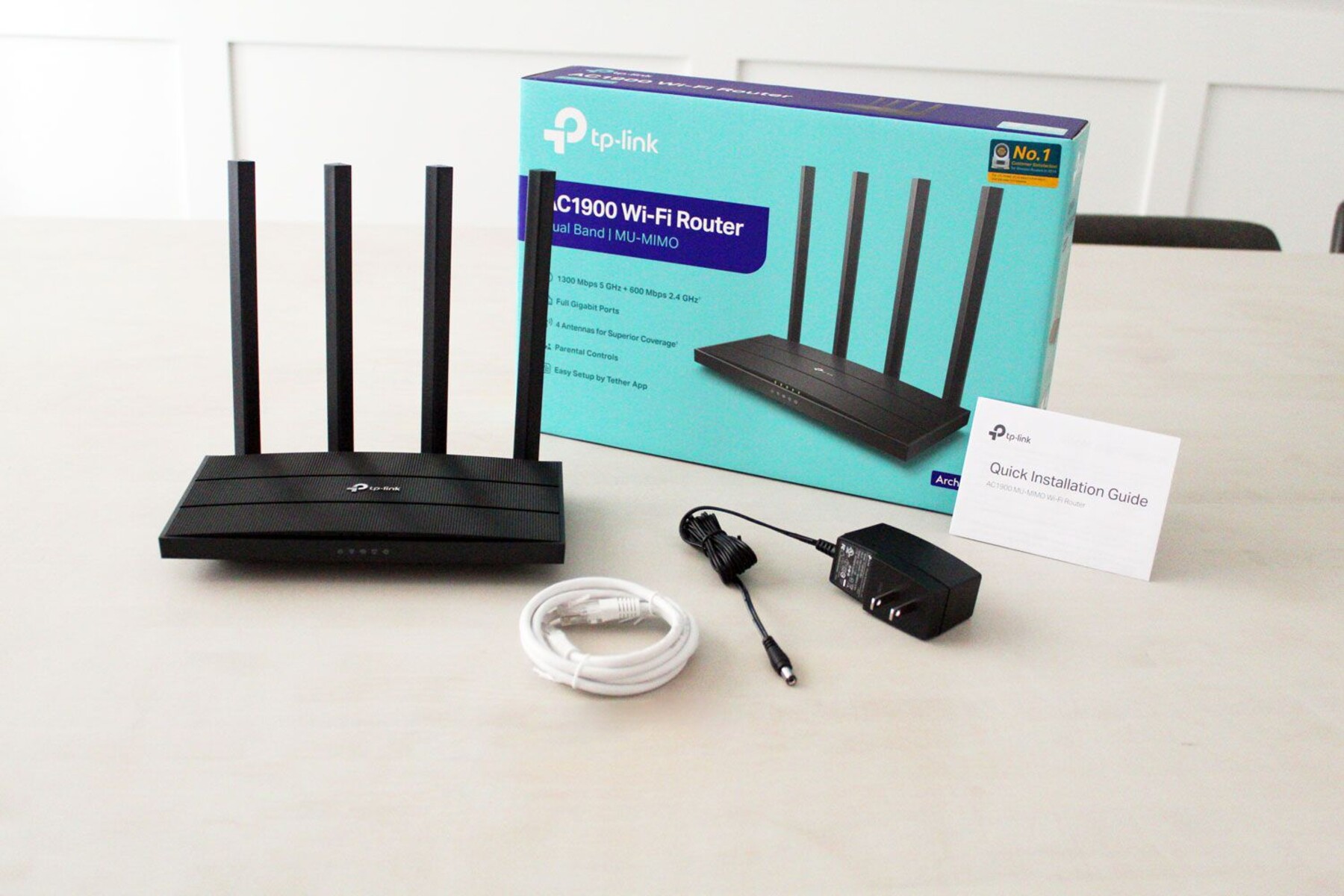
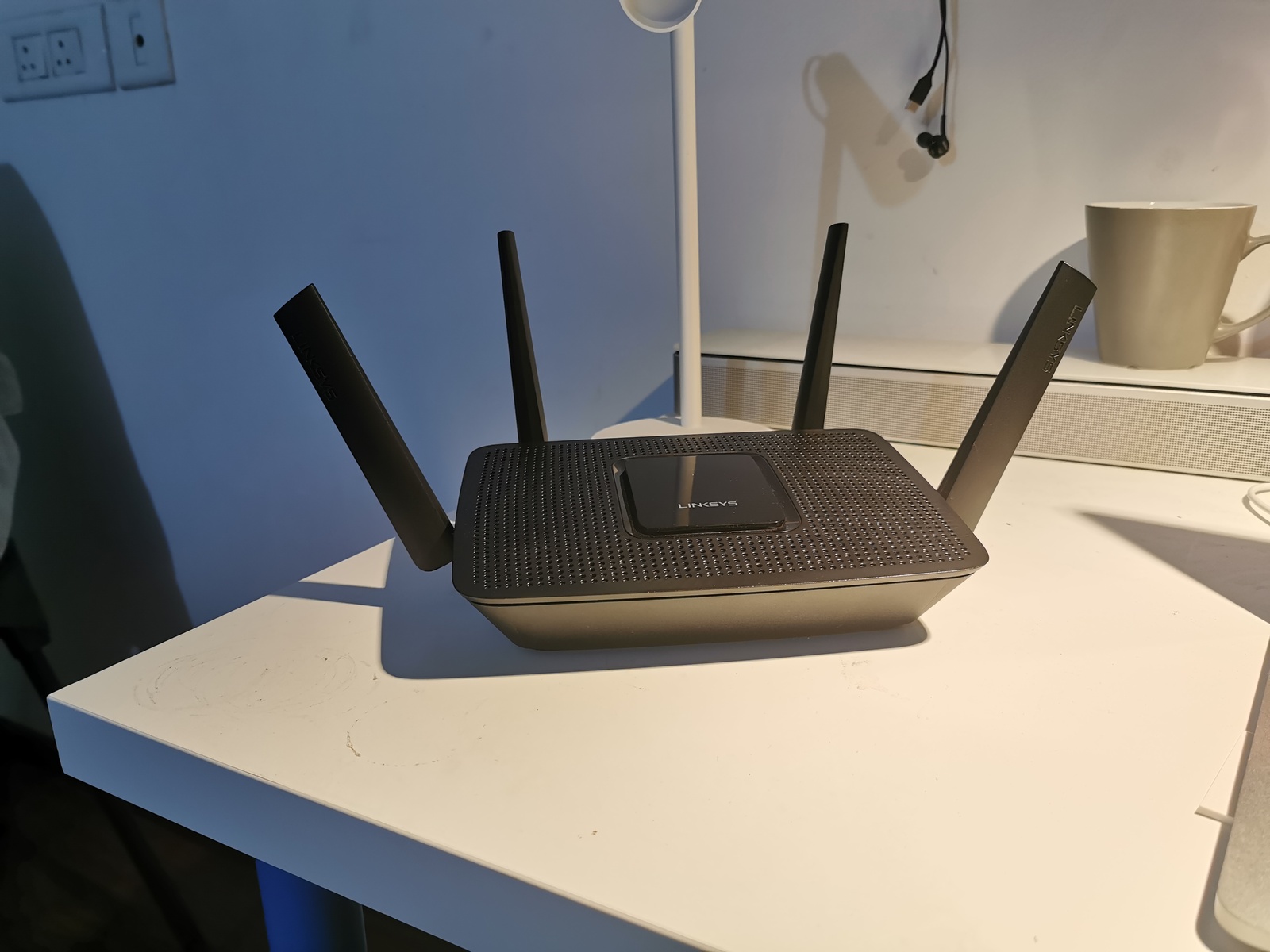
Begin by unpacking and placing your router in a central location, ideally close to the center of your home. This will help ensure that the signal is evenly distributed throughout your network. Make sure the router is properly plugged in and turned on.
Step 2: Configure Your Router's Settings
- Using a computer or device connected to the router, open a web browser and type the router's IP address (usually 192.168.0.1 or 192.168.1.1).
- Login to the router using the default admin username and password (usually printed on the bottom of the router or in the user manual).
- Change the default admin password to a strong and unique one.
- Configure the wireless settings, including the SSID (network name), password, and channel.
- Set up the router's security features, such as WPA2 encryption and MAC address filtering.
Step 3: Connect Your Devices to the Network
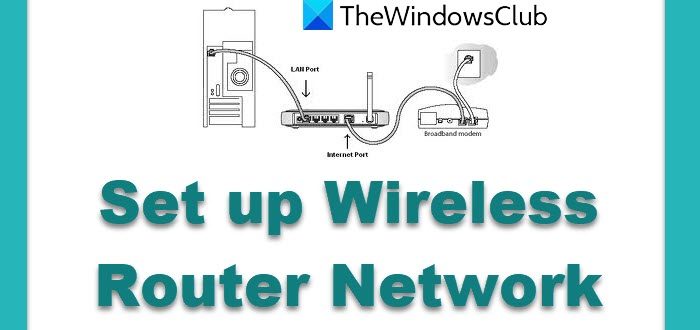
- Connect your computer, laptop, smartphone, and other devices to the network using Wi-Fi or Ethernet cable.
- Ensure that all devices are configured to use the same network name (SSID) and password.
- Test the network by checking the internet speed and connectivity on each device.

Step 4: Optimize Your Router's Performance
- Update the router's firmware to the latest version.
- Reset the router to its factory settings if you're experiencing issues or want to start fresh.
- Use Quality of Service (QoS) settings to prioritize traffic and optimize performance for critical applications.
- Configure the router's Guest Network and Access Control features to manage guest access and network traffic.
Conclusion
Setting up a G wireless router requires some basic technical knowledge, but it's a straightforward process that can provide you with a reliable and secure home network. By following the steps outlined in this article, you can ensure that your network is optimized for performance and security.
Frequently Asked Questions
- How do I reset my router to its factory settings?
- What are the default admin username and password for my router?
- How do I configure Quality of Service (QoS) settings on my router?
- What are the benefits of using a Guest Network feature on my router?
References
- Belkin Wireless Router User Manual
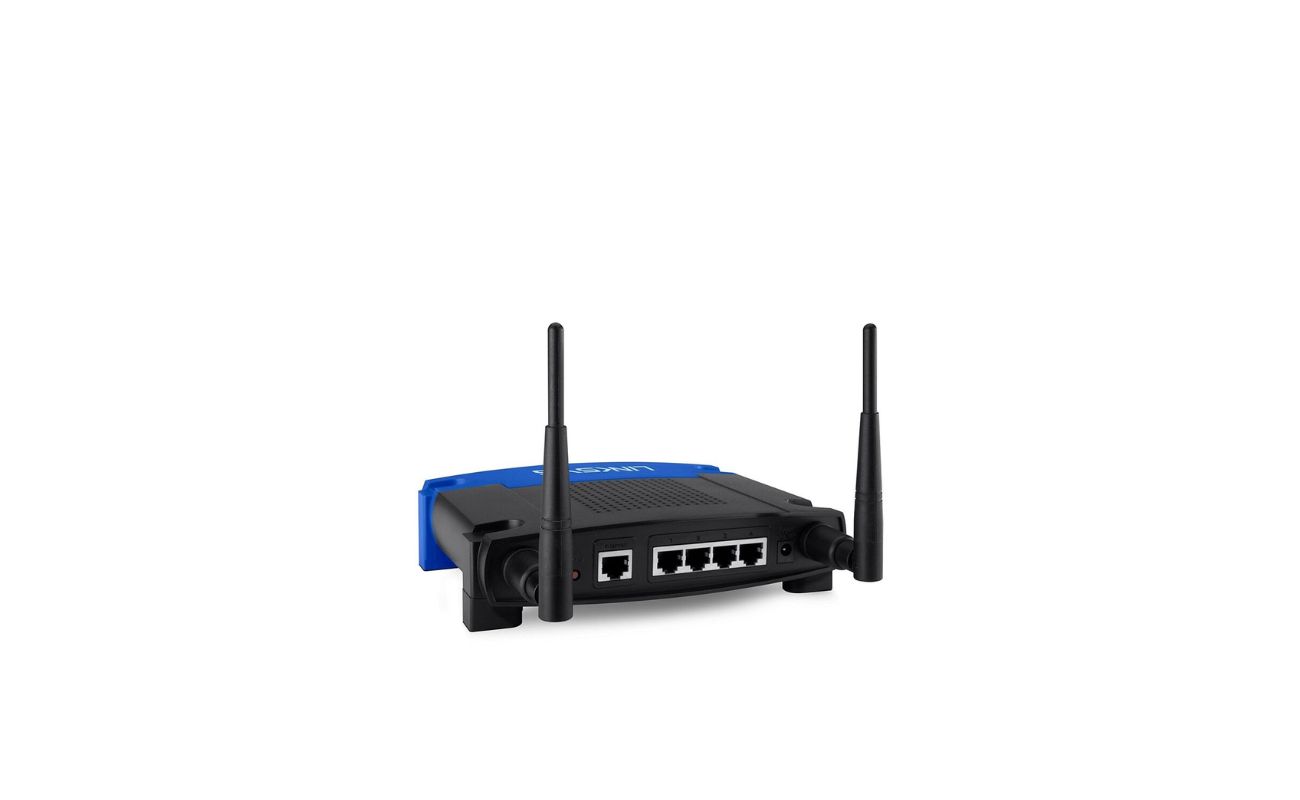
- Linksys Wireless-G Broadband Router User Manual
- TP-Link WiFi 6 Router AX1800 User Manual



![[Wireless Router] How do I enter my ASUS router's setting page using ...](https://www.wikihow.com/images/thumb/1/1b/Set-Up-a-D%E2%80%90Link-WBR%E2%80%902310-Wireless-Router-Step-7-Version-2.jpg/aid3093689-v4-728px-Set-Up-a-D%E2%80%90Link-WBR%E2%80%902310-Wireless-Router-Step-7-Version-2.jpg "[Wireless Router] How do I enter my ASUS router's setting page using ...")

