Setup Internet Router with Network Settings: A Comprehensive Guide
Your router is the backbone of your home network, and configuring it properly is essential to ensure a seamless online experience. In this article, we'll take you through the step-by-step process of setting up your internet router with network settings, from connecting cables to configuring advanced options.
Why Configure Your Router's Network Settings?
There are many reasons you might need to access your router's settings, from changing the Wi-Fi network name (SSID) or password to updating admin credentials to adjusting channels for better performance. With the increasing importance of home networks, router interfaces have become more user-friendly, and many major brands offer mobile apps for easier management.
Step 1: Connect Your Router to the Modem and Power Source
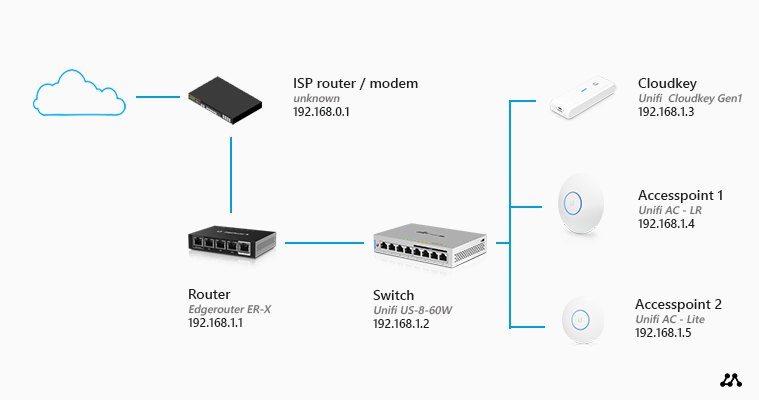
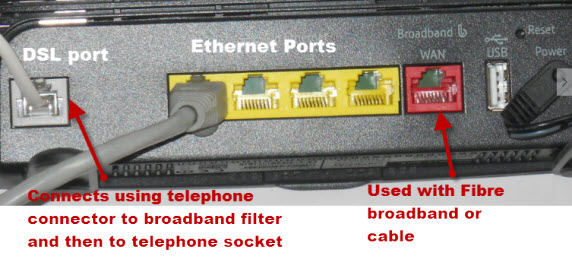
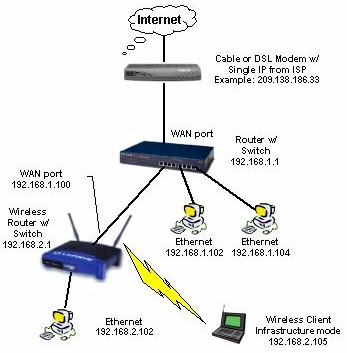
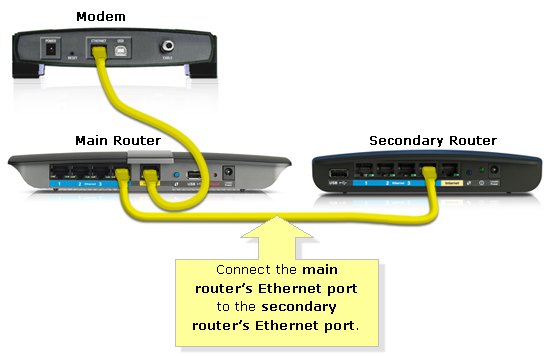
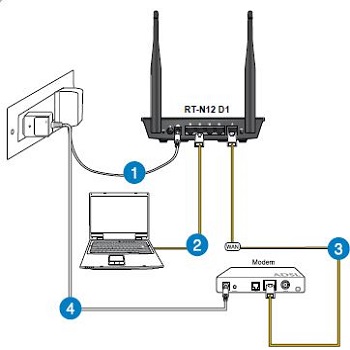
The first step in setting up your router is to connect it to the modem and power source. Make sure the modem is turned on and the power cord is securely plugged into the router. Next, connect the router to the modem using an Ethernet cable. This will establish a connection between the modem and the router, allowing you to configure the network settings.
Step 2: Access the Router's Web Interface
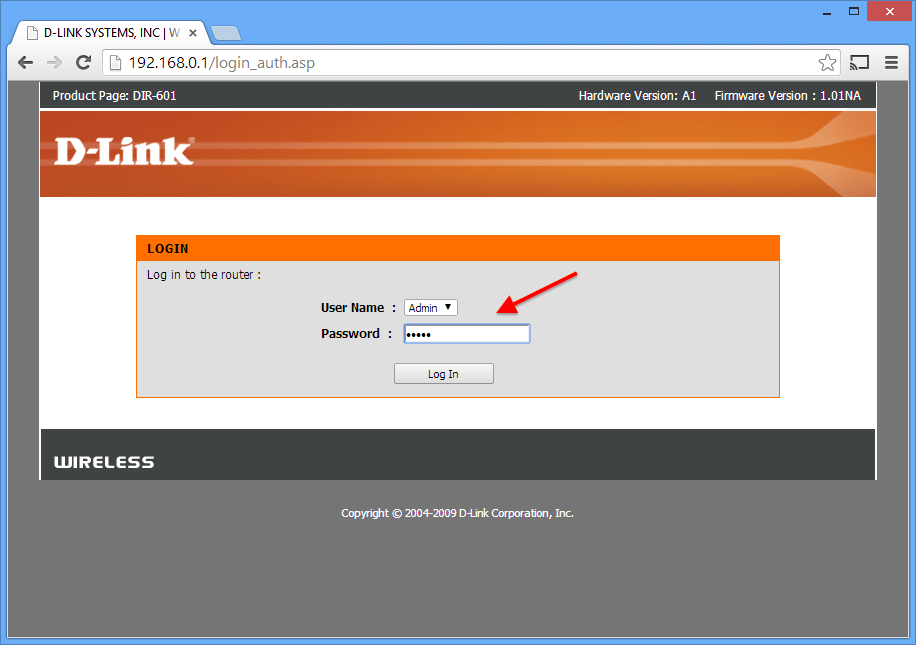
Once the router is connected to the modem, open a web browser and type the router's IP address in the address bar. The default IP address for most routers is 192.168.1.1. This will take you to the router's web interface, where you can access and configure the network settings.
Configure the Wi-Fi Network Settings
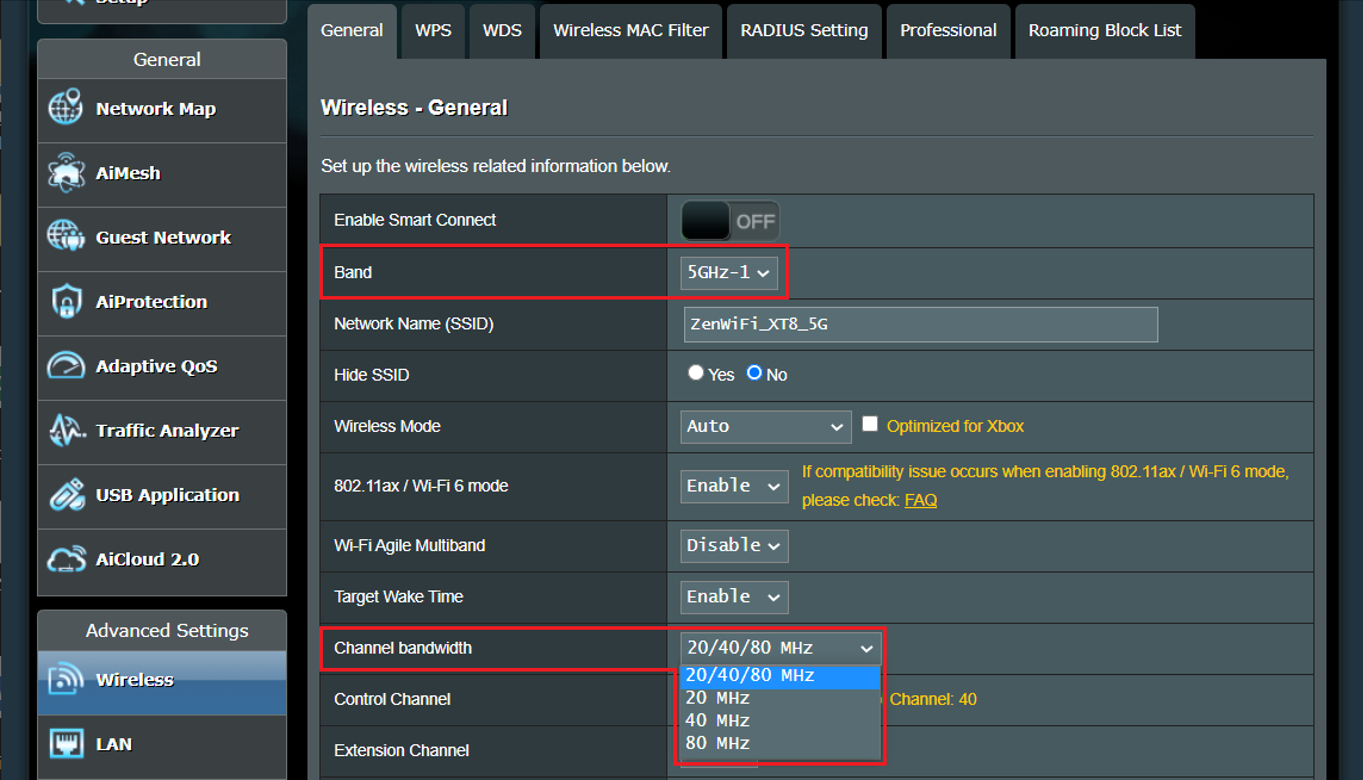
On the router's web interface, navigate to the Wi-Fi settings section. Here, you can change the Wi-Fi network name (SSID), password, and encryption settings. Make sure to use a strong password and encryption method to secure your network.
Configure the Network Name (SSID) and Password
Under the Wi-Fi settings section, you'll find the network name (SSID) and password fields. Change the network name to a unique name that identifies your network, and enter a strong password to secure it. You can also change the encryption method to WPA2 or WPA3, depending on your router's capabilities.
Configure the DHCP Settings
The DHCP (Dynamic Host Configuration Protocol) settings control how the router assigns IP addresses to devices on the network. You can configure the DHCP settings to assign static IP addresses to devices or use the default dynamic IP address assignment method.
Configure the Firewall Settings
The firewall settings control incoming and outgoing network traffic. You can configure the firewall to block or allow specific types of traffic, depending on your network's needs.
Advanced Configuration Options
Under the advanced settings section, you'll find options to configure the router's Quality of Service (QoS) settings, set up a guest network, and configure the router's remote access settings. These options can help you fine-tune your network settings for better performance and security.
Testing Your Network Settings
Once you've configured the network settings, it's essential to test them to ensure they're working correctly. You can use tools like ping, traceroute, and ipconfig to test the network settings and troubleshoot any issues.
Conclusion
Setting up your internet router with network settings may seem daunting, but with this guide, you'll be able to configure your router properly and ensure a seamless online experience. Remember to change the network name, password, and encryption settings to secure your network, and configure the DHCP and firewall settings to control network traffic. With these steps, you'll be able to enjoy a fast and secure home network.
Additional Tips and Resources
- Make sure to use a strong password and encryption method to secure your network.
- Configure the DHCP settings to assign static IP addresses to devices or use the default dynamic IP address assignment method.
- Configure the firewall settings to block or allow specific types of traffic, depending on your network's needs.
- Use tools like ping, traceroute, and ipconfig to test the network settings and troubleshoot any issues.
- Consult your router's user manual or manufacturer's website for more information on configuring advanced settings.