Cisco Router IP Configuration: A Comprehensive Guide
In today's digital age, networking is an essential aspect of any organization, and Cisco routers play a crucial role in connecting users, devices, and applications. One of the fundamental tasks in Cisco router configuration is setting up IP addresses, which is the focus of this article. In this guide, we will explore the basics of Cisco router IP configuration, including assigning IP addresses to interfaces, configuring default routes, and more.
Understanding IP Addresses
Before diving into Cisco router IP configuration, it's essential to understand what IP addresses are. An IP address is a unique numerical label assigned to each device on a network, allowing data to be transmitted between devices. There are two primary types of IP addresses: IPv4 and IPv6. IPv4 addresses are 32-bit addresses, while IPv6 addresses are 128-bit addresses.
Assigning IP Addresses to Interfaces
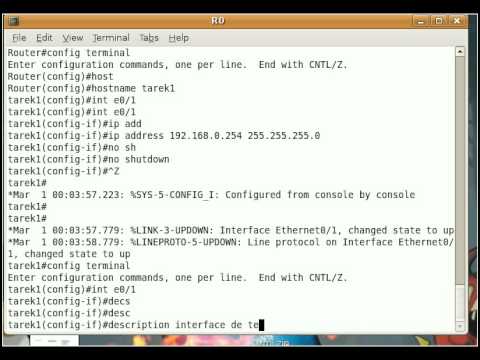
To assign an IP address to an interface on a Cisco router, follow these steps:
- Enter global configuration mode by typing `router(config)#`
- Select the interface to which you want to assign an IP address by typing `interface
` (e.g., `interface fastethernet0/0`) - Configure the IP address by typing `ip address
` (e.g., `ip address 192.168.1.1 255.255.255.0`)
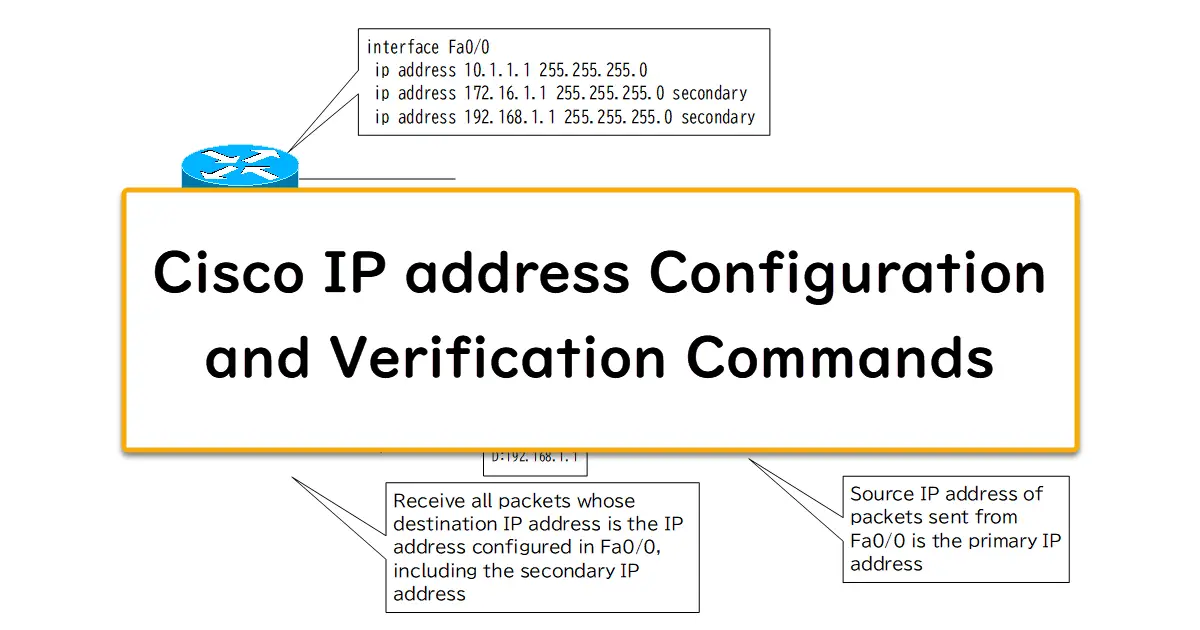
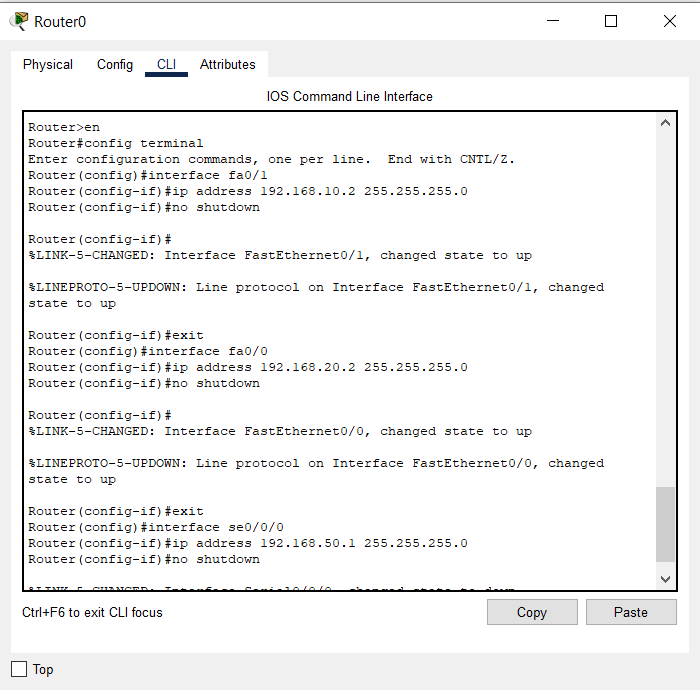
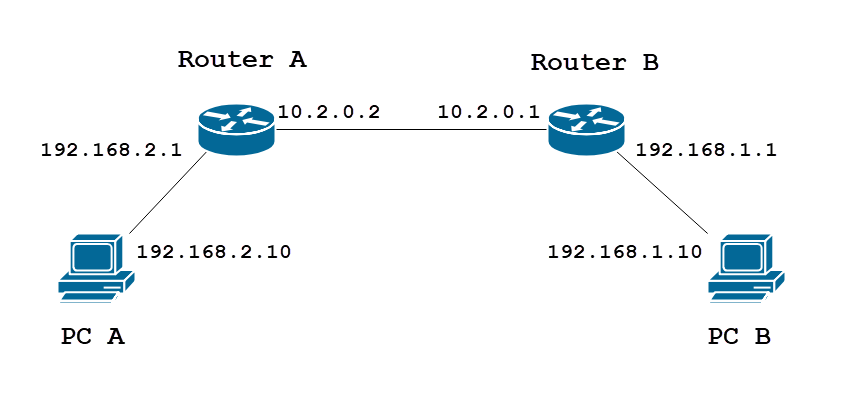
For example, let's say we want to assign an IP address of 192.168.1.1 to the FastEthernet0/0 interface with a subnet mask of 255.255.255.0:
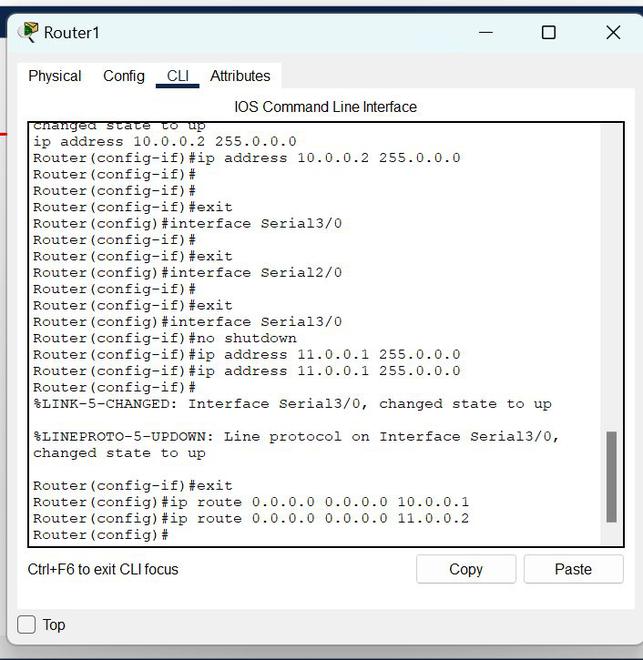
Router(config)# interface fastethernet0/0
Router(config-if)# ip address 192.168.1.1 255.255.255.0
Configuring Default Routes
A default route, also known as a gateway of last resort, is used when a router receives a packet that it cannot forward to its next hop. To configure a default route on a Cisco router, follow these steps:
- Enter global configuration mode by typing `router(config)#`
- Configure the default route by typing `ip default-gateway
` (e.g., `ip default-gateway 192.168.1.1`)
For example, let's say we want to configure a default route to 192.168.1.1:
Router(config)# ip default-gateway 192.168.1.1
Verifying IP Configuration
To verify the IP configuration of a Cisco router, you can use the `show ip interface brief` command:
Router# show ip interface brief
Interface                  IP-Address      OK? Method Status                Protocol
FastEthernet0/0           192.168.1.1     YES NVRAM  up                    up
Cisco Router IP Configuration Best Practices
When configuring IP addresses on a Cisco router, follow these best practices:
- Use a consistent IP address scheme throughout your network
- Use subnetting to conserve IP address space
- Configure a default route to ensure packets can be forwarded to their next hop
- Verify IP configuration regularly to ensure it is accurate and up-to-date
Conclusion
Cisco router IP configuration is a critical aspect of any network. By understanding how to assign IP addresses to interfaces, configure default routes, and verify IP configuration, you can ensure your network is running smoothly and efficiently. Remember to follow best practices and verify your configuration regularly to ensure accuracy and reliability.
Additional Resources
For more information on Cisco router IP configuration, check out the following resources:
- Cisco documentation: IP Routing Techniques
- Cisco tutorials: IP Routing Tutorial