How to Configure a Raspberry Pi as a Router
In today's digital age, having control over your home network and internet connection has become a crucial aspect of modern life. Traditional commercial routers often come with limited customization options, but the Raspberry Pi offers a cost-effective and versatile solution to this problem. With the help of various software and tools, you can transform your Raspberry Pi into a powerful custom router that meets your specific needs.
Why Choose Raspberry Pi as a Router?
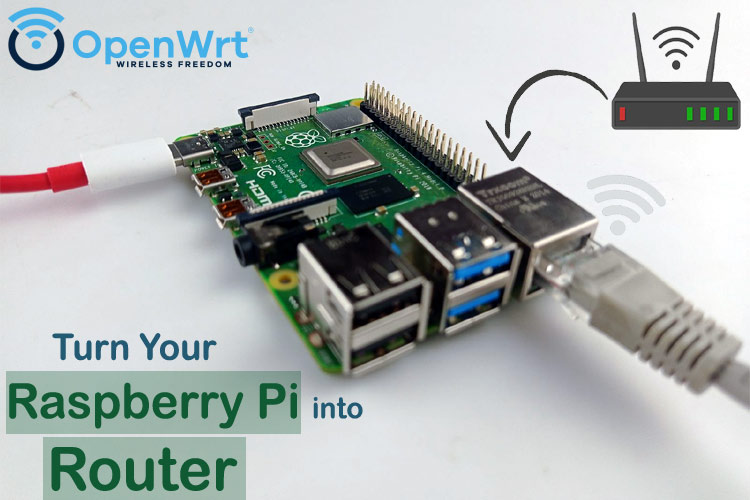
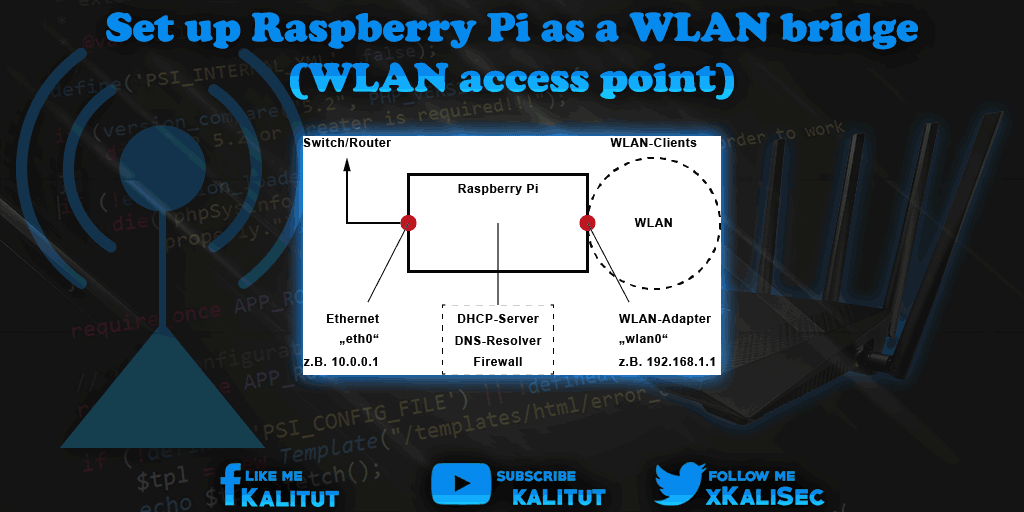
The Raspberry Pi is an ideal candidate for building a custom router due to its low cost, compact design, and open-source operating system. With a Raspberry Pi, you can create a router that not only shares your internet connection but also provides advanced features like VPN connectivity, ad-blocking, and bandwidth management. This DIY setup offers unparalleled flexibility and customization options, making it an attractive alternative to traditional commercial routers.
Step 1: Prepare Your Raspberry Pi
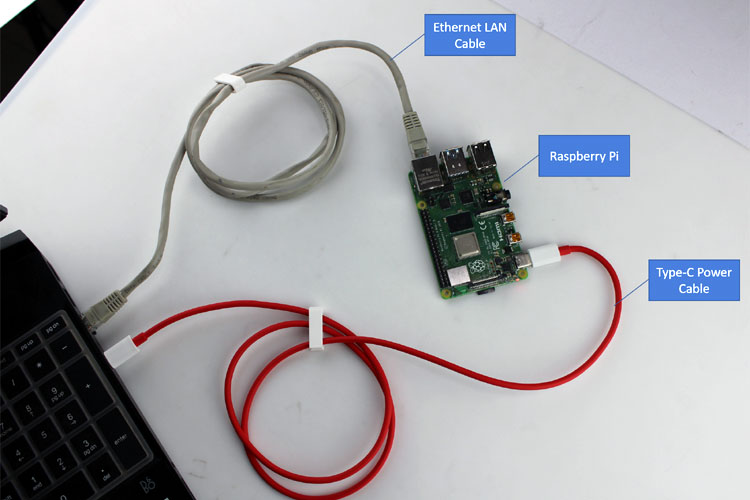
To get started, you'll need to connect your Raspberry Pi to a power source and boot it up. You can use a USB cable to connect the Pi to a keyboard and mouse for easier setup. Ensure that your Pi is up-to-date by running the update command in the terminal: `sudo apt-get update && sudo apt-get upgrade`
Step 2: Install the Required Software
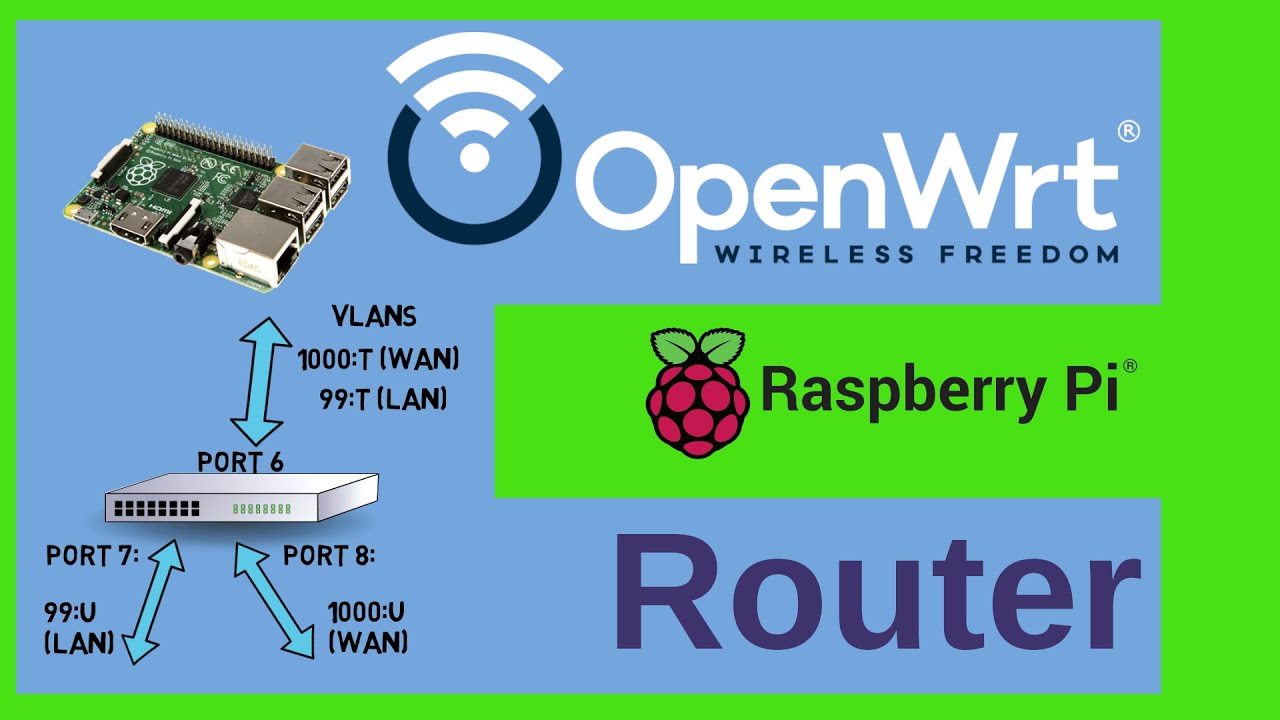
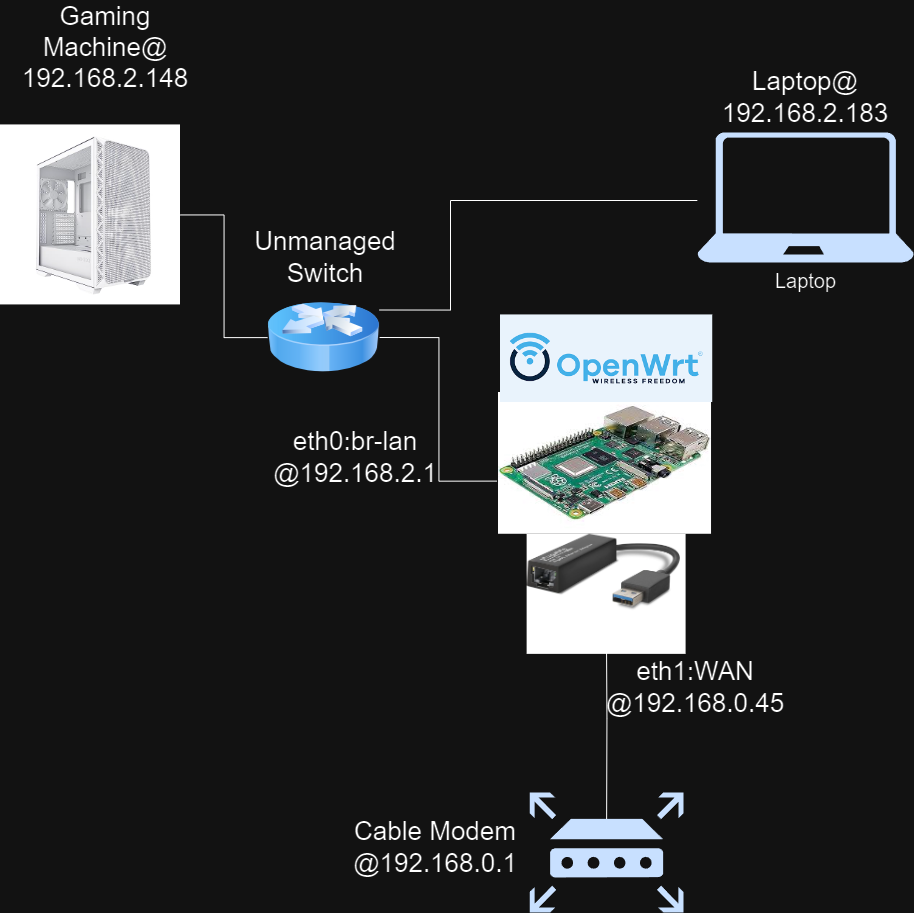
For this tutorial, we'll be using the OpenWrt distribution, which provides a user-friendly web interface for configuring your router. You can download the latest version of OpenWrt from the official website and follow the installation instructions.
- Install the necessary dependencies: `sudo apt-get install libnl-3-dev libnl-genl-3-dev libcap-dev git build-essential`
- Download the OpenWrt installer: `wget https://downloads.openwrt.org/snapshots/targets/bcm27xx/bcm2710/openwrt-snapshot-bcm27xx-bcm2710.img`
- Flash the OpenWrt image to your Raspberry Pi: `sudo dd if=openwrt-snapshot-bcm27xx-bcm2710.img of=/dev/mmcblk0 bs=1M`
Step 3: Configure Your Router
Once OpenWrt is installed, you'll need to configure your router to share your internet connection. You can access the web interface by navigating to `http://192.168.1.1` in your web browser.
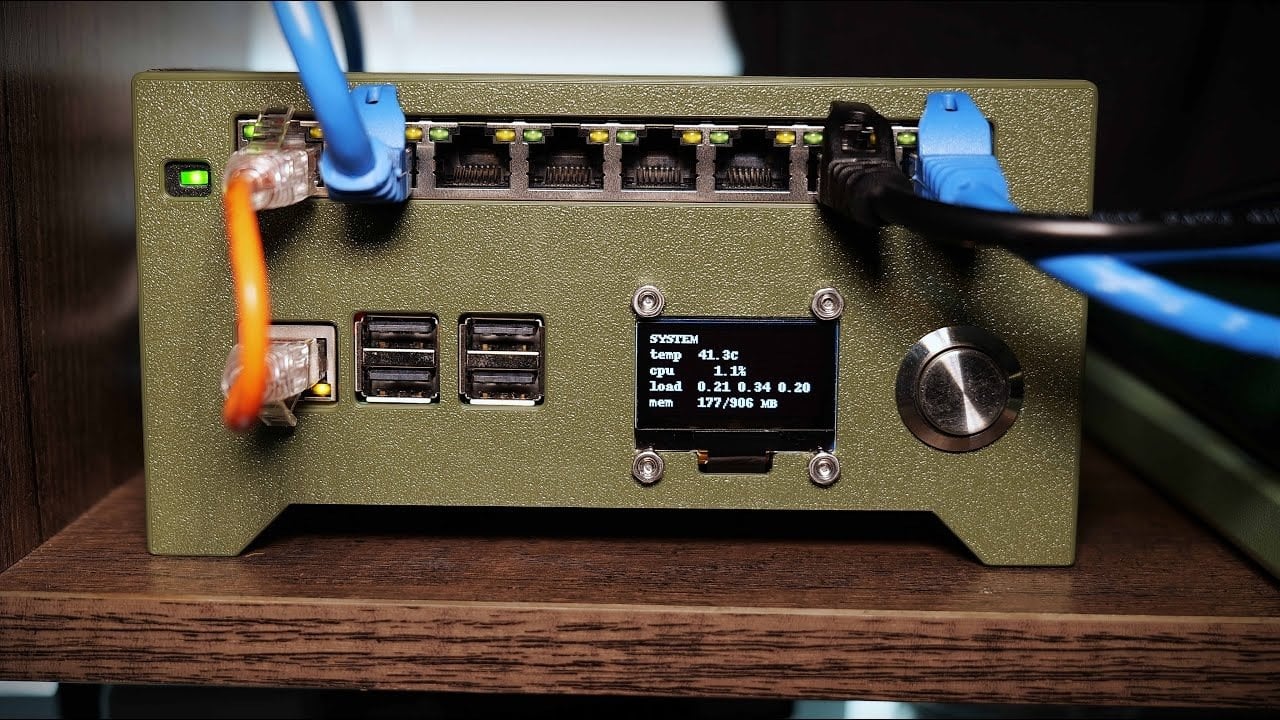
- Configure your network settings: Go to this guide for detailed instructions.
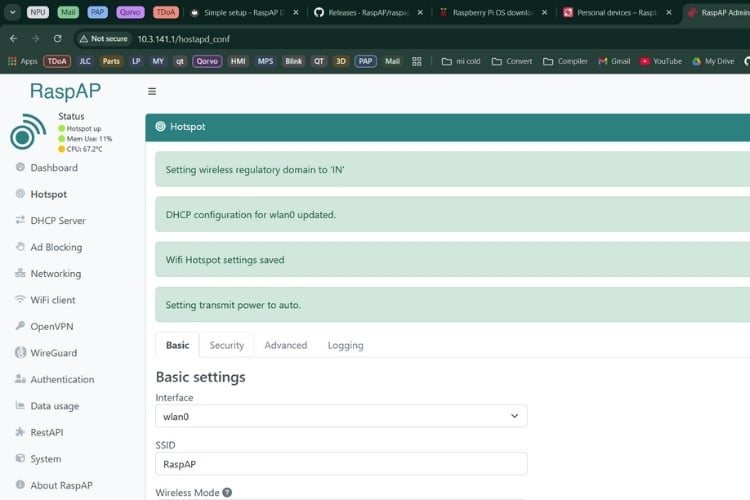
- Enable the Wi-Fi interface: Go to this guide for detailed instructions.
- Set up the firewall rules: Go to this guide for detailed instructions.
Step 4: Test Your Router
After configuring your router, it's essential to test it to ensure that your internet connection is being shared correctly. You can use tools like `ping` and `traceroute` to test the connectivity to your router and the internet.
Conclusion
Configuring a Raspberry Pi as a custom router is a fun and rewarding DIY project that offers unparalleled flexibility and customization options. By following this step-by-step guide, you can create a powerful router that meets your specific needs and provides advanced features like VPN connectivity and ad-blocking. Remember to stay informed and continue exploring the capabilities of your OpenWrt router.
Additional Tips and Resources
Want to learn more about customizing your router? Check out these resources:
By following this guide and exploring the resources provided, you'll be well on your way to creating a powerful custom router using your Raspberry Pi.