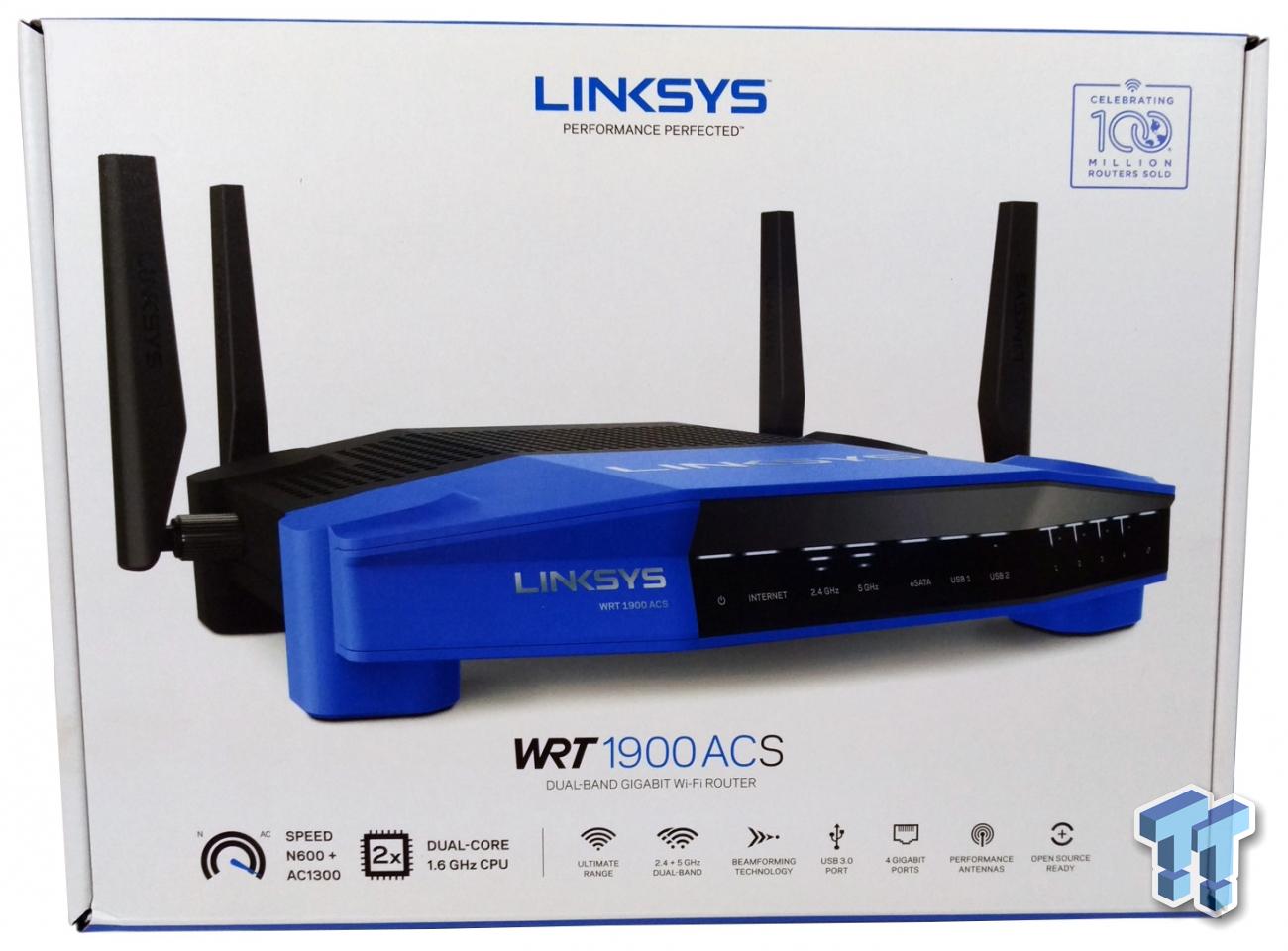
Linksys Smart Router Configuration: A Step-by-Step Guide
Are you struggling to configure your Linksys Smart Wi-Fi router? Look no further! In this comprehensive guide, we will walk you through the process of setting up your Linksys Smart Wi-Fi router using the Smart Setup Wizard. By following these steps, you'll be able to easily configure your router and enjoy a smooth online experience.
Setting Up Your Linksys Smart Wi-Fi Router Using the Smart Setup Wizard
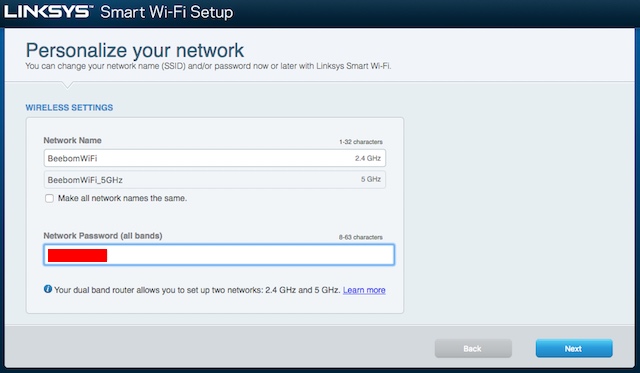
The Smart Setup Wizard is a user-friendly interface that guides you through the configuration process. To access the Smart Setup Wizard, follow these steps:
- If your router came with a Setup CD, insert it into your computer to start the setup. If you don't have the CD, or can't find it, you can download the Linksys Smart Wi-Fi Router Setup software from support.linksys.com. If your router did not come with a Setup CD, open a web browser and enter www.linksyssmartwifi.com in the address bar. The Setup instructions will appear in the browser window.
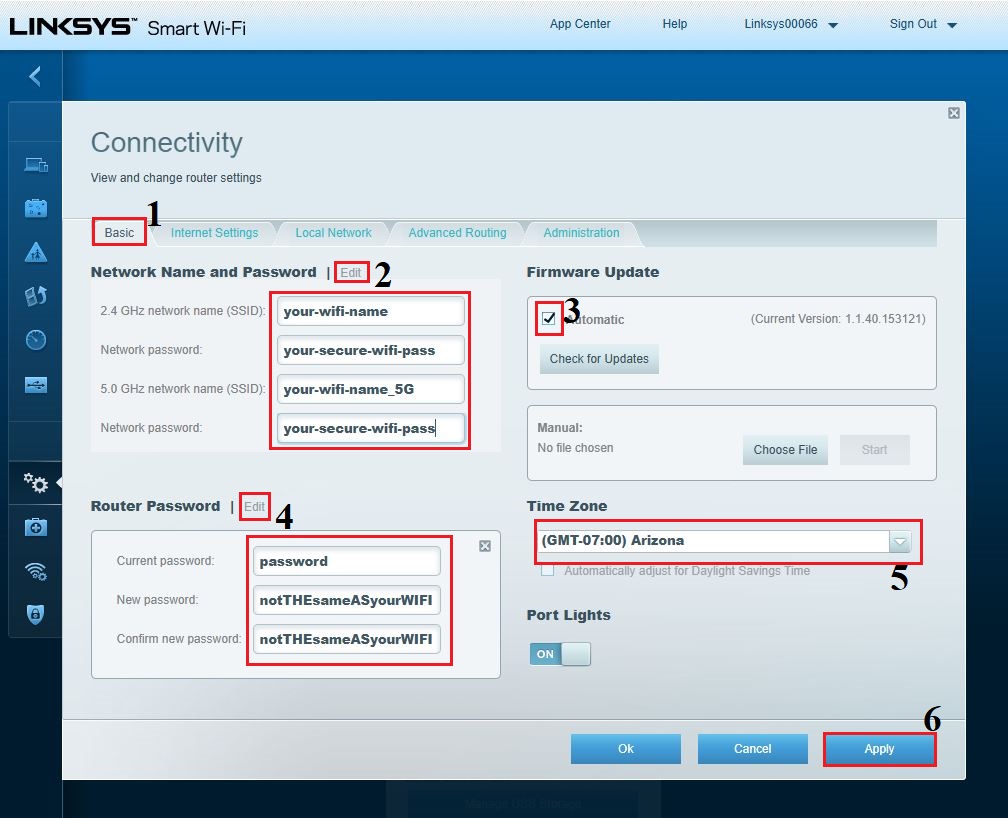
- Once you've accessed the Smart Setup Wizard, follow the on-screen instructions to set up your router. This includes selecting your language, setting your time zone, and configuring your network settings.
- The Smart Setup Wizard will also guide you through the process of creating a Linksys Smart Wi-Fi account. This account will allow you to access your home network from anywhere, at any time, and includes features such as easy guest access, parental controls, and apps that make home networking easier and fun.
Manual Configuration of Your Linksys Smart Wi-Fi Router
If you prefer to manually set up your router and bypass the Smart Setup Wizard, you can do so by clicking on the Manual Configuration link at the bottom of the Setup Wizard. Keep in mind that manual configuration can be a more complex process and may require some technical expertise.
Accessing Your Linksys Smart Wi-Fi Router from Any Computer
Once you've set up your Linksys Smart Wi-Fi router, you can access it from any computer with an internet connection using the Linksys Smart Wi-Fi app. This app allows you to manage your router's settings, including configuring your network, setting up guest access, and more.
Configuring Your Internet Settings
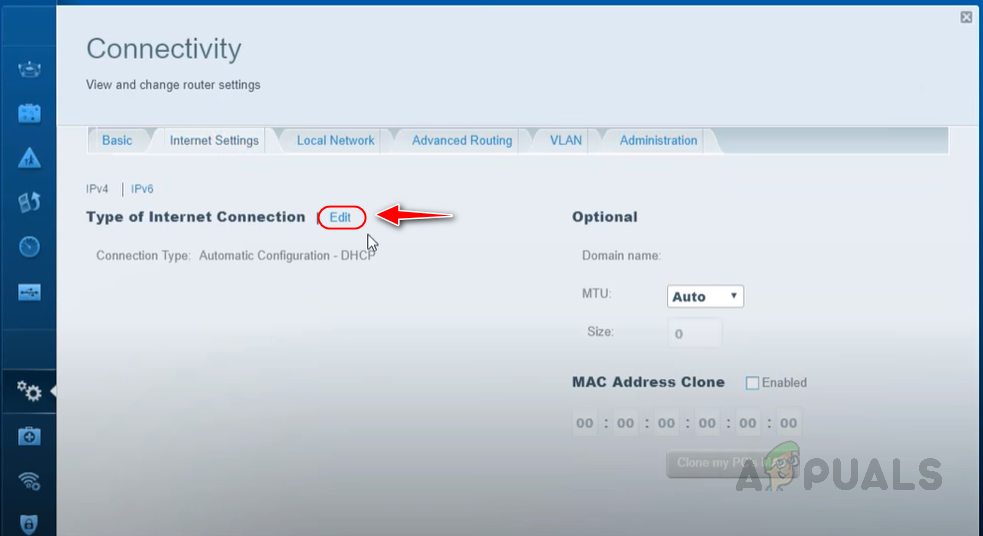
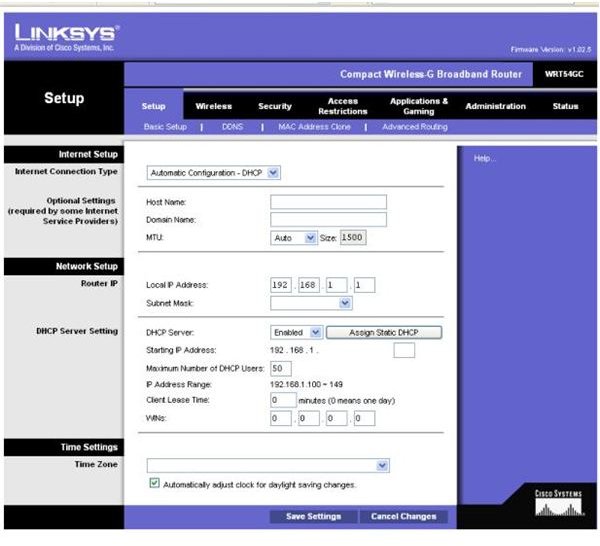
To configure your internet settings on your Linksys Smart Wi-Fi router, follow these steps:
- Select Automatic Configuration from the drop-down menu.
- Enter your username and password as provided by your internet service provider.
- Click Apply to save your changes.
Setting Up Single Port Forwarding
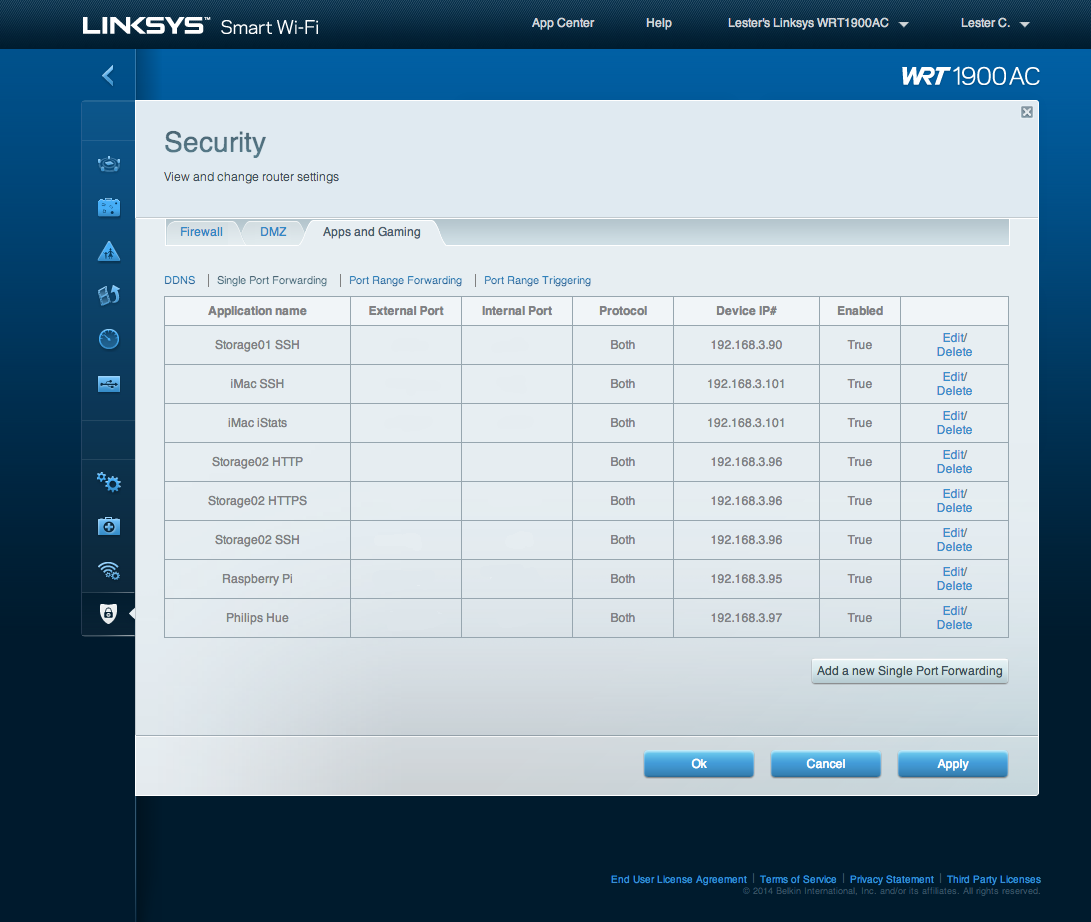
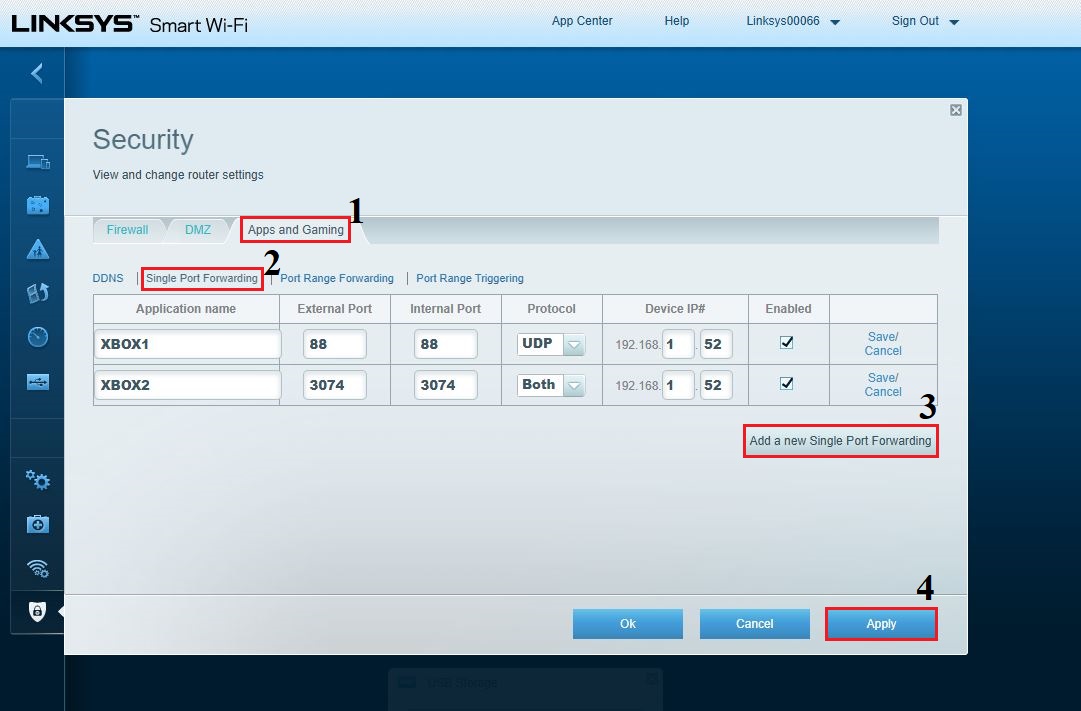
Single Port Forwarding allows you to configure public services on your network, including web servers, FTP, and online gaming. To set up Single Port Forwarding, follow these steps:
- Log in to your router's web-based interface using the Linksys Smart Wi-Fi app or a web browser.
- Navigate to the Advanced Settings section.
- Click on the Single Port Forwarding tab.
- Select the service you want to forward (e.g. HTTP, FTP, etc.).
- Enter the external port number and internal IP address.
- Click Apply to save your changes.
Conclusion
Configuring your Linksys Smart Wi-Fi router using the Smart Setup Wizard is a straightforward process that can be completed in a few minutes. By following the steps outlined in this guide, you'll be able to set up your router and enjoy a smooth online experience. Remember to also configure your internet settings and set up Single Port Forwarding to get the most out of your Linksys Smart Wi-Fi router.
Additional Resources
If you're having trouble with your Linksys Smart Wi-Fi router or need additional assistance, be sure to check out the following resources:
- Linksys Support Website: https://support.linksys.com
- Linksys Smart Wi-Fi App: available for download on the App Store or Google Play
- Linksys Community Forum: a community-driven forum for discussing Linksys products and getting help from other users