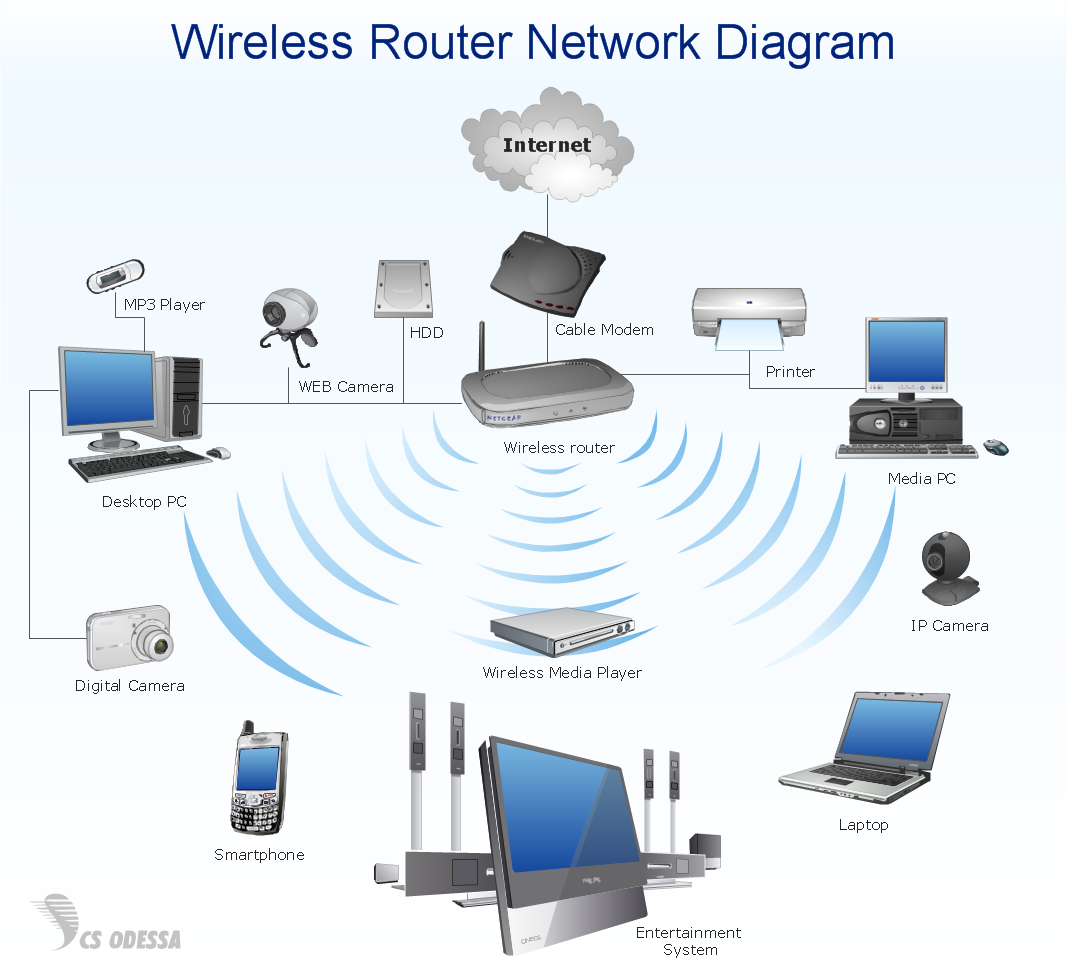
Network Configuration for Wireless Router Setup: A Comprehensive Guide
Your wireless router is the backbone of your home network, and configuring it properly is crucial for a smooth and secure online experience. In this article, we'll take you through the process of setting up and configuring your wireless router, including the essential network configuration steps.
Why is Network Configuration Important?
Network configuration is essential for setting up a wireless network, and it's not just about connecting devices to the internet. Proper configuration ensures that your network is secure, stable, and efficient. It also helps you manage your network settings, including Wi-Fi settings, security options, and advanced configuration features.
Step 1: Connect to the Router
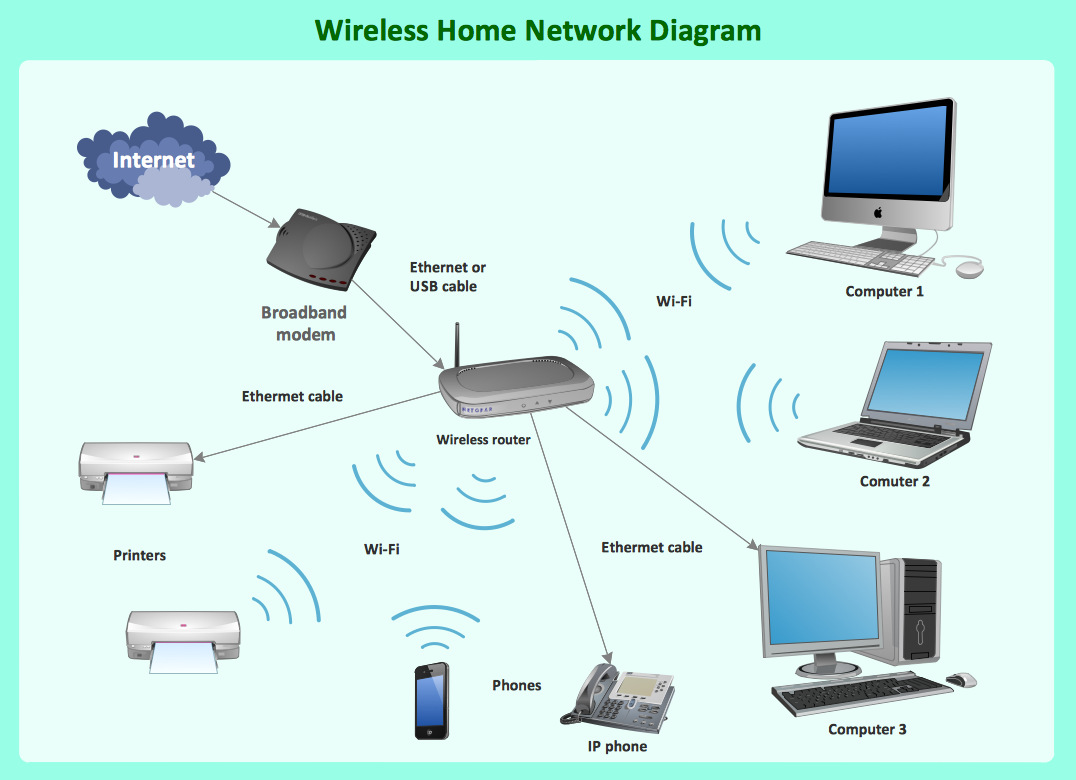
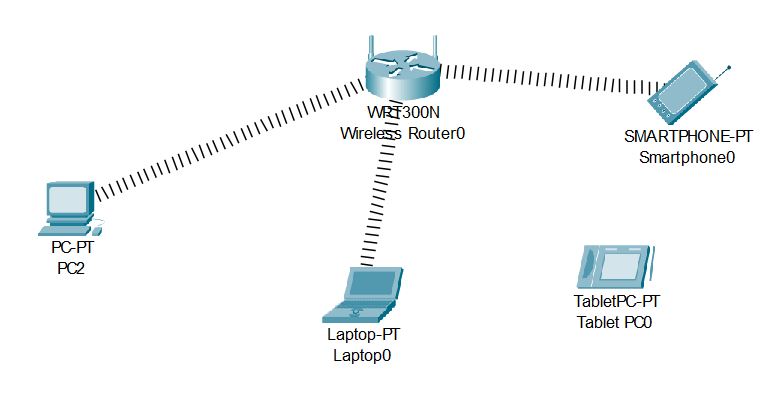
To start configuring your wireless router, you'll need to connect to it using a computer or mobile device. You can connect via an Ethernet cable or through the router's Wi-Fi network. Once connected, you can access the router's configuration panel and start making changes.
Step 2: Access the Router's Configuration Panel
To access the router's configuration panel, you'll typically need to enter the router's IP address into your web browser. The default IP address for most routers is 192.168.1.1, but this may vary depending on your router model and configuration.
Step 3: Configure Wi-Fi Settings
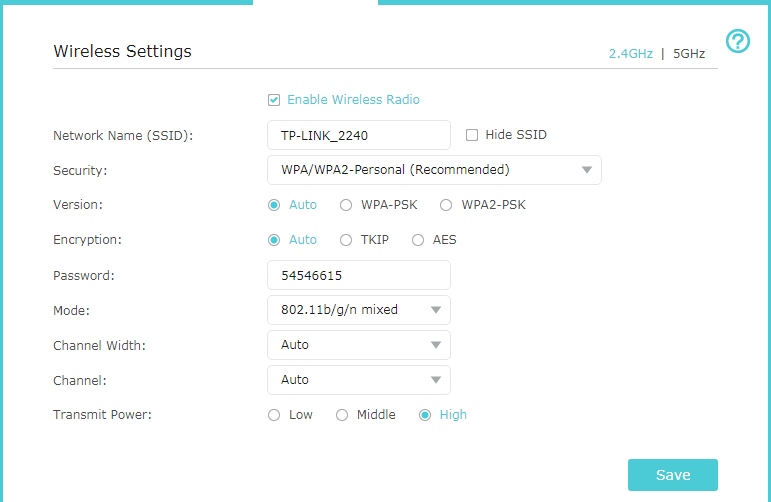
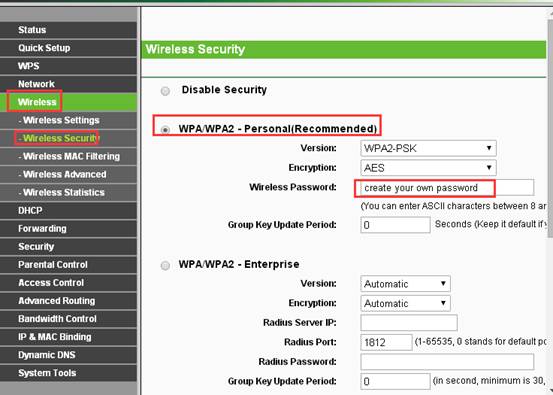
Once you're in the router's configuration panel, you can start configuring your Wi-Fi settings, including the network name (SSID), password, and security options. You may also need to configure advanced Wi-Fi settings, such as channel width, Wi-Fi mode, and QoS (Quality of Service).
Step 4: Configure Network Security
Network security is a critical aspect of wireless router configuration. You'll need to configure security options, such as WPA2 encryption, firewall settings, and access controls. This will help protect your network from unauthorized access and malicious activity.
Step 5: Configure Advanced Network Features
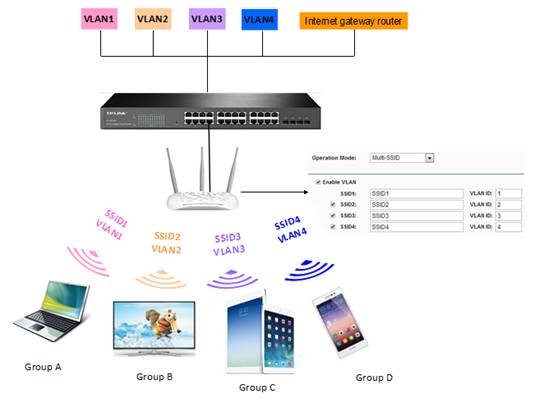
Depending on your router model and configuration, you may have access to advanced network features, such as VPN support, Quality of Service (QoS), and traffic management. These features can help optimize your network performance and ensure that critical applications receive priority.
Step 6: Save and Apply Changes
Once you've completed configuring your wireless router, be sure to save and apply your changes. This will ensure that your changes take effect and that your network is updated accordingly.
Network Configuration for Wireless Router Setup: Key Considerations
- Router Model and Configuration**: Different router models and configurations may have varying network configuration options and settings.
- Security**: Network security is a critical aspect of wireless router configuration, and you should prioritize securing your network with strong passwords, WPA2 encryption, and firewall settings.
- Advanced Features**: Depending on your router model and configuration, you may have access to advanced network features, such as VPN support, QoS, and traffic management.
- Network Performance**: Configuring your wireless router properly can help optimize your network performance and ensure that critical applications receive priority.
Conclusion
Configuring your wireless router is a critical step in setting up a home network, and it's not just about connecting devices to the internet. Proper configuration ensures that your network is secure, stable, and efficient. By following the steps outlined in this article, you'll be able to configure your wireless router and take control of your home network.
Remember to prioritize network security, configure advanced features as needed, and optimize your network performance for a smooth and secure online experience.





![[Wireless Router] How do I enter my ASUS router's setting page using ...](https://www.conceptdraw.com/How-To-Guide/picture/Two-router-home-network-diagram.png "[Wireless Router] How do I enter my ASUS router's setting page using ...")
![[Wireless Router] How to set up ASUS wireless router to access WebGUI ...](https://img.freepik.com/premium-photo/network-engineer-setting-up-wireless-access-point-router-home-concept-setting-up-wireless-access-point-home-networking-router-configuration-wifi-installation-network-troubleshooting_918839-86668.jpg "[Wireless Router] How to set up ASUS wireless router to access WebGUI ...")