Nighthawk R7000 Firmware Update: A Comprehensive Guide
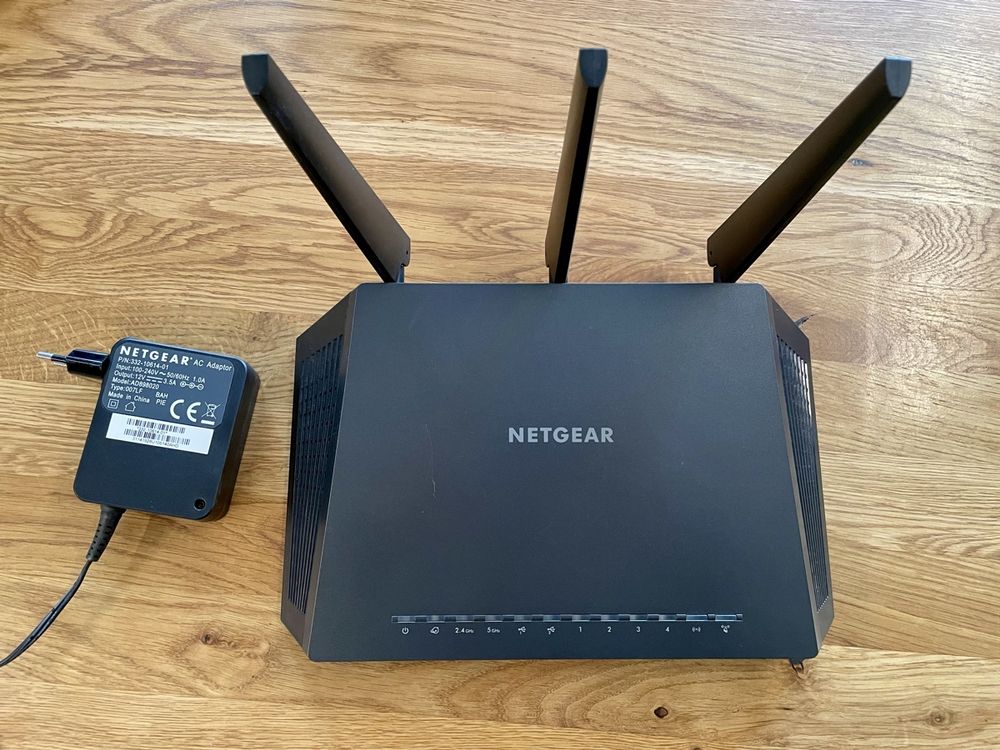
The Nighthawk R7000 is a popular and reliable wireless router that offers high-speed performance, robust security features, and a user-friendly interface. However, like any other router, it requires periodic firmware updates to ensure optimal performance, fix security vulnerabilities, and add new features. In this article, we will guide you through the process of updating the firmware on your Nighthawk R7000 router.
Why Update Firmware on Your Nighthawk R7000 Router?
Firmware updates are essential for maintaining the health and security of your router. NETGEAR regularly releases new firmware versions to address security vulnerabilities, improve performance, and add new features to the Nighthawk R7000 router. Failure to update the firmware can leave your router exposed to security threats, resulting in slow performance, dropped connections, and potential data breaches.
Method 1: Update Firmware using the Nighthawk App
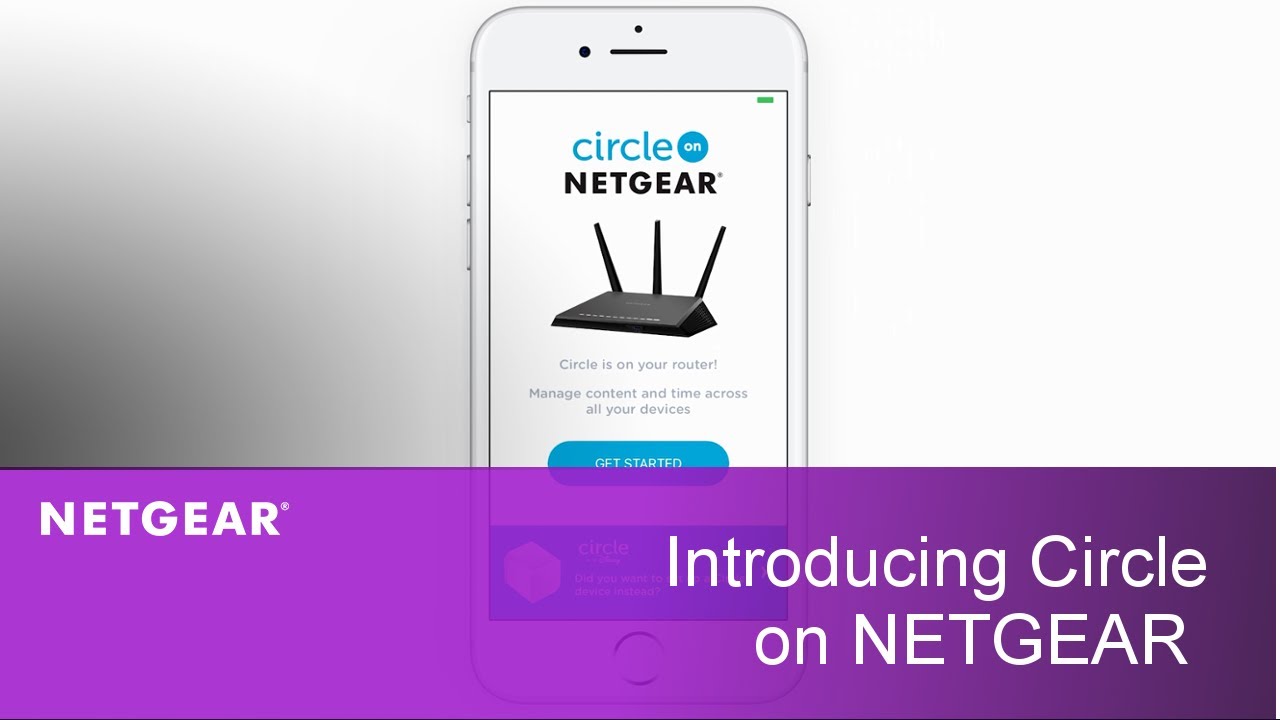
One of the easiest ways to update the firmware on your Nighthawk R7000 router is using the Nighthawk app. The app allows you to quickly scan for firmware updates and install them with a few clicks. Here's how to do it:
- Download and install the Nighthawk app on your mobile device.
- Launch the app and sign in with your NETGEAR account credentials.
- Tap on the "Settings" icon and select "Router Settings."
- Scroll down to the "Firmware Update" section and tap on "Check for Updates."
- Wait for the app to scan for firmware updates and follow the prompts to install the update.
Method 2: Update Firmware using a Web Browser
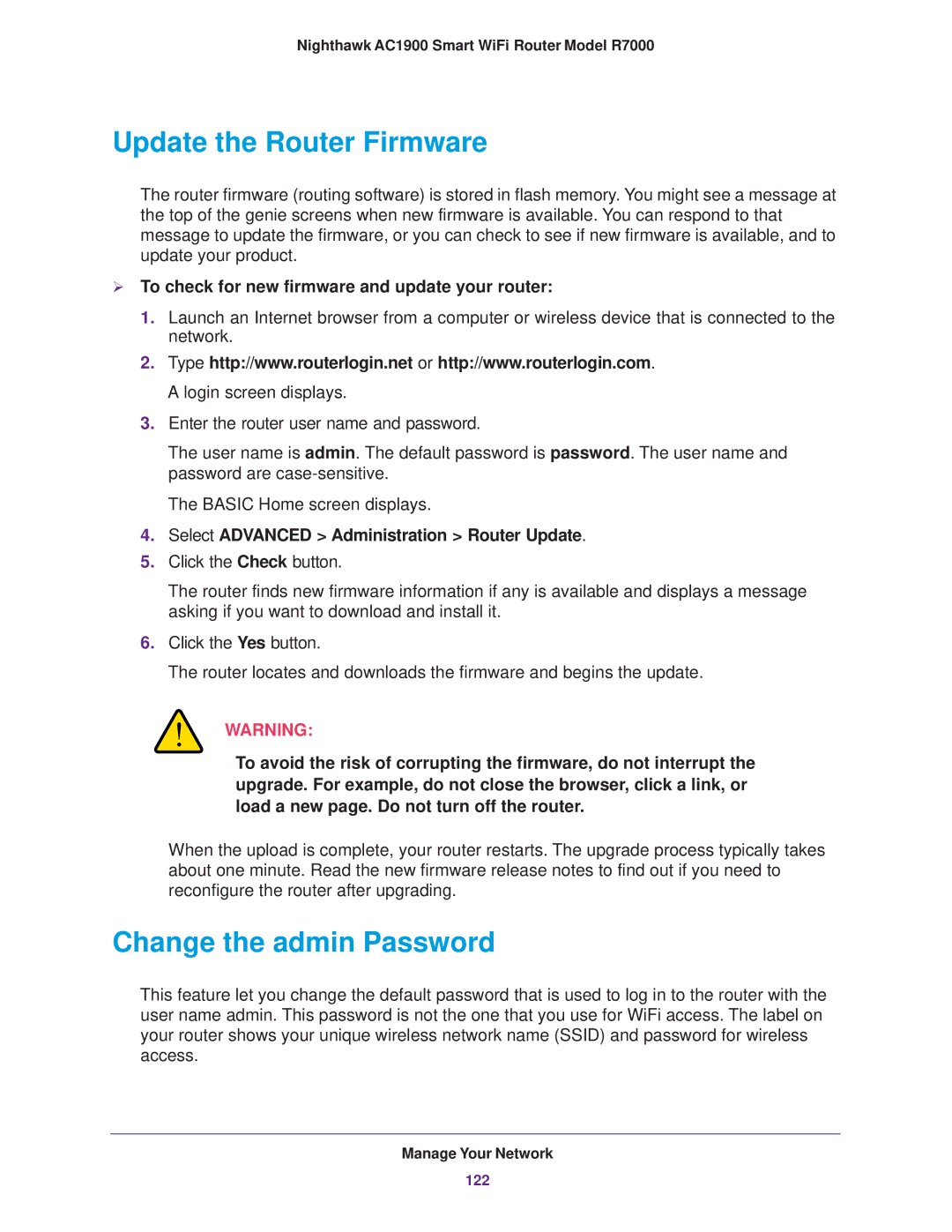
Another way to update the firmware on your Nighthawk R7000 router is using a web browser. Here's how to do it:
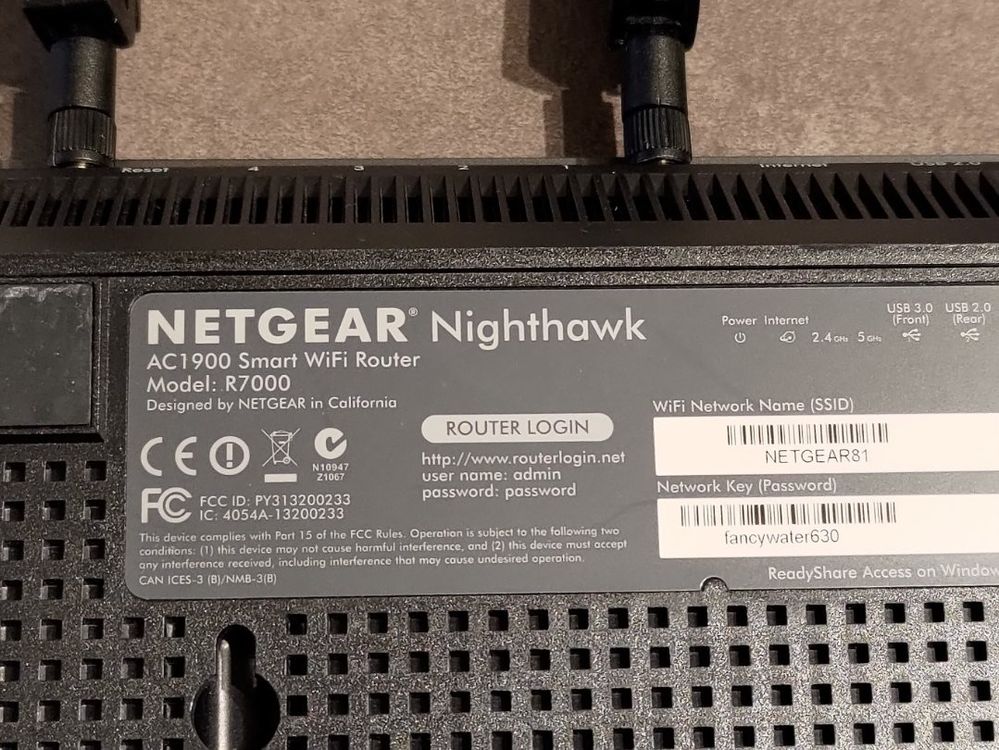
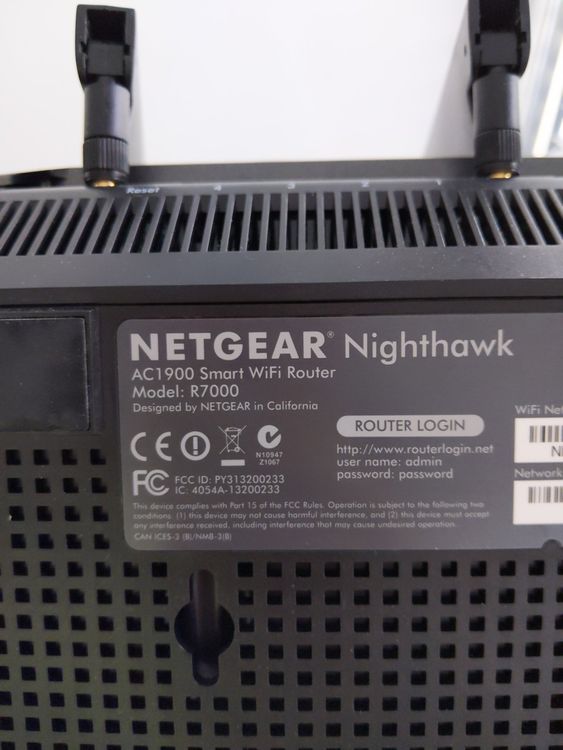
- Open a web browser on your desktop or laptop and type the IP address of your router (192.168.1.1).
- Login to the router using your admin credentials.
- Click on the "Advanced" tab and select "Firmware Update."
- Click on "Check for Updates" and wait for the router to scan for firmware updates.
- Follow the prompts to install the update.
Troubleshooting Common Issues
Occasionally, you may encounter issues during the firmware update process. Here are some common issues and their solutions:

- If you encounter an error message saying "No new firmware is available at this time," try restarting your router and then check for updates again.
- If you encounter an error message saying "Firmware update failed," try restarting your router and then try updating the firmware again.
- If you encounter issues with wireless connectivity after updating the firmware, try restarting your router and then resetting your wireless settings.
Conclusion
Updating the firmware on your Nighthawk R7000 router is essential for maintaining its performance, security, and features. In this article, we have provided a comprehensive guide on how to update the firmware using the Nighthawk app and a web browser. By following these steps, you can ensure that your router remains secure and up-to-date with the latest features and improvements.
Additional Tips and Resources
For more information on updating the firmware on your Nighthawk R7000 router, visit the NETGEAR support website or consult the user manual. Additionally, you can join the NETGEAR community forum to connect with other users and get help with any issues you may encounter.
Commonly Asked Questions
Q: Is the R7000 router end-of-life for firmware updates?
A: According to NETGEAR, the R7000 router is not end-of-life for firmware updates. However, it's essential to check for updates regularly to ensure you have the latest security patches and features.
Q: How do I update the firmware on my R7000 router?
A: You can update the firmware on your R7000 router using the Nighthawk app or a web browser. Follow the steps outlined in this article to ensure a smooth update process.